
For a game in desktop Chrome, close tabs you don't need, check Energy Saver and start with graphics acceleration enabled. A separate PC game may benefit more from closing the browser than from changing its web graphics settings.
After each change, replay the same part of the game. You'll have a clearer idea of its effect than if you change several settings together.
Decide whether the game actually runs in Chrome
A browser game uses Chrome to run its page and draw its graphics. A cloud gaming service also uses the browser for the video stream and your controls. Both are different from a separate Windows game with Chrome open beside it.
Close videos and streams you don't need, and stop unneeded downloads. Keep the game and any essential pages. Save forms or documents before closing their tabs.
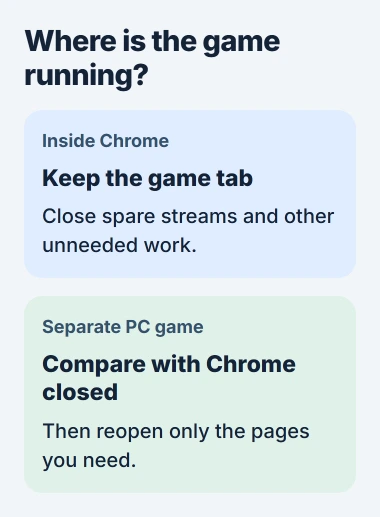
For a separate PC game, try a session with Chrome fully closed. If that improves play, reduce what you leave open when you bring the browser back. Changing Chrome's graphics settings won't change how that separate game draws its graphics.
For a game in Chrome, continue with the browser controls. Google's own steps say to update Chrome and close unused tabs, which gives you a starting point without extra optimization software.
Update Chrome before comparing settings
Open the three-dot menu, then Help > About Google Chrome. Let it check for an update. Select Relaunch if offered, after saving anything that shouldn't be interrupted.
The Chrome update page explains the final restart. Leaving your windows open for days can leave a downloaded update waiting to finish.
On a Chromebook, Chrome updates with ChromeOS. Check Settings > About ChromeOS instead. You don't need a separate Chrome installer for a Chromebook.
Try playing again after relaunching, before you adjust Performance. Keep the same game, scene and display setup for the comparisons that follow.
Keep Memory Saver on, with an exception when needed
Open Settings > Performance and enable Memory Saver. Start with Balanced. This lets Chrome release memory from tabs you aren't using while keeping the active game tab running.
The three Memory Saver modes change how soon Chrome deactivates tabs you aren't using. Maximum acts sooner; it isn't automatically best for gaming.
If you need your game to stay active when you switch tabs, add its site under Always keep these sites active. Use Add current sites, select the game from the open sites and confirm Add.
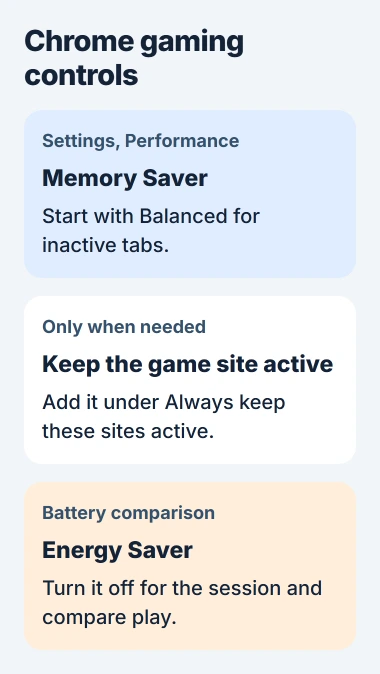
Adding the site keeps Chrome from deactivating it. The site will keep using resources, so don't add every open page. Without that exception, returning to a deactivated tab can reload its page.
Active audio or video can already keep a tab from being deactivated. Switch away and return to the game to see how it behaves; different pages won't always follow the same timing.
Stop Energy Saver from limiting the session
In Settings > Performance, check Energy Saver. On a laptop running on battery, turn it off for this test if smoother game animation matters more to you than longer battery life.
The performance controls put Energy Saver next to Memory Saver, but they do different jobs. Energy Saver cuts some activity to save power, which can affect games and video.
When its toolbar control is visible, Energy Saver > Turn off now disables it for the current session. Plugging the laptop in also prevents this Chrome feature from activating.
The developer explanation covers changes to how often Chrome redraws the screen and runs animations. That can matter even when a page isn't running out of memory.
Replay the game after changing it. If nothing improves, battery saving may be the better choice for your usual use. A desktop without a battery may not show this option.
Check graphics acceleration for a browser game
On Windows or Mac, open Settings > System and look for Use graphics acceleration when available. Keep it enabled as the starting point for graphics-heavy browser work, then restart Chrome if the change requests it.
Graphics acceleration lets Chrome use your computer's graphics hardware when it's supported.
WebGL is the browser technology behind some interactive graphics. Support depends on your computer, driver and browser. Changing this setting won't let hardware run a game whose requirements it doesn't meet.
If the game shows a blank screen or crashes, note the exact error and check its requirements. Try the setting both on and off for that problem instead of assuming acceleration should always be disabled.
I'd avoid changing several experimental flags together. Without a clear before-and-after result, it's difficult to know which change to keep or undo.
Remove extra work, then follow a specific failure
Open Extensions > Manage Extensions and turn off extensions you don't need for the game. The extension controls let you disable one without immediately removing it.
Use More tools > Task Manager to find a busy tab or extension. Sort by memory to see which tasks use the most, and close one you don't need. Ending a task can discard its unsaved work.
The Chrome task guide explains why several processes are normal. Focus on whether the game responds smoothly, instead of trying to reach a particular process count.
For an Aw, Snap! page, use the Chrome crash error steps instead of tuning settings. If only one game still fails, send its support team your Chrome version, the error and which change affected the problem.
The Short Version
Update Chrome and close unneeded tabs. Try Balanced Memory Saver, keep a game site active when needed and compare with Energy Saver off. Check acceleration for browser games, or close Chrome for a separate PC game.
Checked November 5, 2026.

Isaac Smith is the founder and editor of PC Glance, a website that covers computers, laptops, and technology. He is a tech enthusiast and a computer geek who loves to share his insights and help his readers make smart choices when buying tech gadgets or laptops. He is always curious and updated about the latest tech trends.