
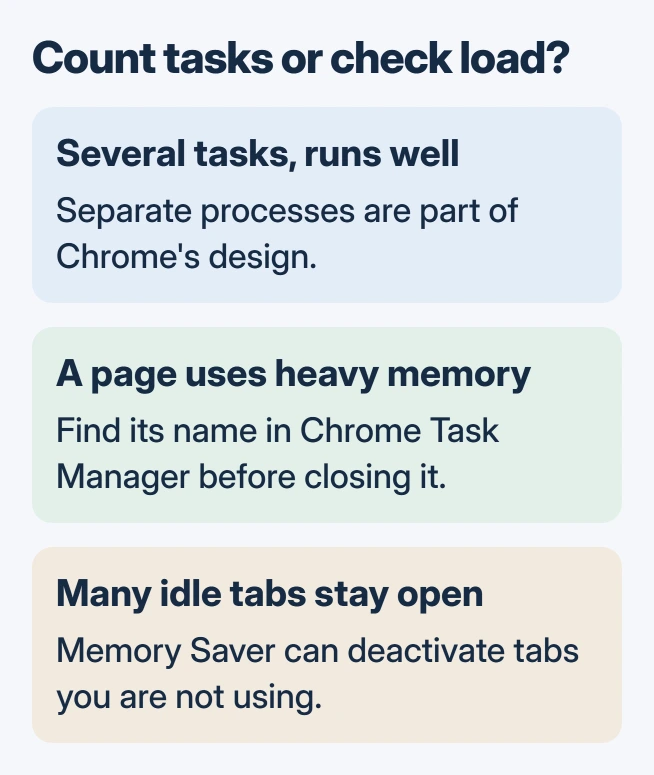
Google Chrome runs many tasks because browser controls, web pages, extensions and graphics use separate processes. One window can produce several Task Manager entries. Their number alone does not show a fault.
When the computer is slow, inspect Chrome's own Task Manager to see which page or extension is using resources. Closing the responsible item is more useful than trying to make every Chrome entry disappear.
Why the task count exceeds the tab count
Chromium's process architecture separates the browser interface from the processes that render web content. This limits how far a failed page component can affect the rest of the browser.
Google adds another reason in its site protection design: content from different sites can run separately even inside one tab. An embedded page can therefore add a process of its own.
Status: Chromium process design and Google's Chrome performance controls reviewed November 1, 2026. No browser session was opened, closed or measured.
Extensions and graphics work contribute too. There is no useful rule that five tabs must mean five processes. Leave Chrome's site protection enabled; reducing a count by weakening that protection does not fix a busy website.
Identify the task using memory
In Chrome, open the three-dot menu and choose More tools > Task Manager. Select the Memory column to sort the tasks by their usage. Read the task names to distinguish a page from an extension or background page.
Google says to use this list in its Chrome speed instructions. A busy item that you no longer need is a candidate to close, rather than every process with Chrome in its name.
Save any work in the affected page first. Prefer closing its ordinary tab when it responds. If it does not, select the identified task and use End Process; unsaved work in that task will be lost.
Then check whether the slowdown improves. If the entire browser is unresponsive, use the Chrome freezing checks for that broader failure instead of repeatedly ending individual entries.
Reduce work from unused tabs and extensions
Close pages that are no longer needed. For an extension identified in the task list, open More > Extensions > Manage Extensions and turn it off. Repeat the activity that was slow to see whether removing that workload changes the result.
An extension that is required for work should be discussed with the administrator before removal. A managed browser can have restrictions that a personal Chrome installation does not.
For tabs that should remain available, open Settings > Performance and enable Memory Saver. Google states that this deactivates unused tabs to release memory; opening an inactive tab loads it again.
The performance settings guide offers Moderate, Balanced and Maximum levels. It also provides Always keep these sites active for pages that need an exception.
Memory Saver manages inactive tabs. It does not promise one browser process or a particular memory total, and a busy active page still needs its own check.
Follow a repeatable failure instead of a process target
Our recommendation is to note which task grows, what the page is doing and whether closing it restores responsiveness. That information is useful to the website or extension developer when a particular action repeatedly causes trouble.
If Chrome shows Aw, Snap!, record the error code and follow the matching Chrome crash checks. An explicit error gives more direction than the total number of processes.
For a persistent slowdown without one identifiable task, send Chrome Help the browser version and repeatable steps. On a work computer, give those details to IT along with the task names.
The Short Version
Multiple Chrome processes are part of its design. Use Chrome Task Manager to identify heavy work, close unused tabs, review extensions and enable Memory Saver when inactive tabs are consuming memory.

Isaac Smith is the founder and editor of PC Glance, a website that covers computers, laptops, and technology. He is a tech enthusiast and a computer geek who loves to share his insights and help his readers make smart choices when buying tech gadgets or laptops. He is always curious and updated about the latest tech trends.