
A hard drive being scrapped needs its data dealt with, not just a broken connector. For sensitive files or a drive that cannot be erased, arrange professional destruction. Specify whether it is a magnetic hard disk or an SSD.
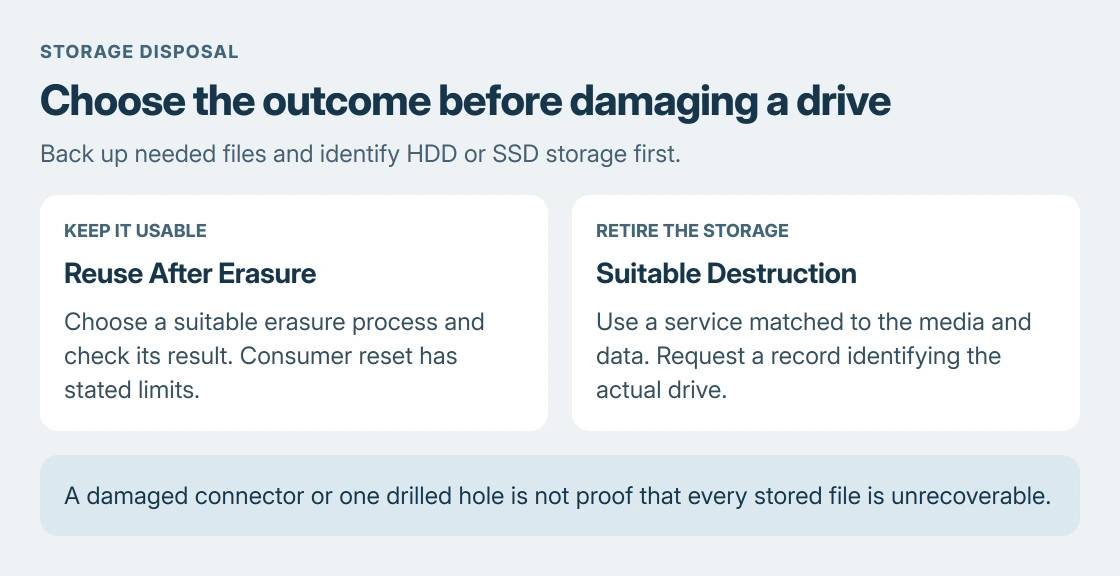
Drilling one hole is not a reliable complete-erasure method. Before committing to destruction, copy anything still needed and check that the drive being retired is the correct one.
Decide whether the drive needs to remain usable
Destruction is appropriate when the storage will not be reused. If the computer is being sold with a working drive, a suitable erasure process preserves that use instead. These are different outcomes, so choose before damaging hardware.
Microsoft documents a consumer clean-data option in Reset your PC. The laptop-selling preparation guide covers the wider handover, including account removal.
Status: NIST SP 800-88 Revision 2 and Microsoft's consumer reset limits reviewed 24 October 2026. No drive was erased, opened, damaged or submitted to a disposal service.
Microsoft states that the reset feature's data erasure does not meet government and industry erasure standards. For work records or contractual requirements, ask the organization's IT staff which disposal process is approved.
Make the final copy before handing over the device
Microsoft says to back up important files before a reset. The same preparation is essential before destruction, since the intended result is storage that cannot be recovered or used again.
Open the copied files from another device or drive before retiring the original. A backup still sitting on the drive destined for destruction will go with it.
Keep the original securely if there is still a question about needed data. A broken computer can contain a readable drive. If files are already missing, seek recovery advice before agreeing to disposal.
Identify an HDD or SSD from its model
Use the drive's model label or the computer manufacturer's storage specification. A magnetic HDD stores data on platters; an SSD uses memory chips. The enclosure alone does not establish which storage it contains.
Give that model and media type to the disposal provider. NIST's current sanitization guidance says the method must fit the media; it also explains that degaussing does not sanitize solid-state storage.
An ordinary magnet is therefore not an SSD eraser. A damaged port or circuit board can stop a drive working while leaving its data-bearing parts intact.
If the storage is soldered inside a laptop, ask a qualified repair or disposal service to identify it. Removing a separate battery or opening a sealed machine is not a universal prerequisite the owner should improvise.
Ask what the destruction service will actually do
Describe the data's sensitivity and ask which process fits that exact media type. NIST warns that partial damage, including a drilled hole, can leave recoverable material. A drive that no longer mounts is not proof of destruction.
Ask how the service verifies completion and how it keeps the drive secure before processing. For records that require it, request a destruction record tied to the drive's model and serial number, with the method and date.
Do not assume every shredder or fragment size meets every requirement. NIST limits when shredding or pulverizing is suitable. Have the provider explain its applicable standard and suitability for the data involved.
Keep your copy of the handover record. If the provider cannot explain its process or identify the media it received, keep the drive until a suitable service is arranged.
Finish with the correct recycling route
The US EPA directs owners toward electronics recycling options, including manufacturer and retailer programs. Ask whether data destruction is included; accepting electronics does not by itself describe an erasure service.
For a functioning computer, check the selling and trade-in options before choosing disposal. Confirm whether an offer requires the original drive, since removing or destroying it changes the item being offered.
If no acceptable destruction service is available yet, securely retain the drive. A local recycler, the computer manufacturer or the organization's IT department can help identify the next appropriate route.
The Short Version
Back up, identify the storage and choose reuse or destruction. For sensitive or unerasable media, use a suitable service and retain its record. A broken connector or drilled hole is insufficient proof that data is gone.

Isaac Smith is the founder and editor of PC Glance, a website that covers computers, laptops, and technology. He is a tech enthusiast and a computer geek who loves to share his insights and help his readers make smart choices when buying tech gadgets or laptops. He is always curious and updated about the latest tech trends.