

A gaming PC build starts with compatible parts, then motherboard assembly, case installation, wiring and the first firmware screen. Pick the games and display target before buying. Keep the component manuals beside the build.
Match the parts before opening their packaging
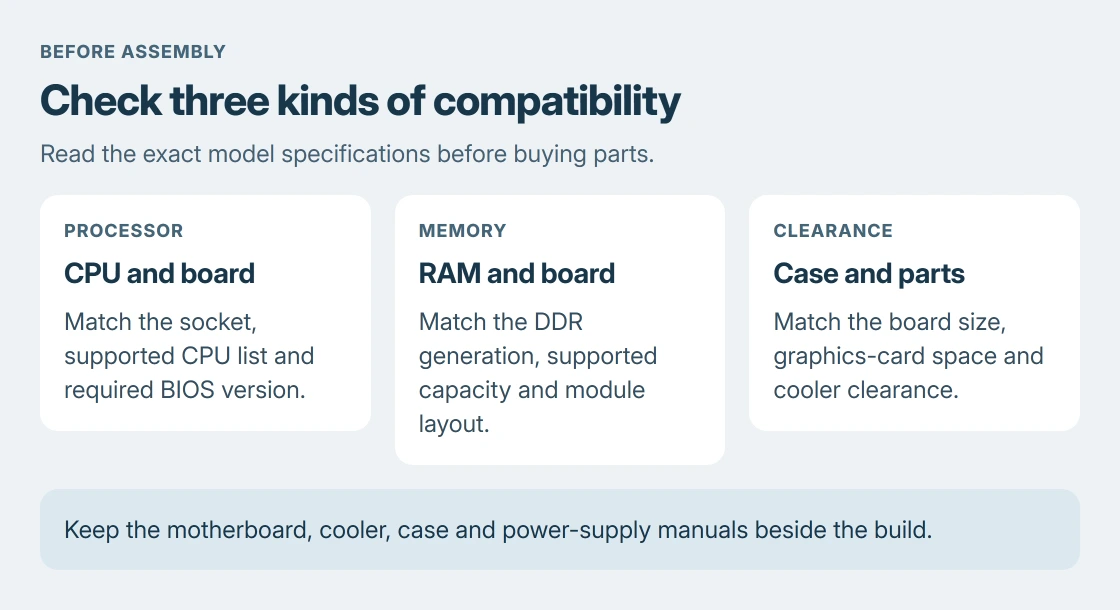
Choose the CPU and a motherboard that supports that exact processor, including the required BIOS version. Check the board's supported memory type, the case's motherboard sizes, and clearance for the graphics card and cooler.
Intel says its PC assembly guide starts with compatibility and the games' requirements. A shared brand name does not establish that two parts fit together.
Status: Desktop assembly, memory installation, power-cable compatibility and Windows media instructions checked 24 October 2026. No PC was assembled or powered on for this guide.
Include a CPU cooler, storage, a suitable power supply, display cable, keyboard, mouse and operating-system license in the list. Confirm which screws, cooler brackets and thermal materials arrive with the parts.
Set the monitor target with the gaming display purchase checks. That prevents planning an expensive graphics setup around a screen or connection that cannot show the intended mode.
Prepare the workspace and motherboard
Use a clear, well-lit, nonconductive table away from carpet. MSI's assembly checklist starts with a suitable surface and the manuals. Leave the power supply unplugged during assembly.
Place the motherboard on its cardboard box or another surface approved in its manual. Handle boards by their edges. Keep fingers away from socket contacts and component connectors.
This sequence is for a desktop assembled from separate parts. A DIY laptop follows its model's assembly instructions and uses a different chassis and component layout.
Seat the processor and install its cooler
Follow the board's socket instructions. ASUS shows separate Intel, AM5 and AM4 fitting sequences. Align the marks and notches, lower the CPU without force, then secure its retention mechanism.
Stop if the CPU does not sit flat. Install the correct cooler brackets in the order specified for that socket. Fit memory and M.2 storage first if the cooler would block their sockets.
Check for protective film and pre-applied thermal paste using the cooler's instructions. Remove the specified film. If paste is not supplied on the cooler, use its maker's application method; do not double-layer an existing application.
Attach the cooler and connect its fan to CPU_FAN. For liquid cooling, follow the cooler and board manuals for the pump and radiator-fan connections. Do not start the processor without its cooling system installed.
Fit memory and the system SSD
Use the motherboard's population diagram for the first memory slots. Open the movable retaining clips, align the module's notch and press evenly until it seats. Slot recommendations vary by board.
Kingston's desktop memory instructions explain handling modules by their edges and lining up the notch. A module that does not fit needs its type and orientation checked before further pressure.
Install an M.2 SSD using the board's specified socket, spacer and retention method. Follow its heatsink instructions, including any thermal-pad film. A SATA drive instead needs its drive mount, SATA data cable and power connection.
Mount the motherboard and graphics card
Check the case's motherboard standoffs against the board's screw holes. Remove any unnecessary standoff that would touch the board's underside. Fit a separate rear I/O shield first if the motherboard uses one.
Lower the board into place and secure it with the specified screws. Install the power supply in the case's intended orientation, leaving its fan intake clear.
Fit the graphics card into the slot recommended by the motherboard manual. Remove the matching case slot covers, seat the card, fasten its bracket and install its support if supplied.
Connect power and the case controls
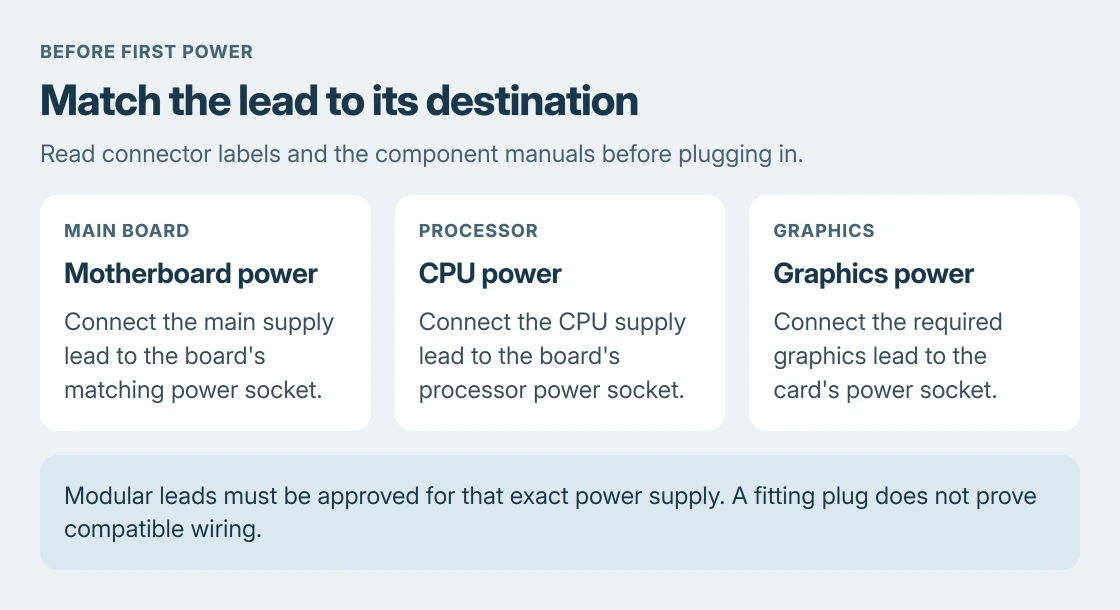
Connect the motherboard's main power input, its CPU power input and any graphics-card power inputs. Use the connector labels and manuals. A CPU power lead and a graphics power lead are different connections.
Modular wiring differences are documented by the vendor, Corsair. Use the leads supplied for that power supply or explicitly approved replacements.
Even supplies from the same brand can need different modular cables. A plug fitting into the supply does not prove that its wiring is compatible.
Connect the case power button, indicator lights, front USB and front audio using the motherboard's header diagram. Keep fan blades clear of cables and check that every required connector is fully seated.
Reach the firmware screen before installing Windows
Connect the monitor to the graphics card when the build uses one. Connect keyboard and mouse, check for loose screws, then connect mains power, switch the supply on and press the case power button.
Allow the board's documented first-start and memory-training process to finish. Use its manual's setup key to enter firmware. Confirm the processor, memory and SSD are detected and check that cooling is operating.
If there is no display, use the board's diagnostic light or code and its matching manual entry. Turn off and unplug the machine before reseating parts. Ask the board maker or a PC technician if the indicated fault remains.
Install the operating system and model-specific drivers
Microsoft documents creating a Windows installer on a blank USB drive of at least 8 GB. Creating that media erases the selected USB, so save its files elsewhere first.
Boot the new PC from the installer using the board's boot menu. Select the intended system drive carefully. An existing drive with files on it needs a separate backup before setup can delete or replace its partitions.
Install the motherboard and graphics drivers from their manufacturers, then apply Windows updates. Check activation and test ordinary use before enabling optional performance profiles. Keep the parts list and receipts for support.
The Short Version
Check compatibility, assemble with the manuals, and verify power connections before starting. Confirm the hardware in firmware, then install Windows and drivers. Stop at an unexplained fit or diagnostic error.

Isaac Smith is the founder and editor of PC Glance, a website that covers computers, laptops, and technology. He is a tech enthusiast and a computer geek who loves to share his insights and help his readers make smart choices when buying tech gadgets or laptops. He is always curious and updated about the latest tech trends.