
Raycon bone conduction headphones can reconnect to an old phone or laptop before a new device finds them. Disconnect that older connection, start pairing mode, and choose the Raycon name that matches the model.
The original RBB842 and the newer RBB843 have separate manuals. Check the model before copying button combinations, charging instructions or a reset procedure.
Match the headphones to their manual
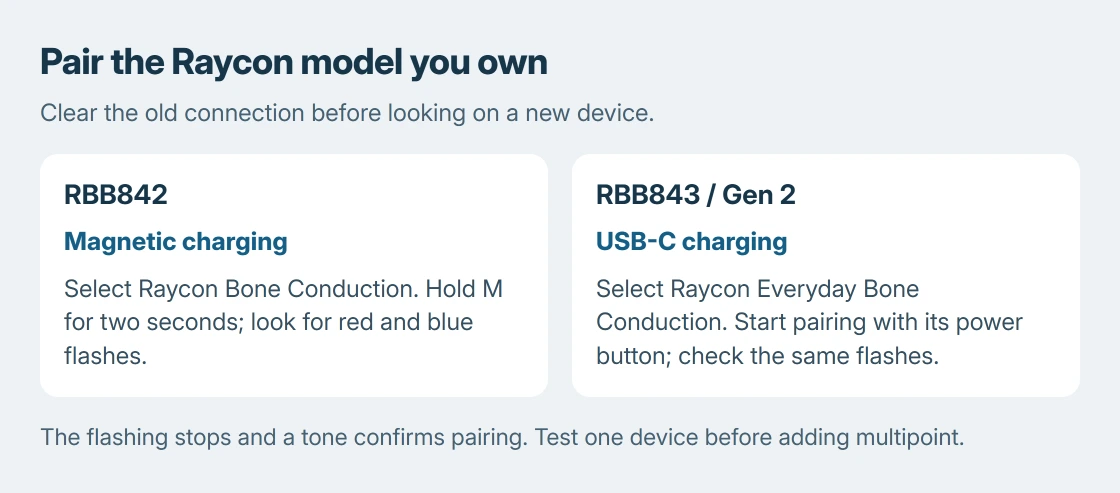
The RBB842 uses a magnetic charging connection. Its Bluetooth name is Raycon Bone Conduction. Raycon's newer Everyday Bone Conduction model uses USB-C and appears as Raycon Everyday Bone Conduction.
Those distinctions are documented by the vendor. Check the model marking or original order as well as the charging connector, especially when buying a replacement cable.
Status: Raycon's RBB842 and Gen 2 manuals checked October 25, 2026. Model-specific instructions only; no headphones were paired or listened to here.
Pair with a phone or Windows laptop
Disconnect the headphones in the previous device's Bluetooth settings. For the RBB842, hold M for two seconds to power on and enter discovery. Look for alternating red and blue flashes before searching on the new device.
For Gen 2, use the power control for about two seconds, following Raycon's pairing section. Select the longer Everyday name in the new device's list.
On iPhone, open Settings > Bluetooth. On Android, open the Bluetooth device-pairing screen; its wording varies by phone. Select the matching Raycon entry and accept a pairing request if one appears.
Microsoft documents the laptop route in its Bluetooth pairing instructions. In Windows 11, open Settings > Bluetooth & devices, choose Add device, then Bluetooth.
Choose the headphones. Raycon says successful pairing stops the alternating flashes and plays a confirmation tone. Start a short piece of audio on the intended device to check where playback goes.
Does audio keep switching to the other device?
Raycon supports multipoint on these models. That lets a phone and laptop stay connected together, so an active second device deserves checking before another driver installation.
Pause playback on the other device, then disconnect that device temporarily. Play the same audio again on the intended one. The comparison order is ours: establish one reliable connection before adding multipoint back.
To set up two devices deliberately, Raycon gives this order: pair the first, disconnect it, pair the second, then switch the headphones off. Wait five seconds and turn them on again.
Both devices need Bluetooth enabled and must remain in range. If one-device playback works but two-device playback interrupts it, report that difference to Raycon rather than describing every connection as broken.
For broader pairing cleanup, the headphone reset guide explains why deleting a PC entry does not clear the headset's stored pairings. Use the Raycon model's own controls for the headset side.
Separate weak sound from a dropped connection
A connected headset with distant sound needs a fit check too. Raycon places the contact pads on the cheekbones immediately in front of the ears. Reposition them before compensating with much higher volume.
If sound changes only when a Windows meeting opens, inspect the meeting's input and playback selections. The Bluetooth call-audio explanation covers the hands-free connection in traditional Bluetooth audio.
For actual interruptions, compare playback near one device with the second disconnected. Charge the headset and try another phone or laptop. The comparisons separate a single host problem from a fault that follows the headphones.
If the headset still fails across devices, send Raycon the model, charging-light behavior and whether discovery flashes appear. Avoid borrowing an unverified reset combination from a different generation.
The Short Version
Check the Raycon model, disconnect an earlier device, and wait for red-and-blue discovery flashes. Pair one device first. Add multipoint afterward, and distinguish a connection loss from poor contact-pad placement or call-audio changes.

Isaac Smith is the founder and editor of PC Glance, a website that covers computers, laptops, and technology. He is a tech enthusiast and a computer geek who loves to share his insights and help his readers make smart choices when buying tech gadgets or laptops. He is always curious and updated about the latest tech trends.