
A Huion tablet driver showing no connected device needs a model and USB check before another reinstall. Match the driver to the tablet, leave it unplugged during installation, then connect its data cable and check the driver's device list.
These steps cover Windows. Huion publishes separate Mac instructions, and its Windows driver generations do not share every button or compatibility rule.
1. Download the driver for the exact tablet
Find the model on the tablet or its original order and use Huion's Download Center. Choose the matching model and Windows package. A newer driver intended for another tablet is not a suitable substitute.
The installation sequence is documented by the vendor. Its current guide covers V20 alongside older generations, so follow the section matching the package offered for the model.
Status: Huion's Windows installation and disconnected-device instructions checked October 25, 2026. No tablet, driver installation or drawing application was tested.
For an ARM-based Windows PC, check compatibility before running an ordinary x64 download. Huion currently identifies v20.0.1.118 as ARM-compatible, provided the tablet also supports that release; otherwise it directs users to support.
2. Replace a conflicting installation carefully
Save the current tablet settings before removing an existing package. Huion instructs users to uninstall earlier tablet drivers, including another brand's driver, then restart Windows before installing its replacement.
On a shared workstation, confirm which other tablet uses that software before removing it. The ordering is ours: preserve the working setup and the correct replacement package before making a change that affects another device.
Close drawing programs and unplug the Huion tablet. Extract the downloaded archive if necessary, then run its installer with Run as administrator. Keep the default location unless Huion has supplied a different instruction.
For V20, accept the agreement, choose Install now, then Start Now after installation. V15 uses Try it now at that stage. Complete the prompts appropriate to the installed generation.
If security software blocks a specific file, retain the alert details and ask Huion or the PC administrator to check it. A failed installer does not justify disabling the computer's protection as a general repair.
Microsoft documents a separate manual device-driver route. For Huion's package and control panel, begin with its model installer rather than substituting a generic pen entry.
3. Connect USB data, even when the display already works
Open HuionTablet after installation. The disconnected state is expected while the hardware is unplugged. Connect the tablet and wait for its device to appear in the driver interface.
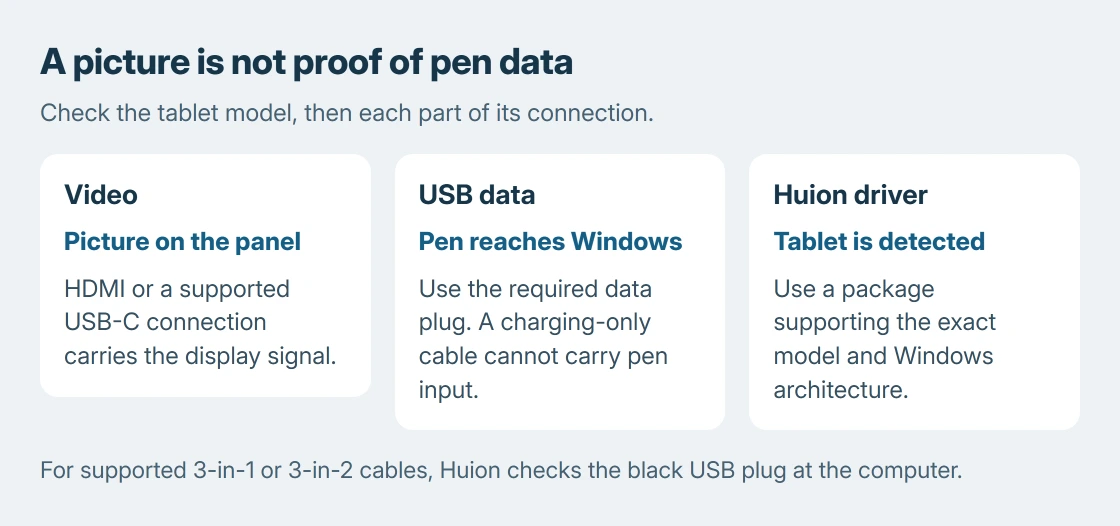
A pen display can show the Windows desktop without supplying pen data. Huion's disconnection instructions specifically check the black USB plug on its supported 3-in-1 and 3-in-2 cables.
Make sure that plug reaches the computer. For another cable arrangement, follow the model's connection diagram. A working video connection alone is not proof that the required USB path is present.
Try a direct computer port instead of a hub. Test another suitable data cable and port if the driver remains disconnected. A charging-only replacement cannot establish the tablet's USB data connection.
4. Record the result before asking for a replacement
When the tablet appears, select it in HuionTablet and check the pen, assigned work area and drawing application. Detection succeeding is a different result from one application's pressure response failing.
If Windows also flags the hardware, note the number in its device properties. Our Device Manager code guide explains why a missing driver and a device refusing to start need different responses.
A second compatible computer is the next comparison Huion recommends when cable and installation checks fail. If that computer detects it, report the difference instead of assuming the tablet itself has failed.
If neither computer detects it, contact Huion with the serial number, model, Windows version, driver release and connection checks. Our driver update advice covers choosing a specific repair over unrelated driver replacements.
The Short Version
Use the package listed for the Huion model and Windows architecture. Install with the tablet disconnected, then check USB data as well as video. Escalate with the exact driver release and the result on another compatible computer.

Isaac Smith is the founder and editor of PC Glance, a website that covers computers, laptops, and technology. He is a tech enthusiast and a computer geek who loves to share his insights and help his readers make smart choices when buying tech gadgets or laptops. He is always curious and updated about the latest tech trends.