
Restarting a computer in Windows 11 normally takes Start > Power > Restart. Save open work first. When Start will not respond, the desktop's keyboard shutdown dialog provides another route without immediately cutting power.
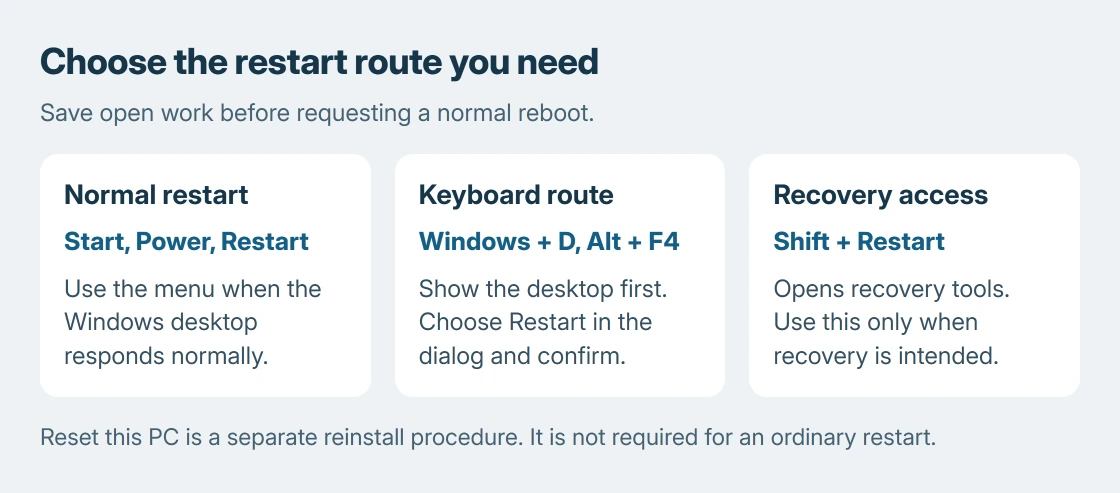
A normal restart closes the Windows session and starts the PC again. It does not require Reset this PC, which is a separate recovery operation.
Save the open work, then choose Restart
Save documents and finish any file transfer that is still running. If another person is signed in, arrange for them to save their work too. Plug a laptop into power when a pending update is about to install.
Microsoft documents the standard restart sequence: open Start, choose its Power button, and select Restart. The menu control is different from the PC's physical power button.
Status: Microsoft's Windows 11 restart, keyboard and recovery documentation checked October 25, 2026. No restart, shutdown or recovery operation was run on this laptop.
Follow any prompt asking to close an unsaved application. If Windows offers Update and restart, that choice also installs pending update work. Keep the PC powered while it shows installation progress.
The operation has finished when Windows returns to its sign-in screen or desktop. Reopen the affected app or repeat the original task to see whether the restart changed its behavior.
Start is stuck, but the keyboard still works
Press Windows + D to display the desktop. With the desktop active, press Alt + F4. Select Restart in the shutdown dialog, then choose OK.
Microsoft says in its keyboard reference that Alt + F4 closes the active window or offers shutdown when none is open. Use it on the desktop for the restart dialog.
Some laptop keyboards assign the function row to brightness or media controls. Use the keyboard's Fn modifier with F4 if required by that model. Check what the key actually sends before assuming Windows ignored the shortcut.
Another menu is available by right-clicking Start, or pressing Windows + X. Open Shut down or sign out, then select Restart. This is useful when the ordinary Start panel is the part that is failing.
If the menu displays a message about unavailable power options, follow the missing power-menu guide. That condition can involve policy or software restrictions rather than a hidden restart button.
Why did a blue recovery menu appear?
Holding Shift while choosing Restart requests the Windows recovery environment. That is useful for repair tasks, but it adds a different destination to the restart.
Microsoft describes this in its recovery environment reference. For an ordinary reboot, choose Restart without holding Shift. At the recovery menu, use Continue when available to return to Windows.
Avoid selecting Reset this PC merely to restart. Microsoft's recovery options explain that reset reinstalls Windows and offers file-retention choices. It is not needed for this procedure.
Windows will not accept either menu route
The final comparison is ours: distinguish a failed app from an unresponsive computer before forcing power off. A single application refusing to close does not establish that Windows itself has stopped responding.
If the keyboard, pointer and normal controls all stop responding, use the PC maker's instructions for the exact model's forced shutdown. Unsaved work can be lost. Avoid repeatedly interrupting an update or a firmware-installation screen.
For a fault that returns after every successful boot, record what fails and when, then take it to the PC maker or your IT team. Repeating restarts indefinitely does not identify the underlying problem.
If switching the PC off and back on behaves differently, the restart versus shutdown explanation covers Fast Startup. No change to that setting is required to use Restart.
The Short Version
Save work and choose Start, Power, Restart. If Start is stuck, show the desktop before pressing Alt + F4 and choosing Restart. Keep Shift for recovery access, and use the model's instructions if the entire PC stops responding.

Isaac Smith is the founder and editor of PC Glance, a website that covers computers, laptops, and technology. He is a tech enthusiast and a computer geek who loves to share his insights and help his readers make smart choices when buying tech gadgets or laptops. He is always curious and updated about the latest tech trends.