
You click the power icon in Start and get one line of text where Shut down and Restart should be: "There are currently no power options available." A restart does not bring them back.
I would sign out and back in before you open any registry key. On the thread where this followed an online exam, that is what restored the menu, and 70+ people marked the reply helpful.
The main Microsoft Q&A question on this message has 1,100+ people asking the same thing. The exam browser one has 400+.
Why the Power menu goes empty
Windows has a policy that does exactly this. It is named on Microsoft's Start menu policy page, under NoClose.
Microsoft says: "If you enable this policy setting, the Power button and the Shut Down, Restart, Sleep, and Hibernate commands are removed from the Start menu."
Exam browsers lock a PC down during tests. The 400+ asker lost the menu right after one: "Today, I used the browser to take a test". Ours: when such a browser closes badly, a restriction can stay behind on your PC.
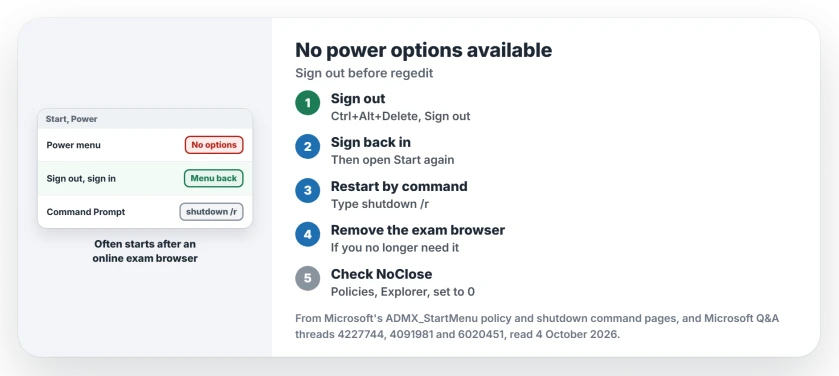
Status: checked 4 October 2026. Owners got the Power menu back with a sign-out and sign-in, or by removing the exam browser and restarting with shutdown /r.
Sign out, then sign back in
Press Ctrl+Alt+Delete and choose Sign out. Or right-click Start and use Shut down or sign out. Sign in again and open your Start menu.
The reply with 70+ helpful votes on the exam thread did just that. The poster "signed out of user logged in and then signed back in and it was restored". Try it before anything else.
They added: "Try that simple trick and it might fix the issue." No registry change, no reinstall. Owners report two ways back on that thread: this one, and a typed restart.
If you cannot find a way to sign out, type shutdown /l in Command Prompt. Microsoft's page says the /l switch "Signs out the current user immediately with no time-out period."
Restart from Command Prompt
The same page explains why typed commands still work. The policy "doesn't prevent users from running Windows-based programs that perform these functions".
Another owner on the exam thread removed the browser first: "If you do not need the lockdown browser anymore, I would suggest you uninstall the browser from apps."
Their next step was to "open cmd and type shutdown /r". After the restart, their settings came back.
Microsoft describes /r as "Restarts the computer after shutdown." For a full power-off, /s "Shuts down the computer."
From the Start menu, a shut down can skip the full reboot on PCs with fast startup. So a restart is your better test.
Two quicker routes come from a September 2026 answer. Right-click Start and look in the Shut Down or Sign Out section, or press Alt and F4 on your desktop.
For that second route, put the desktop in focus before choosing Restart; inside an app, the same keys can close its window.
Check the NoClose value
The answer with 100+ helpful votes on the 1,100+ thread points at that same policy. Microsoft lists its key as Software\Microsoft\Windows\CurrentVersion\Policies\Explorer, for the user.
Open Registry Editor and go to that key under HKEY_CURRENT_USER, which holds your own settings. Look for NoClose on the right. The adviser's instruction: "Set NoClose's Value data to 0 (zero) and click OK."
The September 2026 answer also asks to see the same folder under HKEY_LOCAL_MACHINE. It is a quick look. A NoClose there would explain it too.
Ours: if NoClose is missing in both places, this policy is not your cause, so leave the keys alone. On a work or school PC it may be set on purpose. Ask your IT team first.
Nothing you change in Settings, Personalization, Start switches this message on or off. Those switches shape the rest of Start, not the Power menu.
Reset the power plans
That 100+ answer starts with the power plans. Run Command Prompt as administrator and type powercfg -restoredefaultschemes.
The adviser's reasoning was blunt: "It is due to an misconfigured power plan." The asker was not convinced: "I tried the the first one and it returns nothing."
Ours: it is safe to try, but it resets every power plan. Note your custom sleep or screen settings first.
If the reset leaves Balanced as the only plan, the others are hidden by Modern Standby rather than lost.
What did not help
A forced restart with the power button, for the 400+ asker. They held it down "to see if the power options returned which they did not".
A system file scan, for the 1,100+ asker: "I checked for some answers like sfc scan and power plan but nothing helps."
A security settings reset that some guides add. One owner tried the suggested steps and wrote: "I applied the suggested procedures n now my computer is lading severely."
Their PC then hung at restart: "it's not rebooting it just stuck on the blue screen (restarting)". When a guide wants you to reset security settings over a missing menu, I would skip that step.
Why did my power options disappear after an online exam?
Exam browsers restrict the PC while a test is open. Ours: if one closes badly, a restriction can stay until you sign out, restart or remove the browser.
Is it safe to hold the power button instead?
It works, but unsaved work is lost. Save your work and type shutdown /s in Command Prompt for a normal power-off.
Can my school or employer remove the power options?
Yes. Microsoft documents the policy for that purpose. On a managed PC, ask IT before you change anything.
The Short Version
- Sign out and back in first; it fixed the exam case.
- Typed commands still work: shutdown /r or shutdown /s.
- Uninstall the exam browser if you no longer need it.
- Check NoClose under Policies, Explorer, and set it to 0.
- powercfg -restoredefaultschemes resets every power plan.
- Skip security resets; one owner's PC got worse.
Where to Next
Sign out now from Ctrl+Alt+Delete, then sign back in. If Start still shows the message, type shutdown /r in Command Prompt and look again after the restart.
Which app or exam browser was open when yours vanished? Your answer in the comments shapes the next update of this page.

Isaac Smith is the founder and editor of PC Glance, a website that covers computers, laptops, and technology. He is a tech enthusiast and a computer geek who loves to share his insights and help his readers make smart choices when buying tech gadgets or laptops. He is always curious and updated about the latest tech trends.