

You open Power Options in Control Panel and find one plan, Balanced. High performance is gone, and the commands from videos do nothing or last until you switch plans again.
It is annoying, I know, but before you try another command, it helps to know that on most new laptops Balanced is the one plan Windows means to show, and the speed setting has moved.
On Microsoft Q&A, the most asked version of this question shows 200+ under Same question.
Why Windows hides the other plans
Many laptops sold in recent years use Modern Standby, a sleep that keeps the PC in a low power on state, the way your phone sleeps. On those machines Windows offers Balanced and keeps the older plans out of sight.
A volunteer moderator in that 200+ question said such devices "will usually only have the Balanced power plan scheme available by default". The answer the Super User asker accepted was shorter: the single plan is "by design".
So your laptop is not broken, and Microsoft moved the choice into the power mode slider.
Its guide for PC makers says "The slider will appear on a device only when the Balanced power plan, or any plan that is derived from Balanced, is selected".
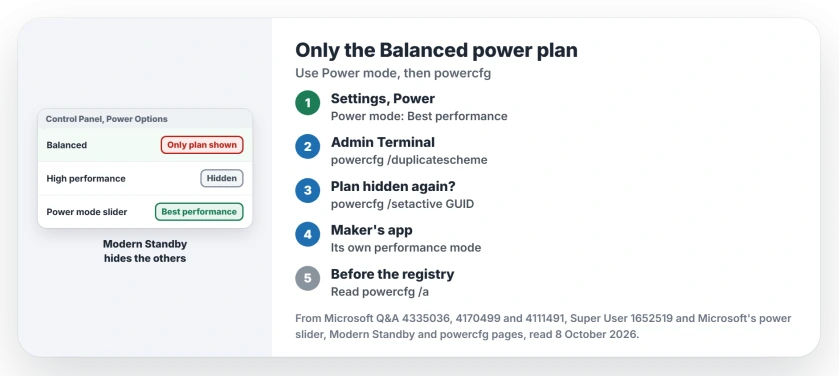
Status: checked 8 October 2026. Modern Standby laptops show only Balanced by design. Use Power mode, add a plan with powercfg, and read powercfg /a before any registry change.
Ours: this ASUS TUF Gaming A17 runs Modern Standby. Its powercfg /a lists Standby (S0 Low Power Idle). Its plan list still holds four entries, because ASUS added Silent, ASUS Recommended and Performance next to Balanced.
1. Use Power mode, the setting that replaced the plans
Open Settings, then System, then Power & battery, and set Power mode to Best performance. You can pick a separate mode for when your laptop runs on battery.
Microsoft says "Power mode in Windows lets you choose between better battery life, better performance, or a balanced experience". Its guide for PC makers describes each slider position as a lighter version of a power plan.
One asker already had Best performance set and still wondered: "will it provide the same performance as the control panel settings?" For speed, mostly yes. The slider changes how hard the processor runs.
The timers are another matter. Microsoft documents that "disk and display timeouts, and other legacy power settings, are not customizable via the performance/power slider". Set those under Balanced yourself.
If the slider is grayed out, Microsoft says "If you can't change the power mode, a custom power plan might be selected". Choose Balanced in Power Options and the slider comes back.
2. Add High performance back with powercfg
On many PCs the old plan still sits underneath. Open Terminal with admin rights and paste the command owners share, which copies High performance into a new plan:
powercfg /duplicatescheme 8c5e7fda-e8bf-4a96-9a85-a6e23a8c635cMicrosoft's powercfg reference documents the duplicatescheme switch. Close and reopen Power Options, then pick the new plan.
It does not work on every laptop. On a Dell in a December 2025 question, the command printed a new High performance GUID and the asker still could not find the plan. A second owner there added "these prompts didnt work on my laptop".
Expect the copy to hide again once you pick Balanced. One owner wrote it "disappears whenever I switch to the balanced power mode", and a second reported the same.
Microsoft explains why. Once a user moves to Balanced, "there is no way for them to go back to using the High Performance plan from the UI". The command line still can, and that also covers a copy that never showed up.
Run powercfg /list, copy your plan's GUID, then run powercfg /setactive followed by that GUID.
3. Check the plans your laptop maker added
Some makers ship their own plans on top of Balanced. In a 2024 question, a Microsoft support specialist noted that branded machines "will offer some power plans written by them".
This ASUS is one of those. If yours has a maker app for fans or performance, look there for a performance mode first. Leave the registry for later.
More power also means more heat, so if your laptop already runs hot, our laptop overheating page covers the fans and the vents.
Read powercfg /a before the registry
Many pages pass around a registry value, PlatformAoAcOverride, that switches Modern Standby off so your older plans return. Owners have had it work. The asker in the 200+ question tried it and came back with "It worked".
A second owner in that question said the same workaround "actually resolved my problem". So it is real. It is also unsupported.
Microsoft states it plainly: "Switching the power model is not supported in Windows without a complete OS re-install". So I would check one thing first.
Run powercfg /a and read your Standby (S3) lines. If they only say S3 is disabled because S0 low power idle is supported, your firmware still has the older sleep. The override then has something to fall back on.
If S3 also says the firmware lacks it, the override has nothing to fall back on. That fits the Super User asker's Dell, whose BIOS the answerer thought was "hardwired" to Modern Standby.
They tried a registry method, restarted, and wrote "nothing happens". This ASUS shows that second message too. I would leave its registry alone.
If your S3 lines show the first kind, this is the owners' command. Restart after it.
reg add HKLM\System\CurrentControlSet\Control\Power /v PlatformAoAcOverride /t REG_DWORD /d 0 /fIf the plans still do not show after the restart, run the duplicatescheme command from step 2. To undo the change, delete the value and restart again:
reg delete HKLM\System\CurrentControlSet\Control\Power /v PlatformAoAcOverride /fWhat did not bring the plans back
The reset command is the usual first answer. On these laptops it resets to what Windows treats as the default. One owner put it exactly: "it goes back to default, which is only balanced plan".
The older CsEnabled registry value is out too. A Super User commenter warned that "CsEnabled doesn't work in newer windows".
A Power menu with nothing in it is another fault entirely. Our no power options page covers that one.
Will Best performance match the old High performance plan?
For processor speed, it should come close. Microsoft treats each slider position as a lighter plan layered on Balanced. Your screen and sleep timers stay where Balanced has them, so set those yourself.
The Short Version
- Only Balanced is normal on Modern Standby laptops. Windows hides the other plans by design.
- For speed, set Power mode to Best performance in Settings.
- Want the old plan? Run powercfg /duplicatescheme with the High performance GUID. Use powercfg /setactive after you switch away.
- Read powercfg /a before PlatformAoAcOverride. If the firmware has no S3, leave the registry alone.
Where to Next
Set Power mode first and live with it for a day of normal work. Most of the speed people miss comes back from that one setting.
If powercfg /a shows something odd, paste your Standby lines and laptop model into the comments. I will tell you which case you are in.

Isaac Smith is the founder and editor of PC Glance, a website that covers computers, laptops, and technology. He is a tech enthusiast and a computer geek who loves to share his insights and help his readers make smart choices when buying tech gadgets or laptops. He is always curious and updated about the latest tech trends.