
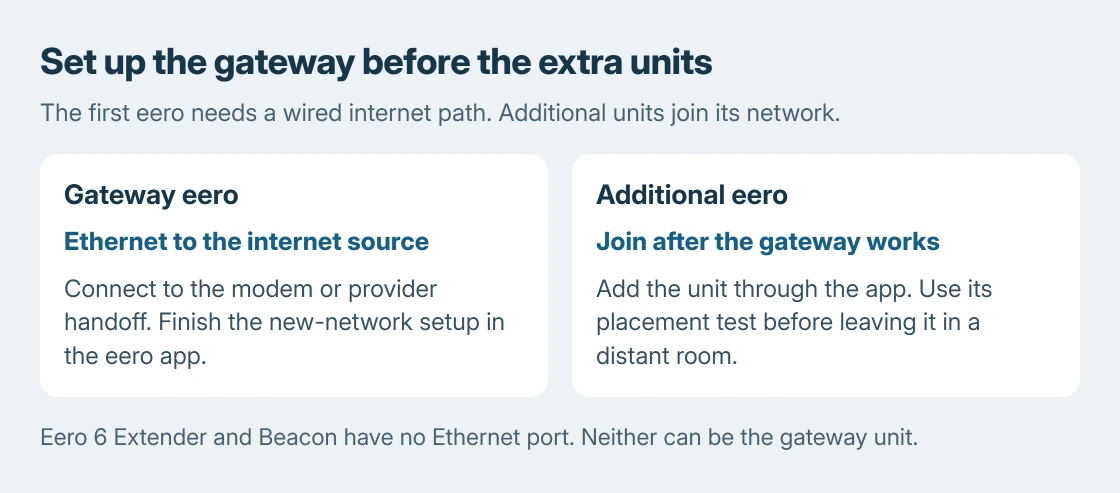
An eero mesh Wi-Fi system needs an Ethernet-connected gateway before its extra units can extend coverage. Connect that first eero to the modem or fiber handoff, complete setup in the eero app, then add the remaining units.
A unit without an Ethernet port cannot serve as that gateway. Starting with an eero 6 Extender or Beacon leaves the app without the wired internet connection the main unit needs.
1. Prepare the app and identify the gateway unit
Install the eero app from the phone's app store and follow its account prompts. Keep the phone connected to the internet during setup and enable Bluetooth for nearby-device discovery.
The setup documented by the vendor uses the app, not a Windows browser administration page. Its published requirements include iOS 15 or Android 9 and Bluetooth 4.0 or later.
Status: Eero's gateway, app and extra-unit instructions reviewed October 25, 2026. No router, phone permission or home network was changed for this guide.
A Wi-Fi-only tablet needs another working Wi-Fi connection during initial setup. A phone with cellular data is convenient while the old router is disconnected. Allow the app's requested Bluetooth access when pairing the hardware.
If the equipment roles are unclear, the home Wi-Fi installation guide separates a provider gateway, a standalone router and an existing wired network. Eero does not activate an internet subscription.
2. Connect one eero to the internet source
Follow eero's gateway setup sequence. Disconnect the old standalone router and power down the modem as directed. A fiber ONT that cannot be powered down can remain on.
Connect an Ethernet cable between the internet source and an Ethernet port on the gateway eero. Restore power to the modem and eero. Keep the other eero units off until this first unit is configured.
In the app, follow the new-network prompts and identify the gateway. Enter its serial number if requested, choose its room, then choose a Wi-Fi name and password. Finish registration before setting up another unit.
Retaining the previous network name and password can let existing devices reconnect. Use a new password if the old one should no longer grant access. That choice is ours; convenience should not preserve unwanted access.
For a combined modem/router supplied by an ISP, follow the provider's eero instructions. Leave service-specific settings alone until the provider confirms what its equipment requires.
3. Add each extra eero and use its placement result
Open the app's Home tab, tap the plus control and choose Add indoor eero. Plug in the extra unit, stay nearby while Bluetooth finds it, and complete its location and registration prompts.
The extra-eero instructions distinguish blinking white during startup, blinking blue during discovery and solid blue when the app has connected for setup.
Use the app's placement test. A weak or out-of-range result calls for moving the unit closer to another eero, then checking again. Place it between the working network and the weak room, with open space around it.
The extender placement explanation covers why equipment placed entirely inside a dead spot cannot receive a useful upstream signal. Mesh setup still needs that connection between units.
4. Join from Windows and separate two setup failures
Microsoft says to open the taskbar's network controls and manage Wi-Fi connections. Select the eero network, choose Connect, enter its wireless password and select Next.
Load a webpage to check internet access. Merely seeing the new network name does not establish that the modem or provider connection is working.
If the app cannot find an eero, check Bluetooth, proximity and that unit's identity first. Eero's setup-error guidance also offers barcode identification.
If discovery succeeds but internet setup fails, check the gateway's Ethernet cable and the modem's online state. Contact the ISP for an outage or line problem; contact eero for a gateway that still fails on a working connection.
Record the app's exact error, eero model and light state. Do not factory-reset a working network merely because one additional unit was not detected.
The Short Version
Configure the Ethernet-connected gateway in the eero app first. Add the extra units afterward and follow their placement tests. A missing Bluetooth discovery and a failed internet connection need different checks.

Isaac Smith is the founder and editor of PC Glance, a website that covers computers, laptops, and technology. He is a tech enthusiast and a computer geek who loves to share his insights and help his readers make smart choices when buying tech gadgets or laptops. He is always curious and updated about the latest tech trends.