
Fan Control for a PC adjusts supported motherboard and graphics-card fans using temperature-based curves. Download the developer's app, use assisted setup, then pair each fan's RPM reading before assigning a curve.
Hardware support decides whether this works. Installing the app does not make a laptop fan accessible, and a visible temperature reading does not guarantee that its fan can be controlled.
Check compatibility before changing cooling behavior
Use Fan Control's official site and its link to Rem0o/FanControl.Releases. Download the current installer or archive. Extract the archive before starting FanControl.exe.
The developer's compatibility notes explain that detection depends mainly on the underlying hardware libraries. Its laptop FAQ says most laptops do not expose their fans through the same interface as desktop boards.
Status: Fan Control's developer instructions and Microsoft driver-block guidance checked October 25, 2026. No fan speed, firmware option or Windows protection setting was changed.
For a loud laptop, use the maker's supported cooling controls and the background-load checks first. A missing control is a compatibility limit, not a reason to force an unrelated laptop plugin onto the machine.
Before experimenting on a supported desktop, keep the working cooling configuration available. This recommendation is ours: configure one identified fan at a time, with no heavy workload running, so its response stays clear.
Pair the speed sensor, then calibrate that fan
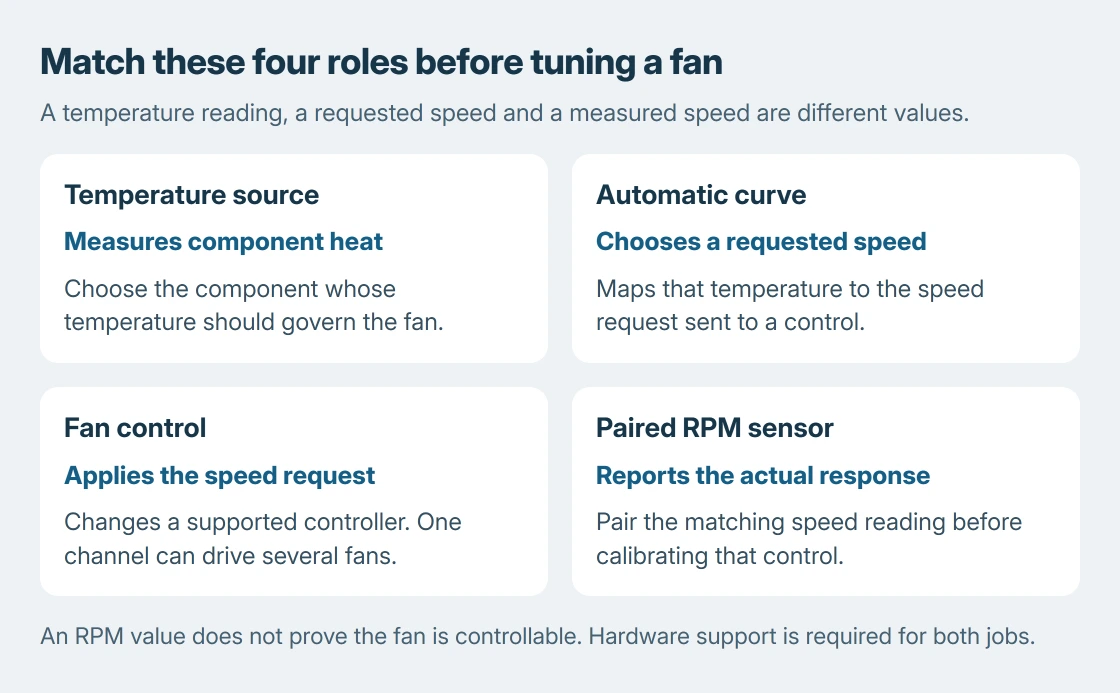
Run the first-launch assisted setup. Match a fan control with its corresponding speed sensor. Automatic pairing is available; manual pairing lets you choose the RPM reading when the automatic result needs checking.
This order is documented by the vendor: pairing comes before calibration. Calibration determines how that fan starts, stops and responds across its supported control range.
Watch the reported RPM while the selected control changes. Rename the entry only when its physical role is known. A motherboard header name and the number of fans connected to it are not necessarily the same thing.
If calibration cannot obtain a reliable response, stop configuring that control and check hardware support. An RPM display by itself does not establish that the software can change the fan.
Assign a temperature source and an automatic curve
Use the plus button at the bottom right to add a Linear curve. Select the component temperature that should drive it, set its temperature and speed limits, then choose it in the control card's curve dropdown.
A linear curve changes the requested speed between its two temperature endpoints. Do not copy a universal quiet percentage: the appropriate range depends on the fan, cooler and component being cooled.
Keep automatic control active for normal use. Manual control applies a fixed request and will not become a temperature-responsive curve merely because temperatures are displayed elsewhere in the window.
Save the configuration after confirming the fan responds. Compare temperature and behavior during ordinary use before enabling automatic startup. If cooling becomes worse, return to the known working configuration.
Why are sensors missing after an old installation?
The developer documents a specific old-driver problem in the release repository. Builds through V237 used WinRing0; V238 and later changed to a PawnIO-backed hardware library.
The repository identifies updating to V238 or later as the remedy for that old driver being flagged by Defender and leaving sensors undetected. Use the current release instead of downloading the obsolete driver separately.
An explicit Windows driver-block message is another reason to record the filename. Microsoft says to seek a compatible update in its driver-loading guidance. Keep Memory integrity enabled.
If a current release still lacks the hardware, check the developer's compatibility and plugin information for that exact controller. The monitoring-tool explanation also separates an absent sensor from a physical fan that has stopped.
For unsupported equipment, return control to the PC or motherboard maker's utility. Send software support the model, app version and missing control details.
A grinding fan or repeated thermal shutdown needs hardware service, not another curve.
The Short Version
Confirm hardware support, pair the RPM sensor and calibrate before assigning an automatic curve. Configure one known fan at a time.
Update an old WinRing0-based release when that driver blocks sensor detection. Unsupported hardware needs its maker's controls.

Isaac Smith is the founder and editor of PC Glance, a website that covers computers, laptops, and technology. He is a tech enthusiast and a computer geek who loves to share his insights and help his readers make smart choices when buying tech gadgets or laptops. He is always curious and updated about the latest tech trends.