
A laptop cooling pad needs the correct power connection and an unobstructed path to the laptop's vents. Set it on a hard surface, check its fan control, then compare the same workload with and without its assistance.
Lights alone do not prove the fan is running. Some pads use USB power, while others need a separate adapter. Follow the model's instructions before assuming a spare USB cable will power everything.
1. Position the laptop without covering its vents
Read the laptop's ventilation diagram and check the pad's supported size. Its supports must hold the computer securely without covering an intake or trapping an exhaust against another surface.
Thermaltake's Massive V20 specification is an example, with a stated notebook-size range and a mesh cooling surface. That specification describes this pad, not every cooling stand.
Status: Massive V20 and Massive EXTREME manuals, Thermaltake sensor information and Windows power-mode guidance reviewed October 25, 2026. No cooling pad was connected or tested.
If the laptop is already overheating on a desk, use the laptop heat checks to examine blocked vents and excess load. A pad does not clear an internal dust obstruction or repair a failed internal fan.
2. Use the power input specified for that pad
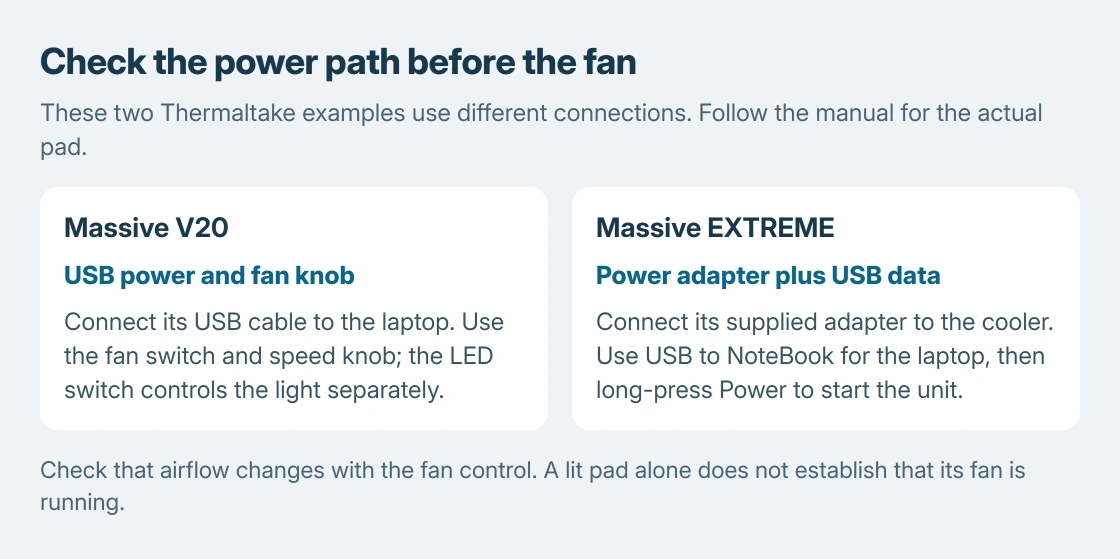
On the Massive V20, plug its cable into a laptop USB port and operate the fan's on/off and speed control. The LED switch is separate. An illuminated pad can therefore require a different control to start airflow.
The Massive EXTREME manual shows a different arrangement: a supplied power adapter connects to the cooler, and the laptop connects at USB to NoteBook.
That model also has a charging port and a USB hub. Their presence does not mean either replaces the documented power-adapter connection. Match the labels in its installation diagram before attaching cables.
For another model, use its own input and supplied or specified power equipment. If no fan starts, check power, the fan control and a secure connection before treating the whole pad as defective.
3. Adjust the fan instead of only the lighting
Fan operation and lighting are separate controls on these examples. The V20 uses a fan-speed knob; the EXTREME uses a scroll-wheel control and a long press on Power to switch the unit on or off.
The manuals explain those functions, documented by the vendor for each model. Change the fan control and listen for the airflow response. Keep fingers and loose objects away from the moving fan and grille.
A stationary fan with working lights still needs a power or hardware check. If it remains stopped with the documented supply and controls, contact the pad maker with the model and the exact behavior.
Compare the laptop under the same conditions
The comparison method is ours: keep the application, room, laptop power source and power mode unchanged. Watch the laptop's own supported CPU or GPU reading and its performance during that work.
Microsoft documents Settings > System > Power & battery in its power-mode instructions. A changed mode can change the workload's behavior independently of the pad.
Compare the same sensor each time. Thermaltake's Massive TM description identifies adjustable sensors that measure different areas of the notebook. Those contact readings are not processor-core telemetry.
No fixed temperature improvement is promised here. If performance and the relevant reading do not improve, the pad has not demonstrated a benefit for that setup. More RGB brightness is not a cooling result.
When the laptop still needs attention
Heat continuing at light load needs its own diagnosis. The laptop fan-noise guide starts with the software workload and distinguishes airflow noise from mechanical sounds.
Shut down a laptop that repeatedly turns itself off from heat or shows physical heat damage, and contact its manufacturer or a repair service. Running the pad faster cannot establish that the laptop's internal cooling is healthy.
The Short Version
Match the pad's size and power instructions, keep the vents open, and use its fan control. Compare the laptop's same workload and sensor before deciding whether the pad helps. Persistent overheating belongs with the laptop maker.

Isaac Smith is the founder and editor of PC Glance, a website that covers computers, laptops, and technology. He is a tech enthusiast and a computer geek who loves to share his insights and help his readers make smart choices when buying tech gadgets or laptops. He is always curious and updated about the latest tech trends.