
An unresponsive UniFi Travel Router can need firmware recovery when restarting and a normal factory reset cannot restore it. Ubiquiti documents direct Ethernet and a TFTP firmware transfer from a computer for this case.
This is a recovery job for a router that will not operate, not a way to recover a forgotten Wi-Fi password. Download the correct firmware and prepare the PC while another internet connection is available.
Try ordinary recovery before transferring firmware
The Recovery Mode sequence documented by the vendor places a reboot first, then a standard factory reset. Firmware recovery is Ubiquiti's last resort after those options fail.
A factory reset removes the existing configuration. Keep any available backup and the information needed to set up the router again.
Use the reset instructions for the exact model; a button duration from another UniFi product is not interchangeable.
Status: Ubiquiti's UTR recovery procedure and Microsoft's IP-assignment controls checked October 25, 2026. No firmware, network address or router configuration was changed.
If the router operates normally and only its login is missing, use the router-password recovery guide instead. Firmware transfer is unnecessary for that situation.
Prepare the firmware and a direct Ethernet connection
Open Ubiquiti Downloads and select the firmware for the exact Travel Router model. A file intended for an access point, a gateway or another Travel Router variant is not a substitute.
Ubiquiti names Tftpd64 for Windows. Obtain it from the developer's Tftpd64 page, which identifies both its TFTP client and server functions. This recovery uses a client sending a file to the router.
Connect the computer directly to the Travel Router by Ethernet. Ubiquiti permits either its LAN or WAN port for recovery. This is a direct service connection, separate from the hotel's network or the home router.
If the PC has no Ethernet socket, use an adapter supported by Windows. Confirm the cable connection first; the Ethernet link checks explain how to distinguish no physical link from an IP-setting problem.
Enter Recovery Mode and assign the PC address
Power the Travel Router off. Hold Reset while reconnecting its power, then keep holding until its display shows Recovery Mode. Release Reset at that screen. Ubiquiti gives that display checkpoint rather than a universal countdown.
Next, record the Ethernet adapter's current IP and DNS settings. The temporary address must be applied to the adapter wired to the Travel Router, not to an unrelated Wi-Fi or VPN adapter.
Microsoft documents changing IP assignment in Windows through the connected Ethernet network's settings. Select Edit beside IP assignment, choose Manual, then enable IPv4.
Use the values from Ubiquiti's Travel Router section:
| PC setting | Temporary recovery value |
|---|---|
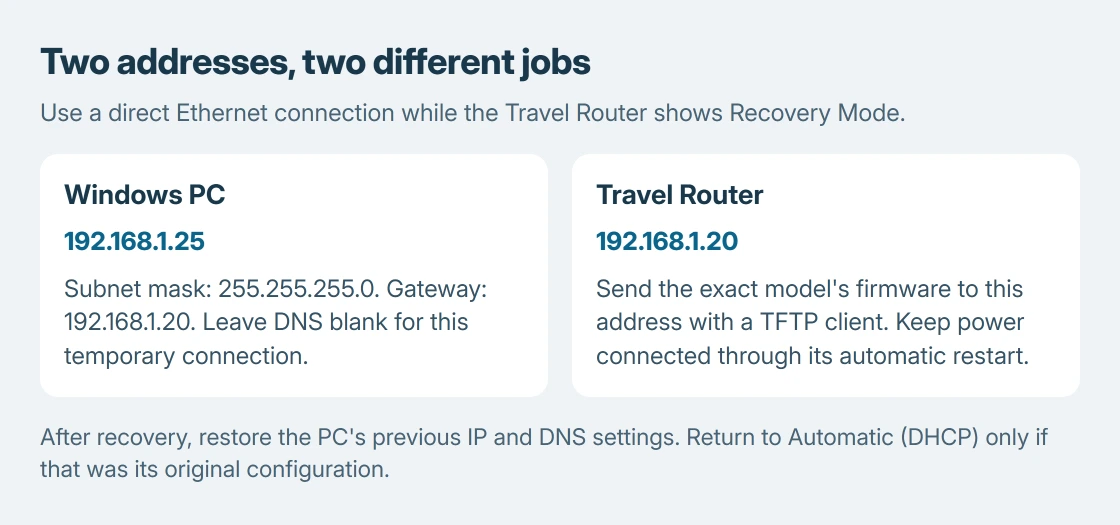
| IP address | 192.168.1.25 |
| Subnet mask | 255.255.255.0 |
| Gateway | 192.168.1.20 |
| DNS | Leave blank |
Save the settings. 192.168.1.25 belongs to the PC; 192.168.1.20 is the router's recovery destination. Swapping them prevents the intended arrangement.
Send the file, then let the router restart itself
In Tftpd64, use its TFTP client to send the downloaded firmware to 192.168.1.20. Select the PC's recovery Ethernet interface and the correct firmware file. Follow the utility's client instructions to start the upload.
The transfer and firmware installation are separate stages. Ubiquiti says the router upgrades the firmware and reboots automatically. Leave its power connected and do not interrupt it merely because the file transfer has finished.
After recovery, restore the PC's earlier IP and DNS configuration. If both were automatic, return them to Automatic (DHCP).
The final check is ours: make sure the laptop can rejoin its usual network after this temporary service connection ends.
Configure the router again as required and check an actual internet session through it. Finishing the upload does not prove the network is ready for use.
If recovery still cannot restore the device
Stop repeated firmware attempts if the exact image and direct connection do not recover the unit. Give Ubiquiti support the model, firmware filename and whether failure occurred before Recovery Mode, during transfer or after reboot.
Ubiquiti directs devices that recovery cannot repair toward replacement, including its warranty RMA route where applicable. A different product's recovery address or firmware is not a reasonable next experiment.
The Short Version
Use firmware recovery only after restart and normal reset fail. Connect Ethernet directly, enter Recovery Mode and send the exact firmware to 192.168.1.20 from the correctly addressed PC.
Allow the automatic restart, then restore the PC's normal network settings.

Isaac Smith is the founder and editor of PC Glance, a website that covers computers, laptops, and technology. He is a tech enthusiast and a computer geek who loves to share his insights and help his readers make smart choices when buying tech gadgets or laptops. He is always curious and updated about the latest tech trends.