
Matching USB connector types starts with the shape at each end of the cable. Check the computer's port and the device's socket separately, then confirm the cable supports the required data, charging or display function.
A plug that fits can still be wrong for the job. USB-C identifies a connector shape; it does not by itself promise a particular transfer speed, laptop charging or video output.
Identify both ends before choosing a cable
Read the device manual's connection diagram and compare the socket with the cable ends. Many useful cables deliberately have different connectors at opposite ends, such as USB-A at the computer and USB-B at a printer.
The shapes are documented by the vendor, Cable Matters, in its connector guide. Use the shape and device specification together rather than judging by a port's color.
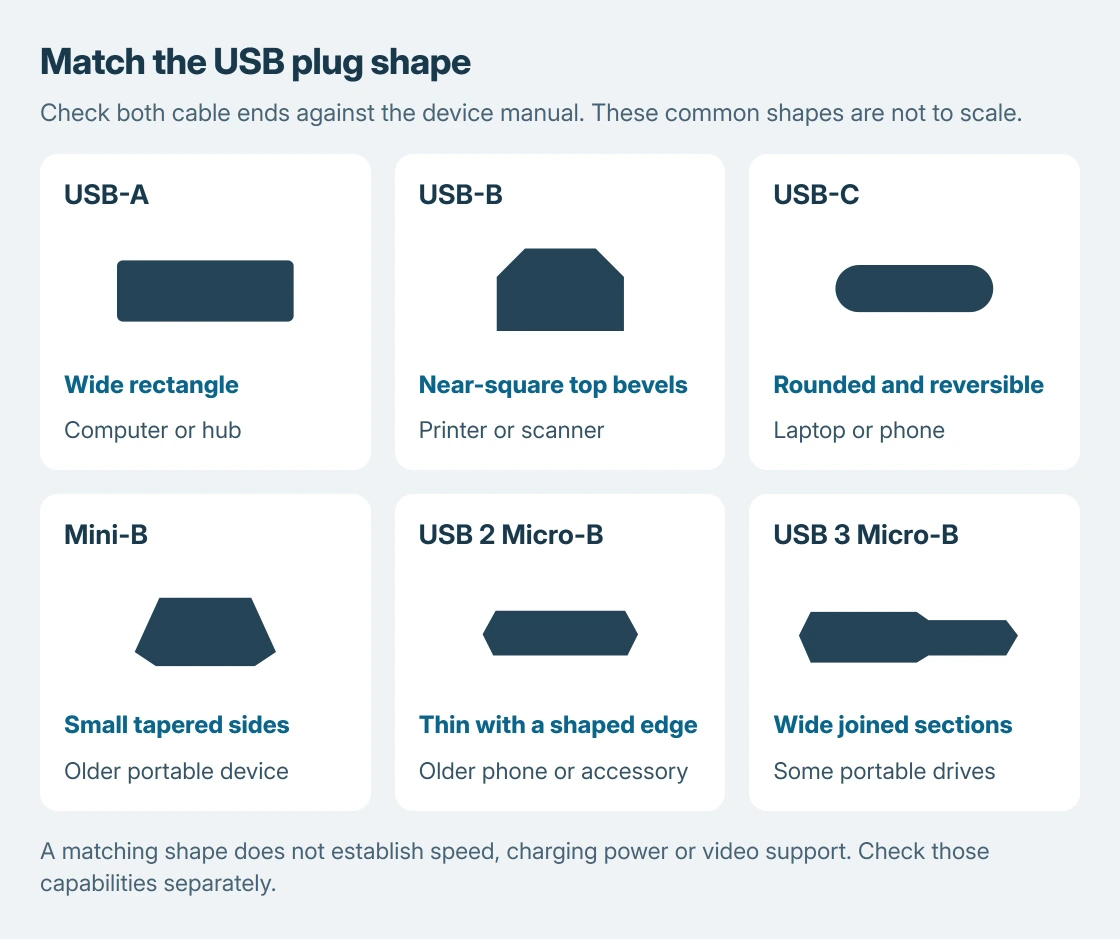
Status: USB-IF connector guidance, cable-maker references and Microsoft's USB-C troubleshooting checked October 25, 2026. These are identification drawings; no cable or device was tested.
| Connector | Shape to compare | Typical place to check |
|---|---|---|
| USB-A | Wide rectangle, one insertion orientation | Computer, charger or hub |
| USB-B | Nearly square, with angled upper corners | Printer, scanner or audio device |
| USB-C | Small rounded opening, reversible | Recent laptop, phone or peripheral |
| Mini-B | Small, tapered body, thicker than Micro-B | Older camera or portable device |
| USB 2 Micro-B | Thin, flattened body, one orientation | Older phone or accessory |
| USB 3 Micro-B | Wide body with two joined sections | Some portable hard drives |
These examples are identification aids, not a complete port inventory. USB 3 Type-B is also taller than the older Type-B shape. Match the full connector rather than forcing a similar-looking plug.
For a printer, consult the model's setup diagram. The Brother computer-connection guide separates its USB connection from its wireless setup.
Distinguish Mini-B from the two Micro-B shapes
Mini-B and Micro-B are separate connectors, even when both appear in listings described as a small USB cable. Compare the complete end profile with the device manual rather than ordering by that description alone.
Mini-B has the thicker tapered profile shown in the drawing. USB 2 Micro-B is flatter. USB 3 Micro-B adds a second joined section, giving it the wide profile seen on some external drives.
Check the full product description, including both cable ends. A USB-C laptop connected to a Micro-B drive needs the appropriate device end; two USB-C plugs do not solve that physical mismatch.
For an older camera with an unfamiliar socket, use the camera's model-specific connection chapter. Some devices use proprietary data or remote-control ports that should not be identified as USB merely because they are small.
Confirm the function before connecting
Microsoft says the computer, cable and accessory must support the same USB-C features in its USB-C connection guidance. Shape matching is the physical check, not a feature certification.
Before choosing between cables that fit, read the required power, data rate or display capability in the device documentation. The USB port capability guide covers those separate checks and Windows' connection messages.
The selection rule is ours: identify the two sockets first, then verify the needed function. That avoids replacing a working device because the spare cable was intended for a different job.
Stop if the connector needs force
USB-A, USB-B, Mini-B and Micro-B are shaped for a particular orientation. Turn an unplugged cable to compare its shape before trying again. USB-C is reversible, but a damaged plug or obstructed socket can still fail to seat.
Disconnect a connector that is bent, loose or visibly damaged and ask the device maker about repair. A replacement cable is appropriate for a damaged cable end; it cannot repair a broken socket on the computer.
The Short Version
Match the sockets at both ends, then check data, power and video support separately. USB-C fit alone does not establish those features. Use the device manual and a known-compatible cable to settle a connection that fits but fails.

Isaac Smith is the founder and editor of PC Glance, a website that covers computers, laptops, and technology. He is a tech enthusiast and a computer geek who loves to share his insights and help his readers make smart choices when buying tech gadgets or laptops. He is always curious and updated about the latest tech trends.