
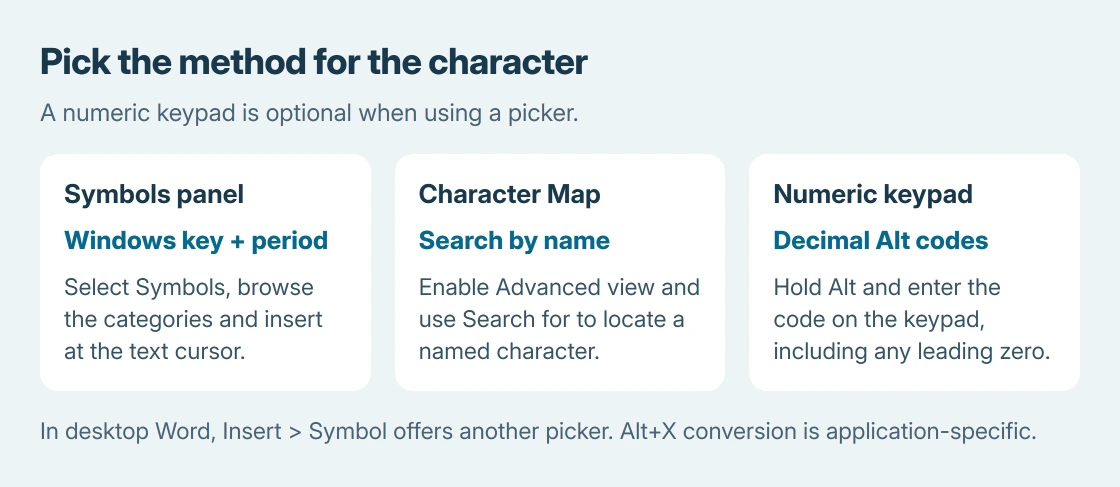
Special characters missing from a keyboard can still be inserted with Windows' symbol panel. Click in the text field, press Windows key + period, then choose Symbols. A separate numeric keypad is unnecessary for this method.
For a character the panel doesn't offer, use Character Map. Desktop Word also has its own symbol menu, while Alt codes need a numeric keypad and the correct code.
Start with the Symbols panel
Place the cursor where the character belongs before opening the panel. Press Windows key + period, select Symbols, browse its categories and select the required mark. Check the text field for the inserted character.
Microsoft documents this picker in its Windows text tools instructions. The panel also contains emoji; choose Symbols for ordinary text marks.
Status: Microsoft's Windows symbol-panel, Character Map and desktop Word instructions checked October 25, 2026. No keyboard layout was changed or typing test performed.
If the required character isn't in those categories, continue with the font-based picker. Installing another keyboard language isn't necessary for an occasional copyright or currency mark.
Find a particular character in Character Map
Search Start for Character Map and open it. Select a text font, choose the required character, then click Select and Copy. Return to the document or message and paste with Ctrl+V.
For a larger collection, enable Advanced view, select Unicode as the character set and use Search for to enter the character's name. Select Reset before starting a different search.
This search method is documented by Microsoft on the same text-tools page. It helps when the symbol is hard to recognize in a crowded grid.
For the temperature mark specifically, the degree-sign instructions include its exact code and the Mac alternative. Different symbols have different codes; changing one digit changes the character.
Use Word's own picker for a document
In desktop Word for Windows, choose Insert > Symbol > More Symbols. Select the character and click Insert, then close the dialog. The Font selector changes which characters are available.
Microsoft says font choice matters in its Word symbol instructions. Try Segoe UI Symbol when a decorative font lacks the mark you need. A blank square can be a font limitation.
Word also accepts a Unicode code followed by Alt+X. Select only the code if neighboring letters or digits could be included. This conversion requires application support; it doesn't apply to every Windows text field.
Alt codes require the keypad
Hold Alt, enter the decimal code on the numeric keypad, then release Alt. Turn on Num Lock if required. The number row over the letters doesn't perform this method.
Microsoft's character-code reference distinguishes decimal Alt entry from Unicode conversion. Preserve a leading zero when the code includes one.
If ordinary printed keys produce unexpected symbols too, check the selected Windows keyboard layout. A wrong layout changes printed keys; the pickers insert marks missing from them.
When insertion fails in one app, paste Character Map's copied character in a plain text document. That comparison checks whether the app rejects the input method. Give its support team the character and failed method.
The Short Version
Use Windows key plus period for Symbols, Character Map for a named character, or Word's Symbol menu for a document. Decimal Alt codes require a numeric keypad; Word's Alt+X conversion uses a different kind of code.

Isaac Smith is the founder and editor of PC Glance, a website that covers computers, laptops, and technology. He is a tech enthusiast and a computer geek who loves to share his insights and help his readers make smart choices when buying tech gadgets or laptops. He is always curious and updated about the latest tech trends.