
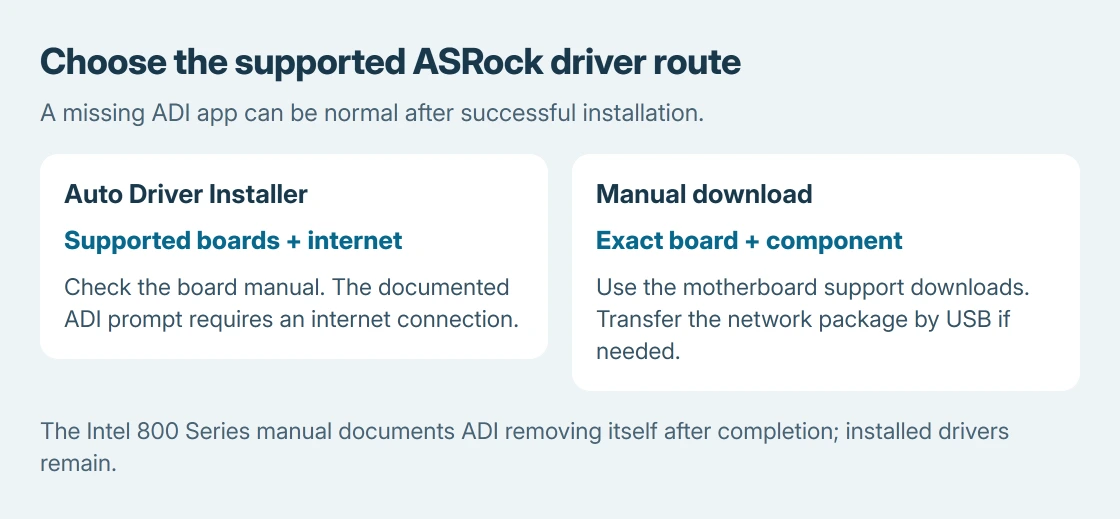
ASRock motherboard drivers can be installed through Auto Driver Installer (ADI) on supported boards. After installing Windows, connect to the internet and accept its prompt. Without internet, the documented notification doesn't appear.
The utility also removes itself after installation. Its disappearance can be normal. If it was skipped and is needed again, check the motherboard manual's Auto Driver Installer setting rather than downloading a random driver-updater app.
Confirm that the motherboard supports ADI
Find the complete board model in the PC's paperwork or motherboard documentation. Use that model's ASRock support information. The procedure here uses ASRock's Intel 800 Series Software/BIOS Setup Guide as its documented example.
The network-driver bootstrap and ADI are documented by the vendor. That doesn't establish ADI support for every older board or every ASRock-based prebuilt computer.
Status: ASRock's Intel 800 Series software manual and Microsoft's manual-driver instructions checked October 25, 2026. No driver, BIOS setting or motherboard firmware was changed.
For a prebuilt PC, check its system maker's support route as well. An OEM motherboard can require the computer manufacturer's packages even when ASRock made the board.
Connect to the internet before waiting for the prompt
On a board covered by that manual, connect the installed Windows system to the internet. The documented first-use route uses the motherboard's Ethernet connection, with the LAN driver supplied through its BIOS ROM.
Accept Yes on the Auto Driver Installer notification. In its driver list, select the needed items and choose Update. Save open work before confirming installation: the process can restart Windows and continue afterward.
The manual describes automatic removal after successful completion. Losing the utility after that message doesn't mean Windows lost the drivers it installed. Check whether the network, audio or other affected device works.
Why has the installer disappeared?
ASRock documents the setting under the BIOS Tool menu as Auto Driver Installer. On the described boards, enabling it allows the prompt to return when Windows has internet access.
This matters after declining the initial notification or completing an earlier installation. Consult the exact board's manual before changing the setting, because menu names and available options can vary.
Enabling ADI is a configuration change. It isn't a BIOS firmware update, and a missing notification alone doesn't justify flashing the motherboard.
Use a downloaded driver when ADI isn't the right route
Open the exact motherboard's product page and its Support > Download area. Match the offered package to Windows and the component that needs it. Use an available computer to obtain the network package if the new PC has no internet.
Transfer it on a USB drive, extract the archive and follow its setup instructions. For a package supplied as driver files, Microsoft documents Device Manager > Update driver > Browse my computer for drivers in its manual-driver guide.
Select the extracted folder and complete the wizard. Restart if requested, then test the device that required the package. The driver selection guidance explains when a working device needs any update at all.
If installation reports unsupported hardware, recheck the board model and package. For a persistent warning, record the Device Manager status code and give ASRock or the PC builder that code, Windows version and downloaded filename.
The support recommendation is ours: stop after a correct-model package still fails. A different board's installer isn't a useful next experiment.
The Short Version
ADI needs internet and its enabled firmware setting on supported boards. Its removal after completion is normal. Otherwise get the component's driver from the exact motherboard support page, then check the device.

Isaac Smith is the founder and editor of PC Glance, a website that covers computers, laptops, and technology. He is a tech enthusiast and a computer geek who loves to share his insights and help his readers make smart choices when buying tech gadgets or laptops. He is always curious and updated about the latest tech trends.