
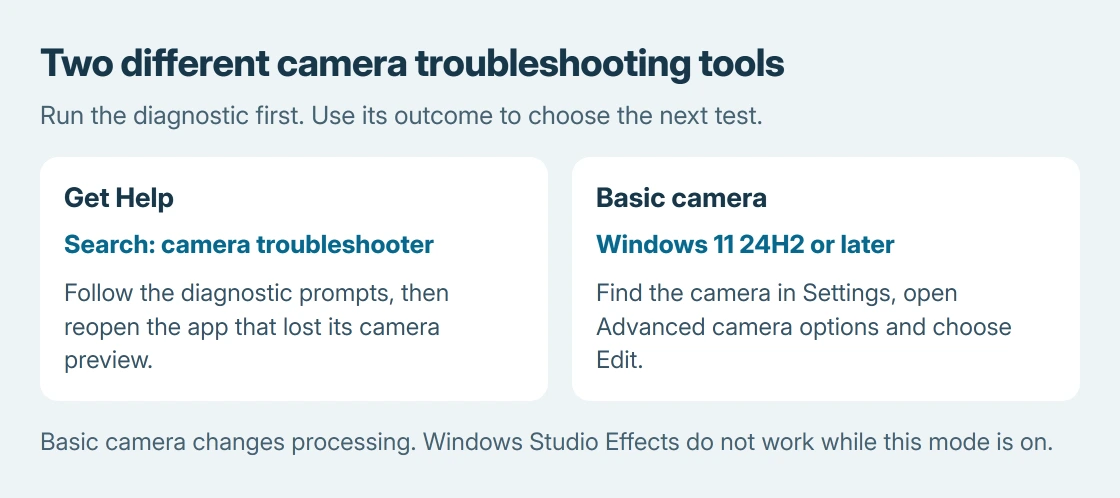
Windows 11's camera troubleshooter is available in Get Help. Search that app for camera troubleshooter, complete its prompts, then reopen the app that lost video.
A current PC also offers a separate Basic camera mode for faults involving acceleration or manufacturer plug-ins.
These are different tools: Get Help runs the diagnostic workflow; Basic camera changes how Windows supplies the camera stream. Use the result of the first to decide whether the second is appropriate.
Run the camera workflow in Get Help
Open Start and search for Get Help. In the app, enter camera troubleshooter and follow its instructions. Microsoft documents that search in its Windows diagnostic list.
The camera's physical shutter must be open, and an external webcam must be connected. A diagnostic cannot remove a lens cover. Follow any permission or restart prompt rather than assuming that opening the app has already run the checks.
Status: Microsoft's camera diagnostic and Basic camera instructions checked October 25, 2026. The advanced modes require Windows 11 24H2 or later. No camera setting was changed here.
Microsoft says its camera troubleshooting page starts with Get Help on Windows 11. It also lists a Settings route: System, then Troubleshoot, Other troubleshooters, and Run beside Camera.
If that entry is absent on the installed release, use the Get Help search. Follow the general permission and device checks in the webcam fault guide if the diagnostic cannot resolve the problem.
Try Basic camera when the normal stream fails
With 24H2 or a newer Windows 11 release, open Settings. Choose Bluetooth & devices, then Cameras, and select the affected camera. Under Advanced camera options, choose Edit.
Turn on Basic camera and test again. Microsoft's camera settings documentation explains that this disables hardware acceleration and, where possible, manufacturer plug-ins that can prevent operation.
This is a specific troubleshooting mode, not an image-quality upgrade. Basic camera disables Windows Studio Effects. It also enables multi-app camera mode; Windows Hello face recognition follows a separate path.
An organization can manage these advanced controls. If they are unavailable on a supported work PC, ask IT instead of applying a registry change to bypass its policy.
Compare the preview with the original app
Open the Windows Camera app and check its live preview. Then reopen the meeting or recording app that originally failed, selecting the intended camera in that app's device settings.
The preview comparison is ours: video returning only after Basic camera was enabled points toward the normal processing path. It does not establish which plug-in or driver component is responsible.
If the option makes no difference, return it to its previous state. If it restores video, use Windows + F to send feedback under Devices and Drivers > Device Camera or Webcams, the category Microsoft requests for this result.
If the Camera app instead reports 0xA00F4244, use the camera detection error checks. A device Windows cannot detect needs a detection or driver remedy, rather than continued image-processing adjustments.
Give support the result that narrows the fault
For persistent failure, contact the laptop or webcam manufacturer with the camera model, Windows version, error code and whether either diagnostic route changed the preview. On a managed PC, begin with IT.
Also say whether Windows Camera works while the meeting app fails. That comparison and the effect of Basic camera are more useful than a list of settings changed without a result.
The Short Version
Run the camera search inside Get Help. If it does not restore video, Basic camera is an additional documented test on 24H2 and later, with Studio Effects disabled while it runs. Compare the preview afterward and report the precise outcome.

Isaac Smith is the founder and editor of PC Glance, a website that covers computers, laptops, and technology. He is a tech enthusiast and a computer geek who loves to share his insights and help his readers make smart choices when buying tech gadgets or laptops. He is always curious and updated about the latest tech trends.