

ThinkPad docking station drivers need to match the dock model, not just the laptop's ThinkPad name. Find the dock's label, open its Lenovo support page, and check the available driver and firmware packages for the installed Windows version.
A missing network adapter, silent dock audio and outdated dock firmware can require different packages. Installing a generic driver updater does not identify which of those jobs failed.
In this guide
Start with the dock's own product identity
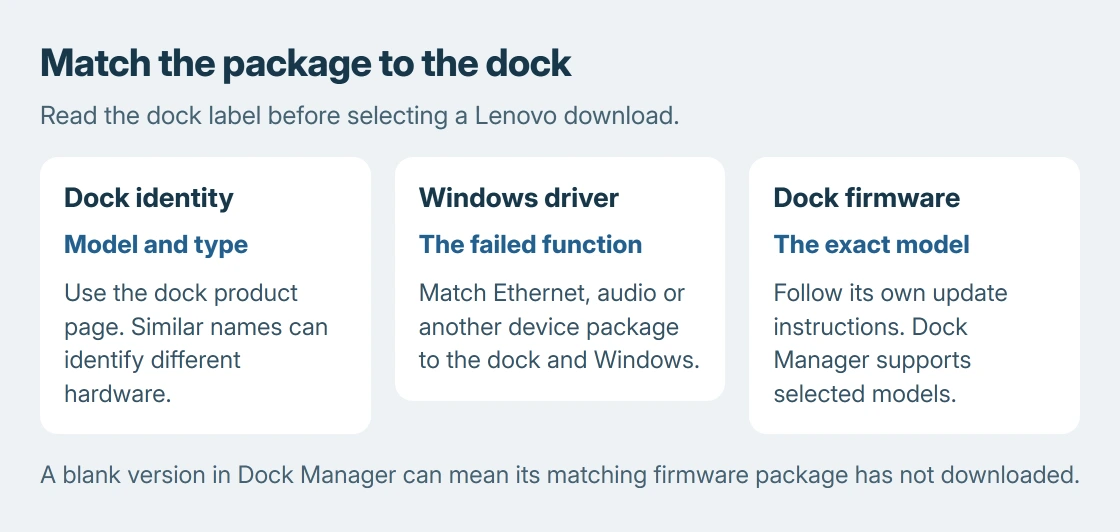
Read the product name and type from the dock's label. Lenovo's Dock Manager documentation lists examples such as 40AS for ThinkPad USB-C Dock Gen 2 and 40AN for Thunderbolt 3 Dock Gen 2.
Those identifiers separate similarly named hardware. Search Lenovo Support for the dock, then check that the product heading agrees with its label before choosing a download.
Status: Lenovo dock support instructions and Dock Manager documentation checked October 25, 2026. No dock driver, firmware package or management utility was installed.
The laptop still has its own graphics and USB-related drivers. Keep those downloads on the laptop's support page. The dock's firmware package belongs to the dock's product page.
If the ThinkPad itself hasn't started, check its normal startup controls before diagnosing dock software.
If the built-in keys fail even with the dock removed, check the ThinkPad keyboard itself before updating dock firmware.
Choose the package for the failed function
The two update routes are documented by Lenovo separately. Search for the docking station and use Drivers & Software or Drivers and Firmware to locate its packages.
For missing dock Ethernet or audio, inspect the applicable packages and their readme files. A dock may expose several Windows devices, so a single package called firmware is not automatically a replacement for every device driver.
Download only a package that lists the dock and operating system in use. Follow its installation instructions, including any required connection order or restart. Then test the exact function that failed.
For a package supplied as extracted driver files, Microsoft says the Device Manager installation route can browse a selected folder. Use a vendor's setup program when its instructions require that instead.
An explicit signature rejection is separate from dock detection; the temporary enforcement setting explains the test and its limits for trusted drivers.
Dock Manager handles supported firmware deployments
Dock Manager caches firmware for supported Lenovo docks. It can automatically update an attached model with older firmware, so installing it can trigger a firmware change.
For a company-managed laptop, ask IT whether Dock Manager or another deployment system already handles the dock. Two competing update attempts are unnecessary; use the organization's approved process.
If the firmware field is blank, check the download state. Lenovo's Dock Manager FAQ says older models may need the matching firmware package downloaded before the utility can query their version.
The FAQ also describes an administrator-managed local repository for machines without internet access. Missing packages in that repository need an IT fix, rather than a different dock's firmware.
Treat a firmware update as its own operation
Read the exact package's readme before starting. Save work using the dock, maintain its required power and computer connection, and let the update finish without unplugging it or putting the PC to sleep.
The stopping point is ours: if the updater reports unsupported hardware, verify the label and package before proceeding. Do not try another generation's firmware to make the warning disappear.
If installation succeeds but only the displays remain dark, follow the dock video-path checks. If the question is how many displays or how much charging power the combination supports, check the dock and laptop limits.
For a dock that still fails with the correct packages, give Lenovo the dock type, laptop model, Windows version and failed function. Include the updater's exact error if it stopped. That is enough to select the appropriate support path.
The Short Version
Identify the dock, choose its supported packages, and separate drivers from firmware. Dock Manager updates supported models. A blank version field can mean the required package has not downloaded yet.






