
A ThinkPad starts with a brief press of its power button after you connect the correct charger. On some models, the fingerprint reader is part of that button. Check your model's layout, since button positions vary.
Keep the charger connected for the first startup. The Lenovo logo or Windows sign-in screen means the laptop is on. If the power light is on but the screen is dark, check the display. With no response at all, check the power.
1. Connect the ThinkPad's supported adapter
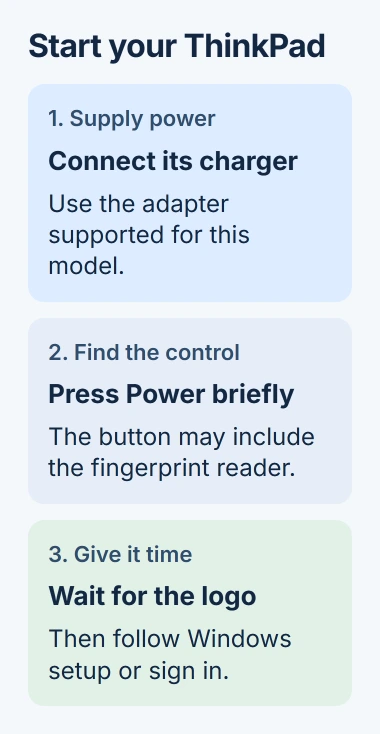
Open the lid with the ThinkPad resting on a firm surface. Connect the power cord to the adapter, plug the adapter into the laptop's charging connector, then connect the power cord to a working outlet.
Use the supplied adapter or an approved replacement for your model. Some ThinkPads charge through USB-C; others have a rectangular Lenovo power socket. Even if the plug fits, the adapter might not supply enough power.
Lenovo's startup instructions say to connect the charger before pressing the power button. They also recommend a full first charge; you can check the battery's charge once Windows opens.
For this first attempt, connect the adapter directly rather than through a dock. That takes the dock's power supply and cable out of the startup check. Reconnect your accessories after you know the laptop starts normally.
If the battery is deeply discharged, leave the supported adapter connected before trying again. Charging time depends on the battery and adapter, so watch your model's charging indicator rather than waiting a set amount of time.
2. Identify the model's power button
Look for the power symbol on a separate button near the keyboard or along the side of the laptop. Its position differs between ThinkPad families and generations. Don't assume that every round or square pad is a power button.
For example, the ThinkPad T14 Gen 5 and T16 Gen 3 guides show a power button that can include a fingerprint reader. On some older X1 Yoga and X1 Carbon models, the button sits on the right edge instead.
A separate fingerprint reader on the palm rest may only sign you in after the machine starts. The older E590 guide lists its power button and fingerprint reader as separate parts. The red TrackPoint in the keyboard is a pointer control.
Look for the Front view, Base or Right view drawing in your model's user guide. Match the full model and generation on your laptop's label. The T14's controls can move between generations.
I'd check that drawing before putting anything into a small opening underneath the case. An emergency-reset hole is a repair control on models that have one; it isn't the button used for everyday startup.
3. Press once, release and watch the startup
Press the power button briefly, then release it. Give the laptop time to show its logo and load Windows. Repeated presses can send another power command before you've seen the result of the first one.
Don't keep holding the button for normal startup. Holding it down can force an unresponsive computer to shut off, and it can interrupt work if the laptop was already running with a dark display.
On models with a combined fingerprint and power button, press the button to start the laptop. Add your fingerprint through the supported setup before using it to sign in. A new computer may ask you to do this later.
The Lenovo logo, a startup-password prompt or the Windows sign-in page all show that the laptop has turned on. A password prompt before Windows is a separate security step. Ask the owner or workplace administrator for the right password.
On first use, Windows may show setup screens instead of your desktop. Follow the language, network and account prompts shown on that computer. Keep power connected while setup or an update is in progress.
4. Read the power light before pressing again
On the E590 and certain older X1 models, a steady power-button light means the computer is on. A slow blink means it's asleep. If the light is off, the computer may be off or hibernating.
Those guides describe three brief blinks when you first connect power. That means power is connected, not that Windows has finished starting. Other generations can use different indicators, so check your model's guide.
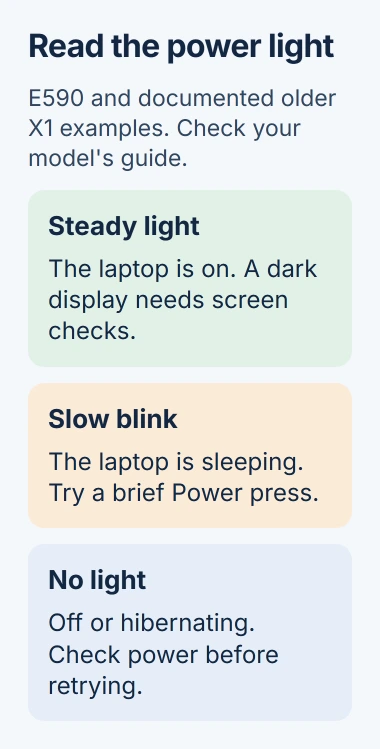
For a sleeping ThinkPad, lift the lid and briefly press Power to try waking it. Once the sign-in page returns, use your PIN, password or usual sign-in method. A sleeping laptop doesn't need a new Windows installation.
If the light is steady but the screen stays dark, raise the brightness with its marked keyboard control. Disconnect any external display to compare. Microsoft's blank-screen guidance covers these display checks.
A laptop that reaches its desktop and then goes dark when you leave the desk may be using a ThinkPad presence-sensor setting. That's different from failing to power on.
5. Stop normal startup attempts when there is no response
Check the wall outlet and reconnect both ends of the adapter. Remove the dock and other attached devices, then try one brief press with direct power connected. Note whether a charging light or power light responds.
If the laptop still doesn't respond, try the computer power-failure checks. Tell support whether there were no lights at all or the lights came on with no picture.
Power resets and emergency-reset controls vary by model. Check the user guide or ask Lenovo before copying another ThinkPad's reset. Leave the bottom cover in place when you're only looking for the normal startup button.
Give support the complete model, adapter rating, what the lights do and whether the logo ever appears. For a company laptop, let IT check it. These details help them work out whether the problem is charging, the button or the display.
The Short Version
Connect the correct charger, find the model's power button, press briefly and wait. A combined fingerprint button still needs a press. Use the power light to separate sleep, no power and a running laptop with a dark screen.
Checked November 5, 2026.

Isaac Smith is the founder and editor of PC Glance, a website that covers computers, laptops, and technology. He is a tech enthusiast and a computer geek who loves to share his insights and help his readers make smart choices when buying tech gadgets or laptops. He is always curious and updated about the latest tech trends.