
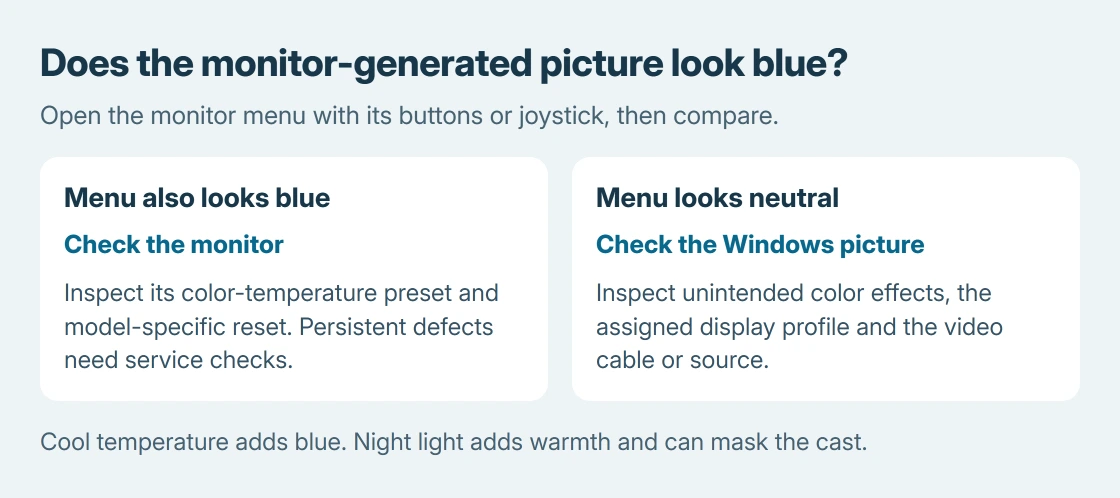
A monitor blue color problem often starts with its Cool color-temperature preset or a changed video connection. Open the monitor's own menu first. It provides a monitor-generated picture to compare with Windows.
If the menu looks normal, compare Windows accessibility filters and the display's color profile. Night light is different: it deliberately makes the picture warmer, so using it can hide a blue cast without correcting its cause.
Change a Cool preset in the monitor's own menu
Use the monitor's buttons or joystick to open its settings. Look for Picture, Color, Color Adjust or Color Temperature, following the manual for that model. Note the current choice before changing it.
LG explains in its color-tint instructions that Cool makes the picture blue. On models with that preset, compare a neutral or default choice rather than compensating through random red, green and blue values.
Status: LG color-temperature and Microsoft display instructions checked October 26, 2026. Monitor menu labels vary by model. No monitor was calibrated or tested.
Open the same white document after the change. If its appearance returns to normal, the preset explains the result. If the monitor-generated picture remains discolored, check the manufacturer's diagnostic or service procedure.
LG's illustrated reset route is Settings > General > Reset to Initial Settings > Yes. It changes monitor settings back to their defaults, so retain any custom values first. Use that route only if it matches the model's manual.
Check the cable before adjusting Windows colors
With the equipment off, reseat the video cable at both ends. Inspect the connectors without forcing damaged pins. Try a compatible replacement cable, preferably the supplied cable when its specifications suit the connection.
LG identifies a poor video-signal connection as another cause of wrong colors. Compare a second input or another computer if available. A tint that follows one cable gives a different result from a tint that persists with every source.
For controls such as resolution and refresh rate after changing an input, use the Windows HDMI settings guide. Changing those controls is separate from choosing the monitor's white balance.
Turn off an accidental Windows color effect
On Windows 11, open Settings > Accessibility > Color filters. On Windows 10, open Settings > Ease of Access > Color filters. If a filter was enabled unintentionally, turn it off and compare the same document.
Microsoft says color filters change the displayed color palette. Keep an accessibility filter enabled if it is a deliberate aid; a different monitor picture does not make that preference faulty.
On Windows installations that offer it, also check Settings > Accessibility > Screen tint. Microsoft documents this as a separate whole-screen color overlay. Turn off an unintended overlay for comparison.
The Screen tint entry is not present on every Windows installation. Microsoft states that Screen tint and Color filters disable each other when enabled, so inspect the active feature rather than assuming both effects are applied together.
Check which color profile belongs to this display
In Windows 11, open Settings > System > Display > Color profile. Select the affected screen in the display selector, particularly when two monitors have different appearances.
Microsoft's display color instructions describe assigning a profile to a particular display. For an unintended assignment, select the correct profile and use Set profile.
Keep a custom calibration profile available before changing the assignment. A profile for another monitor model is not a reliable correction, and assigning a new profile does not repair a physical panel defect.
Retest the document in the application where the tint was noticed. Color handling can differ between applications; a problem confined to one program needs that program's color settings checked as well.
Treat a scheduled warm-to-blue change separately
A screen can look bluer when Night light switches off because its warm overlay has ended. Check Settings > System > Display > Night light and inspect its strength and schedule.
The Night light controls explain that intentional warmth. Compare the picture with the schedule understood before deciding the monitor developed a new fault.
If the cast persists across inputs and computers after the model's supported reset, contact the monitor manufacturer. Report whether its own menu is affected and which cable and source comparisons changed the result.
The Short Version
Check the monitor's color temperature and cable. For a Windows-only tint, inspect color effects and the assigned display profile. Persistent monitor-generated defects need diagnostics or service.

Isaac Smith is the founder and editor of PC Glance, a website that covers computers, laptops, and technology. He is a tech enthusiast and a computer geek who loves to share his insights and help his readers make smart choices when buying tech gadgets or laptops. He is always curious and updated about the latest tech trends.