
A computer stuck on the boot screen needs different checks depending on whether firmware or Windows has stopped. Disconnect nonessential USB devices first, provided the screen is not actively installing a firmware or Windows update.
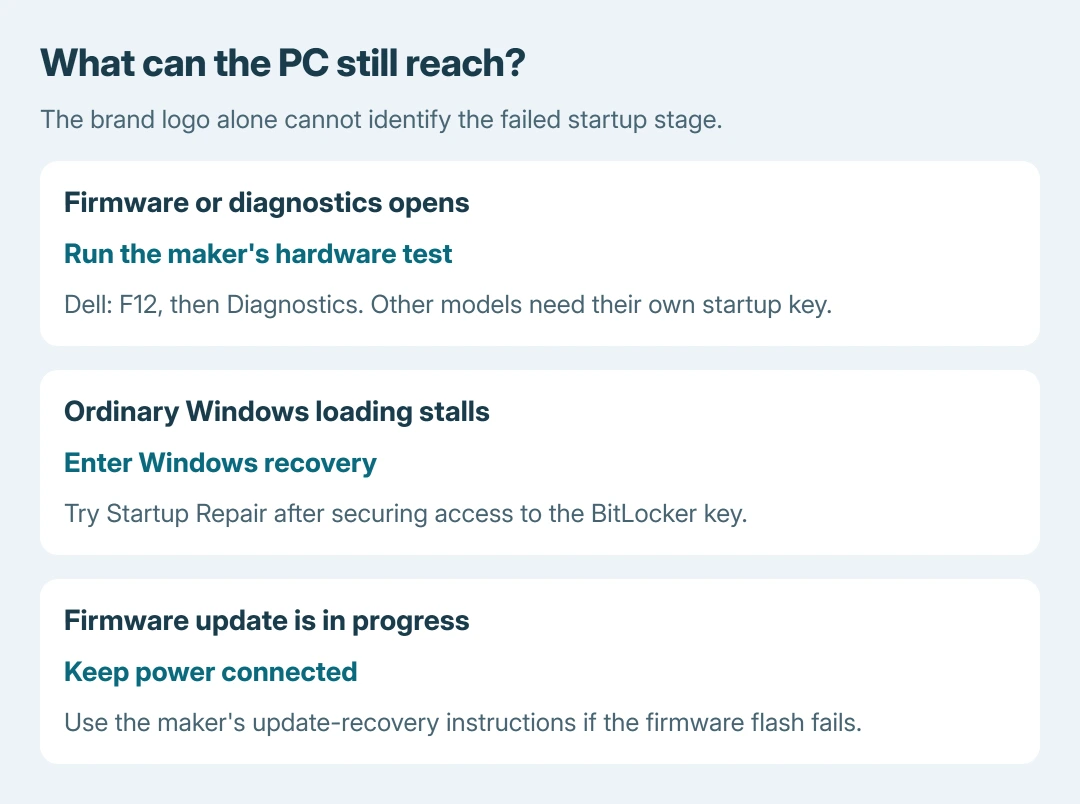
A manufacturer's logo alone does not prove that Windows has started. Check whether the setup or diagnostic menu opens before choosing an operating-system repair.
Remove external devices and check the next start
For a genuinely unresponsive startup, keep the power button pressed to switch the PC off. Disconnect USB storage, printers, memory cards and docks, then start again with power and the display connected.
Keep a directly connected keyboard available if needed for the startup menu. Dell documents removing external devices in its stuck-logo troubleshooting.
Status: Dell startup checks and Microsoft's Windows 10/11 recovery instructions verified October 26, 2026. No BIOS setting or boot file was changed.
If startup succeeds, shut down normally and reconnect one removed device at a time. A stall that returns with one accessory gives support a specific connection to examine. This comparison sequence is ours.
An explicit firmware-update screen is different. Keep power connected and follow the maker's recovery instructions if that update fails; do not use repeated forced shutdowns on an active firmware flash.
Test whether the firmware menu still opens
Use the startup key in the computer's manual as soon as it powers on. On Dell PCs, the vendor documents F12 > Diagnostics for the preboot hardware test. Other brands use different keys and diagnostic tools.
Let the test finish and record any error code, validation code and device identifier. A reported storage or memory fault needs the manufacturer's repair advice before Windows is reinstalled.
If neither setup nor diagnostics opens after peripherals are removed, give the maker the model and exact frozen screen. Windows recovery cannot repair a failure that prevents the PC from reaching a bootable environment.
If firmware reports no bootable device instead of freezing, use the boot-device error checks. Avoid changing storage mode or boot mode at random.
Reach Windows recovery when loading stalls
Have the BitLocker recovery key available before repair. Microsoft says encrypted devices can require it for recovery tools. A managed work computer may need its IT department's help.
Windows may open Automatic Repair after repeated failed starts. Select Advanced options if it has already reached that screen.
For a PC stuck during ordinary Windows loading, Microsoft's recovery-environment instructions give two interrupted starts, then an uninterrupted third start:
- Start the PC. At its startup logo during ordinary boot, keep pressing the power button to shut it down.
- Start it again and repeat that interruption once.
- Turn it on a third time and allow Automatic Repair to load. Select Advanced options.
If recovery never appears, use Windows installation media created on another working PC. Boot that media using the maker's boot menu and choose the repair option, rather than starting a new Windows installation.
Let Startup Repair attempt the Windows repair
In recovery, select Troubleshoot > Advanced options > Startup Repair, then Restart if requested. Microsoft documents this Startup Repair route for damaged startup files and configuration.
Follow any account or recovery-key prompt. Allow the attempt to complete, then check whether the PC reaches sign-in. Passing hardware diagnostics does not prove that Windows itself is healthy.
If repair fails, record its message before trying another tool. A recent driver or software change may justify System Restore; a failure immediately after an update may call for Uninstall Updates in Advanced options.
Those tools have different effects. Discuss the failure with Microsoft Support or the PC maker before an erasing recovery, especially without a file backup. A drive that failed hardware diagnostics needs hardware attention first.
The Short Version
Remove external devices and distinguish firmware from Windows failure. Run the maker's preboot test where available. For Windows failure, enter recovery and try Startup Repair. Preserve error details and file access before escalating.

Isaac Smith is the founder and editor of PC Glance, a website that covers computers, laptops, and technology. He is a tech enthusiast and a computer geek who loves to share his insights and help his readers make smart choices when buying tech gadgets or laptops. He is always curious and updated about the latest tech trends.