

Unprotect an Excel sheet through Review > Unprotect Sheet and enter its password. In the browser, Manage Protection disables the sheet restriction; Pause Protection suspends it for one editing session.
First confirm that the workbook opens and the restriction concerns cells on one worksheet. A password required before the file opens belongs to a different protection system.
Remove protection from the active worksheet
Keep the original shared template and work in a duplicate. Open the worksheet needing edits, select Review > Unprotect Sheet, and supply its password when requested. Confirm the dialog with OK.
Microsoft documents this procedure in its worksheet-protection guide. Windows also offers File > Info > Protect > Unprotect Sheet. Each worksheet can have its own protection, so check other tabs separately.
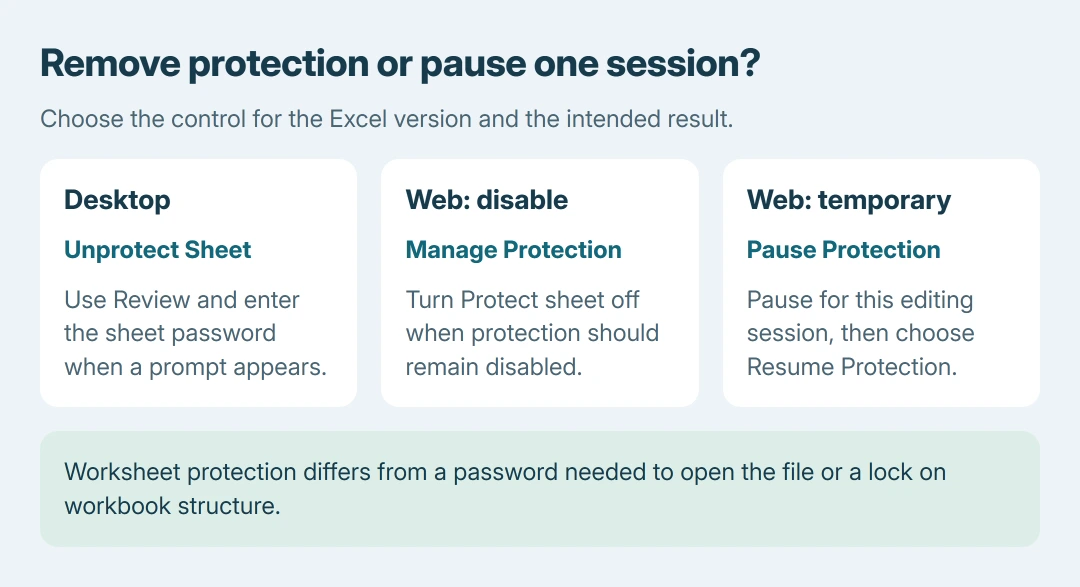
Status: Microsoft's desktop, Mac and web sheet-protection controls compared October 26, 2026. Web pause and disable actions differ; no workbook was unlocked.
Check that the ribbon command now reads Protect Sheet, then try the intended edit in the copy. If it already read Protect Sheet at the start, active worksheet protection was not the restriction to remove.
On Mac, Microsoft's password-removal instructions use Review, then Unprotect Sheet and the current password. Keep this separate from Protect Workbook, which concerns a different level of protection.
Disable or pause protection in Excel for the web
For a lasting change, choose Review > Manage Protection and switch Protect sheet off in its pane. Complete any password prompt using the sheet's existing password.
For a temporary editing session, use Review > Pause Protection instead. Microsoft says this leaves protection in place for other users while allowing changes in the current session. A configured sheet password is still required.
Choose Review > Resume Protection when the temporary edit is complete. Check the sheet-tab indicator: Microsoft's guide identifies a locked icon for protection and an unlocked icon for a paused sheet.
The choice depends on the intended result. A shared form needing one correction can use a pause; deliberately removing its protection for future editing calls for the disable control.
Match a continuing restriction to the right lock
Microsoft states that file encryption, workbook structure and worksheet protection have separate purposes. Unprotect Sheet cannot remove a password needed to open an encrypted workbook.
If the problem is adding, renaming or moving worksheet tabs, inspect workbook-structure protection with the owner. If the file opens read-only through an organization, ask for the required edit permission.
The Excel file-password guide explains the opening-password layer. For a form that should remain partly restricted, use selective cell locking after the corrections.
Our check is to name the failed action before changing more protection settings: typing in a cell, rearranging sheet tabs and opening a file are three different operations.
No sheet password?
Ask the workbook owner for the sheet password or an authorized editable version. Microsoft says password retrieval is unavailable if it has been forgotten. Changing unrelated controls cannot recover the missing credential.
For a continuing problem with the known password, give Microsoft Support the Excel platform, command used and exact prompt. For a company workbook, involve its owner or administrator before replacing the original template.
The Short Version
Use Unprotect Sheet on desktop Excel. In the browser, disable Protect sheet through Manage Protection or pause it for one session.
Enter the existing password when requested. A sheet restriction, workbook-structure lock and file encryption require different controls.

Isaac Smith is the founder and editor of PC Glance, a website that covers computers, laptops, and technology. He is a tech enthusiast and a computer geek who loves to share his insights and help his readers make smart choices when buying tech gadgets or laptops. He is always curious and updated about the latest tech trends.