
Removing a Google account from Chrome can mean signing out, clearing Google's remembered sign-in, or deleting a local Chrome profile. Start where the unwanted account appears; the three operations use different controls.
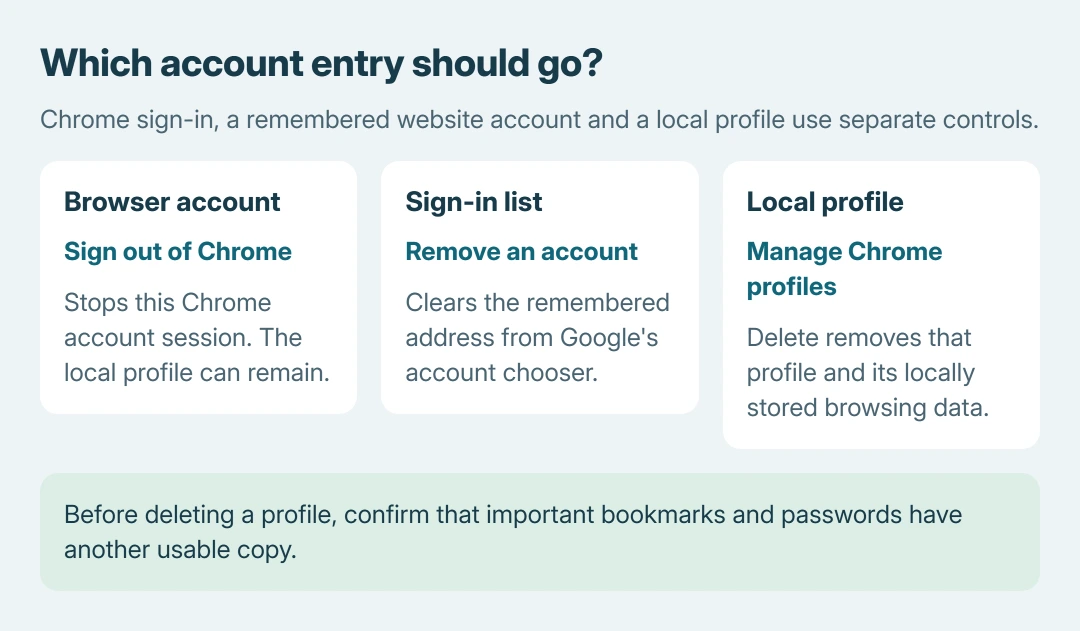
On a computer, Chrome's toolbar profile menu offers Sign out of Chrome. Deleting its profile goes further and erases that profile's locally stored browsing information.
Sign out through Chrome's toolbar profile
Click the profile picture beside Chrome's address bar. Read the email address before selecting Sign out of Chrome. Google's current instructions use this menu on desktop Chrome.
Google says Remove Account from Chrome can appear when a Google web service is signed out or the account has an error. Use the option matching that account's state; a website's account picture is a separate menu.
Status: desktop Chrome account, profile and Google sign-in-list controls checked October 26, 2026. Instructions come from Google; no account or profile was removed.
The Chrome sign-out instructions describe this browser-account action. It does not delete the Google account itself or close its Gmail address.
If the aim is only to stop an account being offered on a Google webpage, use the next procedure. A Chrome profile can remain on the computer even when its browser account is signed out.
Remove the address from Google's sign-in list
Open myaccount.google.com and click the account picture within the webpage. Choose Sign out or Sign out of all accounts, then select Remove an account on the sign-in page.
Remove the intended address. Google's multiple-account sign-in guide warns that signing out of all accounts also affects other Google website sessions in that browser.
Have the credentials and verification method needed to sign back into the accounts being kept. Removing the remembered entry does not delete that person's Chrome profile or erase their online Google account.
Delete a local Chrome profile only after saving its data
Google states that profile deletion removes that profile's bookmarks, history, passwords and settings from the computer. Confirm important information has another usable copy before choosing Delete.
Use the bookmark export procedure for a separate HTML copy. Bookmarks are only one part of the profile; that file does not contain saved passwords.
If passwords appear missing already, follow the Chrome password recovery checks before deleting anything. Account removal is unsuitable as a way to recover a blank password list.
- Open Chrome's toolbar Profile menu.
- Under Other Chrome profiles, select Manage Chrome profiles.
- Find the profile to remove. Open its More menu, choose Delete, and read the confirmation.
- Confirm Delete only for that profile. Its tile should disappear from the profile manager.
Google's profile management page provides these controls. Check the displayed name and account carefully when work and personal profiles have similar pictures.
Keep a website login from signing Chrome in again
Return to Profile > Google Services Settings. Under Other Google services, Google's current choices include Sign in, Don't sign in, and Ask every time for Chrome sign-in permission.
Choose Don't sign in to keep the browser account signed out when using a Google service. Use Ask every time if the decision should be made for each sign-in. Older releases can show different preference wording.
The distinction between these menus is ours: inspect the toolbar, webpage and profile manager separately for the unwanted entry. A change in the website chooser says little about which local profiles remain.
For a managed work browser with locked settings, contact its administrator. For an unexpected sign-in or removal error in personal Chrome, give Google's help community the exact menu and message, without posting account credentials.
The Short Version
Use Chrome's profile menu to sign out, Google's sign-in page to remove a remembered address, or the profile manager to delete local browsing data. Preserve important local information before deleting a profile.

Isaac Smith is the founder and editor of PC Glance, a website that covers computers, laptops, and technology. He is a tech enthusiast and a computer geek who loves to share his insights and help his readers make smart choices when buying tech gadgets or laptops. He is always curious and updated about the latest tech trends.