
Crumbs under a Mac keyboard key need a different approach from wiping fingerprints off its surface. Shut the computer down and unplug it first.
For the MacBook models Apple lists, its compressed-air procedure uses three notebook positions without removing keycaps.
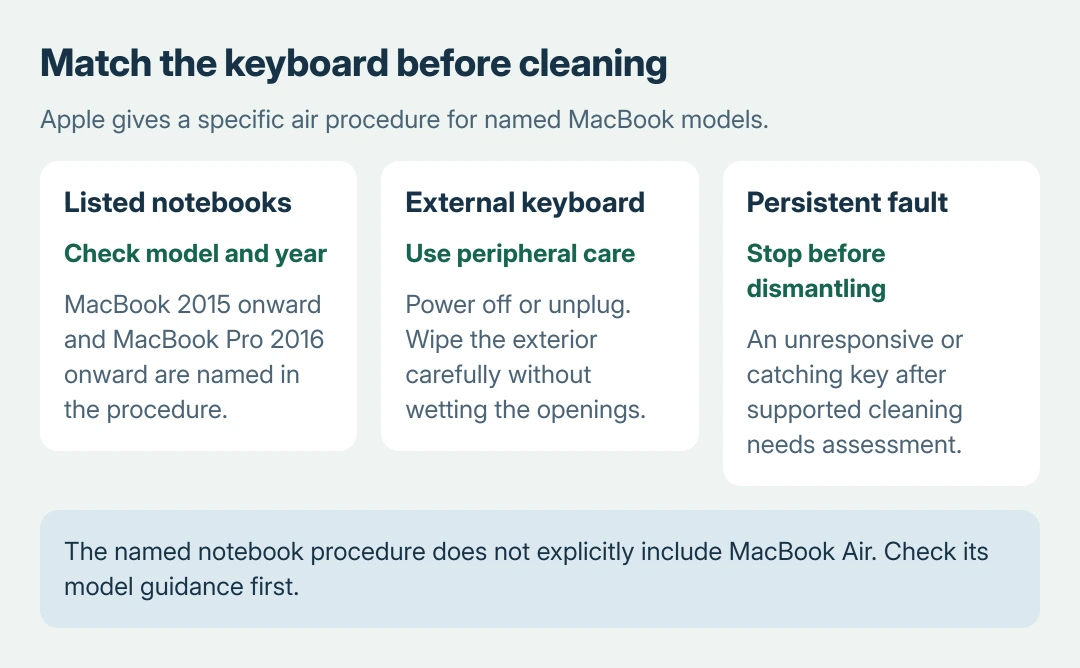
Check the model before starting. Apple's specific procedure names MacBook from 2015 onward and MacBook Pro from 2016 onward. It does not name the MacBook Air or Apple's external keyboards.
Prepare the keyboard without lifting its keys
Save open work and choose Apple menu > Shut Down. Disconnect the charger and other cables. For an external keyboard, switch it off or unplug it instead of treating it like a built-in notebook keyboard.
Apple documents powering down and unplugging in its product cleaning instructions. Keep liquids out of gaps and apply cleaner to a suitable cloth, never directly to the keyboard.
Status: Apple's keyboard and product-cleaning pages checked October 27, 2026. The air procedure has a stated model scope. No keyboard was cleaned or dismantled.
Leave the keycaps attached. The supported air procedure does not require prying them off or putting a tool under them. If a crumb will not come out without taking a key apart, stop there.
A drink spill is a different job. The sticky-key and spill guide covers the residue, and blowing out crumbs will not make a wet laptop safe to switch on.
Follow Apple's three positions on the listed notebooks
Use the straw supplied with the compressed-air can. Apple says to keep its end about half an inch from the keyboard and to keep the can from becoming inverted while spraying.
Hold the notebook steady. Turning the computer onto its side does not mean turning the can upside down.
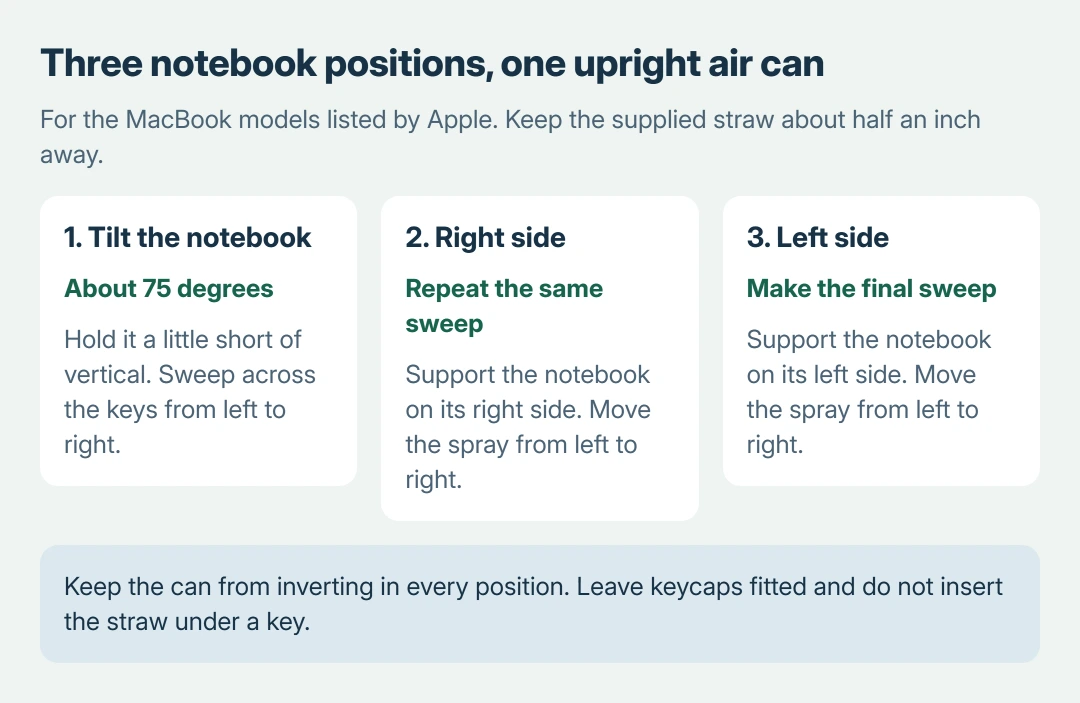
- Hold the open notebook at about 75 degrees and spray the keys, or just the sticking ones, from left to right.
- Turn it onto its right side and spray left to right again.
- Turn it onto its left side and repeat.
Apple's keyboard-cleaning page gives this sequence for the named MacBook and MacBook Pro models. It is intended for an unresponsive key or one that feels different when pressed.
Do not push the straw into a gap between keys, and keep that half-inch distance as you move across. If the key still sticks afterwards, the next step is service, not harder or closer spraying.
Use the correct instructions for a Magic Keyboard
An external Apple keyboard does not need to be held like an open notebook. Apple states that its wireless and USB peripherals should be powered off, with removable batteries taken out where applicable, or unplugged if wired.
Wipe the exterior with a soft, lint-free cloth moistened lightly with water, keeping the openings dry. The same page rules out aerosol sprays, solvents and abrasives on them.
That only cleans the outside. Neither Apple page gives an under-key air routine for a Magic Keyboard or a MacBook Air.
If dirt stays trapped under a key on a model the procedure does not name, ask Apple how to clean or service it rather than prying the key off.
Check the key once, then decide about service
After cleaning and ensuring the exterior is dry, power on and open a blank note. Press the affected key normally and compare its travel with the neighboring keys.
Check for a missing character, repeated characters or continued physical resistance.
That comparison is ours, not Apple's, and only shows whether the original symptom changed. Do not keep pressing harder on a key that still catches, and a working character does not prove every crumb is gone.
If every key feels normal but typing vanishes in all apps, that is a software problem, and the Mac keyboard focus checks cover it. Cleaning one key will not fix that.
Apple refers still-unresponsive keys to its retail stores or authorized service network. Give the service team the model, affected keys and cleaning already attempted. Check coverage before authorizing a repair.
For fingerprints on the display, follow the separate MacBook screen-cleaning method.
The Short Version
Identify the model and shut it down before cleaning. On Apple's listed notebooks, use its straw distance and three-position air sequence with the can upright. Keep keycaps fitted.
Use separate peripheral guidance for external keyboards and arrange service for persistent failure.

Isaac Smith is the founder and editor of PC Glance, a website that covers computers, laptops, and technology. He is a tech enthusiast and a computer geek who loves to share his insights and help his readers make smart choices when buying tech gadgets or laptops. He is always curious and updated about the latest tech trends.