
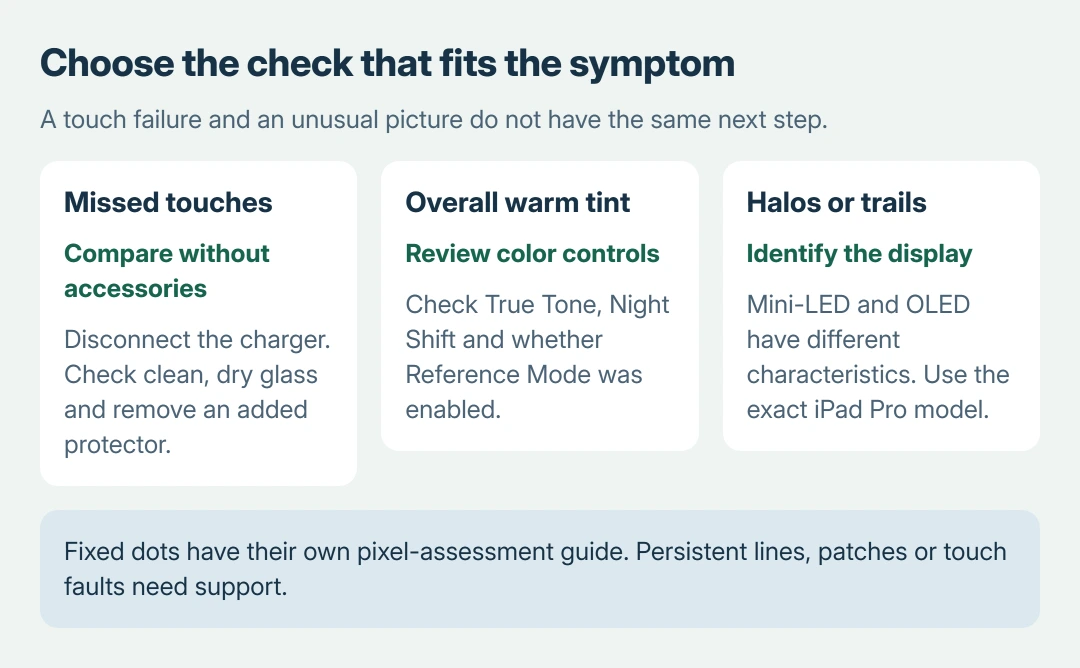
iPad Pro screen issues need to be matched to the symptom and display type. Missed touches, a warm color cast and a halo around bright text have different causes. Start with the matching check instead of erasing the iPad.
For intermittent touch, disconnect charging accessories and check the clean, dry screen. For an image problem, find the model in Settings > General > About before applying advice about mini-LED or OLED behavior.
Separate missed touches from an image problem
Try another app and check whether the same area ignores a normal finger touch. If the picture looks correct but taps fail across apps, remove USB-C or Lightning accessories and compare operation without the charger.
Apple says to try another outlet, cable or charger if removing an accessory restores touch in its unresponsive-screen instructions. That result directs the next check toward the charging setup.
Status: Apple's touch, color, Liquid Retina XDR and Ultra Retina XDR guidance checked October 27, 2026. Display type depends on model. No iPad Pro was tested.
Check that the glass is clean and dry, remove a case or added screen protector for comparison, and restart. Apple includes those steps in the same instructions. Follow the screen's cleaning guidance without pressing hard on it.
A completely frozen interface needs the iPad force-restart procedure. A display that works normally except for one persistent dot needs the separate iPad pixel-assessment guide.
If touch remains unreliable across apps after those checks, arrange service. Repeatedly resetting preferences cannot confirm that the touch hardware has recovered.
Check color settings for an overall yellow or warm tint
Open Settings > Display & Brightness. Turn True Tone off temporarily and compare a plain white page under the same room lighting. Then open Night Shift and check its enabled state and schedule.
Apple documents that True Tone responds to ambient light and Night Shift deliberately warms the display in its brightness and color guidance. An overall tint that follows either switch can be an intended setting.
Restore True Tone if that appearance is preferred. These controls are not a repair for one fixed discolored patch. A patch that stays in one physical area even as different content is displayed needs another assessment.
If brightness cannot be adjusted and those color controls are unavailable, check whether Reference Mode was enabled. On supported iPad Pro models, find it under Display & Brightness > Advanced.
Apple states that Reference Mode disables normal brightness adjustment, True Tone and Night Shift. Turn it off for ordinary display behavior if it is not needed for a color-reference workflow, then check those controls again.
Match a bright-text halo to the mini-LED model
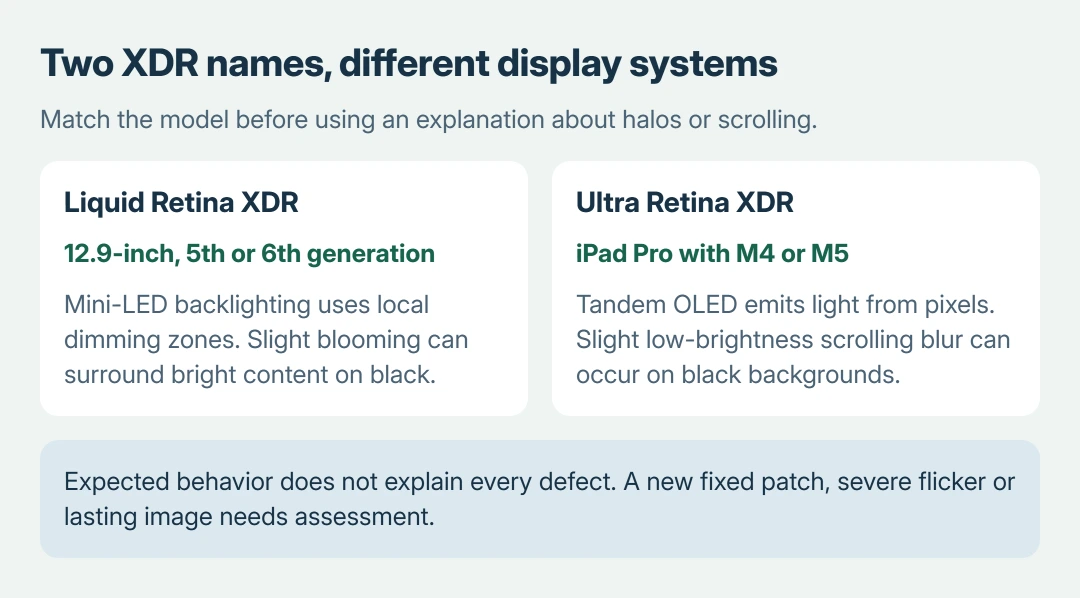
The 12.9-inch iPad Pro, 5th and 6th generation, uses Liquid Retina XDR with mini-LED local dimming. Apple's Liquid Retina XDR explanation describes slight blooming as a tradeoff of its lighting zones.
A halo around white text on a dark background can reflect that design. Watch whether it follows the bright content as it moves; a fixed bright patch that remains elsewhere on the panel is a different observation.
This explanation does not apply to every iPad Pro. The older 11-inch models do not use that 12.9-inch mini-LED display, and the M4 and M5 Pro models use a different OLED design.
If the effect is new, severe or distracting in ordinary content, show Apple the model and an example. The documented existence of blooming does not establish that every unusual patch or stripe is normal.
Keep OLED scrolling effects separate from lasting damage
Apple's Ultra Retina XDR guidance covers iPad Pro M4 and M5. These displays use tandem OLED, with light emitted by pixels and no separate backlight.
Apple describes slight color shifts at an angle and slight blur or color changes while scrolling black backgrounds at reduced brightness as normal OLED characteristics. A mini-LED backlight explanation does not fit these models.
The same page distinguishes temporary image persistence from burn-in. A faint remnant that disappears after a few minutes of ordinary use is not the same outcome as an image that remains visible indefinitely.
Keep iPadOS updated, use Auto-Brightness and avoid leaving a static picture at maximum brightness for long periods. The Auto-Brightness switch is under Settings > Accessibility > Display & Text Size.
Those measures reduce display wear; they are not a promised repair for an existing permanent mark. Avoid flashing-color videos, pressure or heat as attempts to repair a damaged screen.
Request an assessment for persistent physical defects
Use another camera to record a continuing stripe, patch or flicker. Include the app, brightness and viewing conditions in the service notes. Our recommendation is to keep that record because a screenshot may omit a panel defect.
If one app alone shows the effect, update it and contact its developer with an example. If it persists across apps, follows damage or comes with unreliable touch, contact Apple's iPad service team.
Back up accessible content before service. Ask about coverage and the estimate after inspection. The display's marketing name cannot establish whether a particular device has a manufacturing fault or accidental damage.
The Short Version
Disconnect accessories for intermittent touch and check True Tone, Night Shift or Reference Mode for whole-screen color changes. Match mini-LED and OLED explanations to the exact model.
Persistent stripes, patches or touch failures need Apple's assessment.

Isaac Smith is the founder and editor of PC Glance, a website that covers computers, laptops, and technology. He is a tech enthusiast and a computer geek who loves to share his insights and help his readers make smart choices when buying tech gadgets or laptops. He is always curious and updated about the latest tech trends.