
A controller that keeps connecting and disconnecting on a PC needs a connection check before game settings. Charge it or fit fresh batteries, move it near the computer, and compare a supported USB connection with wireless use.
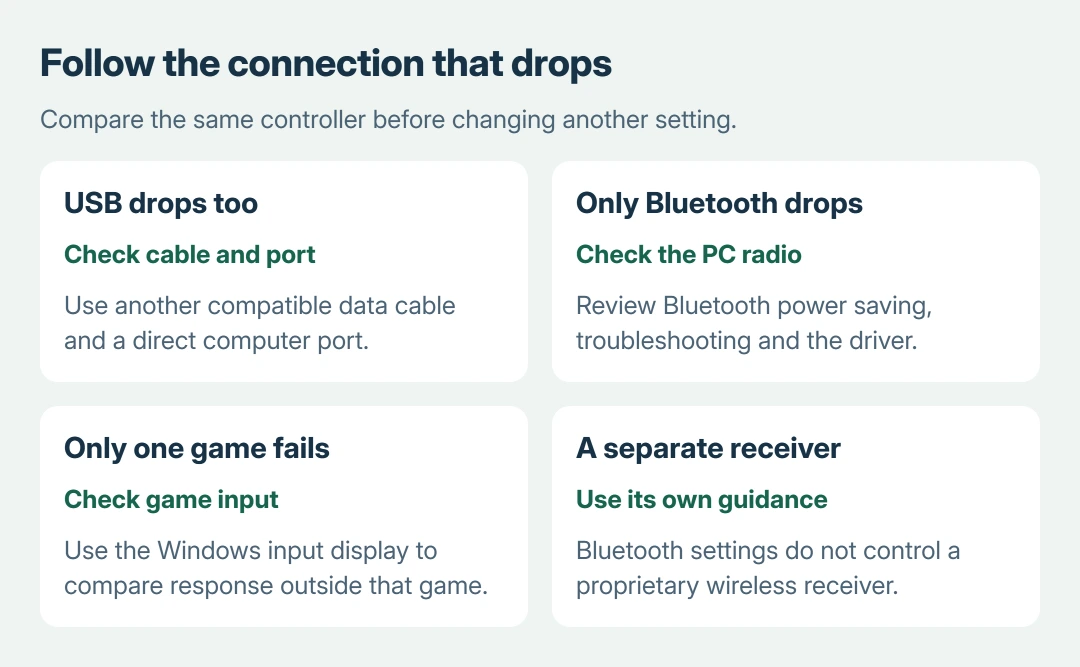
A stable cable session points toward the wireless path. Drops over both connections call for a different cable, port or controller assessment. The detailed Windows settings here apply to Bluetooth, not a proprietary receiver.
Check whether Windows loses the controller too
Leave the game and watch the controller in Windows. On Windows 11, open Settings > Bluetooth & devices > Devices for a Bluetooth controller and observe its connection while the fault happens.
Microsoft says low battery and range can prevent a device from maintaining its connection in its Bluetooth connection guidance. Address those first.
Status: Windows Bluetooth connection and disconnection instructions checked October 27, 2026. USB comparisons are recommendations. No controller input was tested.
Use the Windows controller input panel to compare button response outside the game. A working input display while one game ignores the pad calls for that game's control configuration.
An Xbox pad that has never paired needs the Xbox controller connection checks instead. Repeated disconnection after successful pairing is the problem addressed here.
Compare a direct USB connection with wireless use
If the controller supports wired PC input, connect it directly with a compatible data cable. Remove a hub or extension for this comparison. Use the same game and observe whether the connection survives normal play.
This comparison is ours. A stable wired session narrows the next checks to wireless power, the radio or its software. It cannot verify every function in the controller.
If wired input drops too, try another known-working data cable and another direct computer port. A cable that charges the controller can still fail to carry reliable input data.
Continued failure with those alternatives needs the controller maker's support. Give them the model and whether Windows loses it over USB, wireless or both. Avoid replacing the Bluetooth driver for a USB-only fault.
Run the Bluetooth troubleshooter for wireless drops
For a Bluetooth controller, open Get Help in Windows 11 and search for Bluetooth troubleshooting. Follow the automated checks and retry the connection afterward.
Microsoft documents this as its first remedy for Bluetooth that keeps disconnecting. It applies to the PC's Bluetooth connection, not an Xbox Wireless Adapter.
Restart Windows if the automated checks do not restore stable operation. Keep the controller nearby during the next comparison. If other Bluetooth peripherals also disconnect, tell the PC maker that the fault affects the radio more broadly.
Check power saving and the Bluetooth driver
On a laptop, temporarily turn Energy saver off under Settings > System > Power & battery. Microsoft includes disabling battery-saving behavior in its disconnect checklist. Check whether the controller now stays attached.
If drops continue, open Device Manager, expand Bluetooth, and open the Bluetooth adapter's Properties. Where a Power Management tab exists, clear its option allowing Windows to turn the device off for power saving.
That tab is not supplied by every driver. If it is absent, continue to the driver check rather than adding registry settings to manufacture it. This change concerns the adapter and can affect its other Bluetooth connections.
In Device Manager, right-click the adapter and choose Update driver. Also check the computer maker's support page for the correct model's Bluetooth package. Restart if installation requests it, then repeat the same controller session.
For continued Bluetooth failure, report the adapter name and driver version to the PC maker. If the controller fails with another supported computer too, ask its manufacturer about diagnostics or service.
Keep a stable supported cable connection as a temporary option.
The Short Version
Compare wired and wireless operation, battery power and response outside the game. For Bluetooth-only drops, run Get Help and check power saving and drivers. Persistent USB failures need cable, port and hardware checks.

Isaac Smith is the founder and editor of PC Glance, a website that covers computers, laptops, and technology. He is a tech enthusiast and a computer geek who loves to share his insights and help his readers make smart choices when buying tech gadgets or laptops. He is always curious and updated about the latest tech trends.