
FaceTime photos not saving can begin with the capture permission, rather than Photos storage. Check Settings > Apps > FaceTime > FaceTime Live Photos on the iPhone, and ask the other participant to check their setting too.
Then take one deliberate Live Photo during a working video call. A missing library item after a capture notification needs different checks from a disabled photo button.
A Mac also needs its Photos library initialized before saving these images.
Enable FaceTime Live Photos at both ends
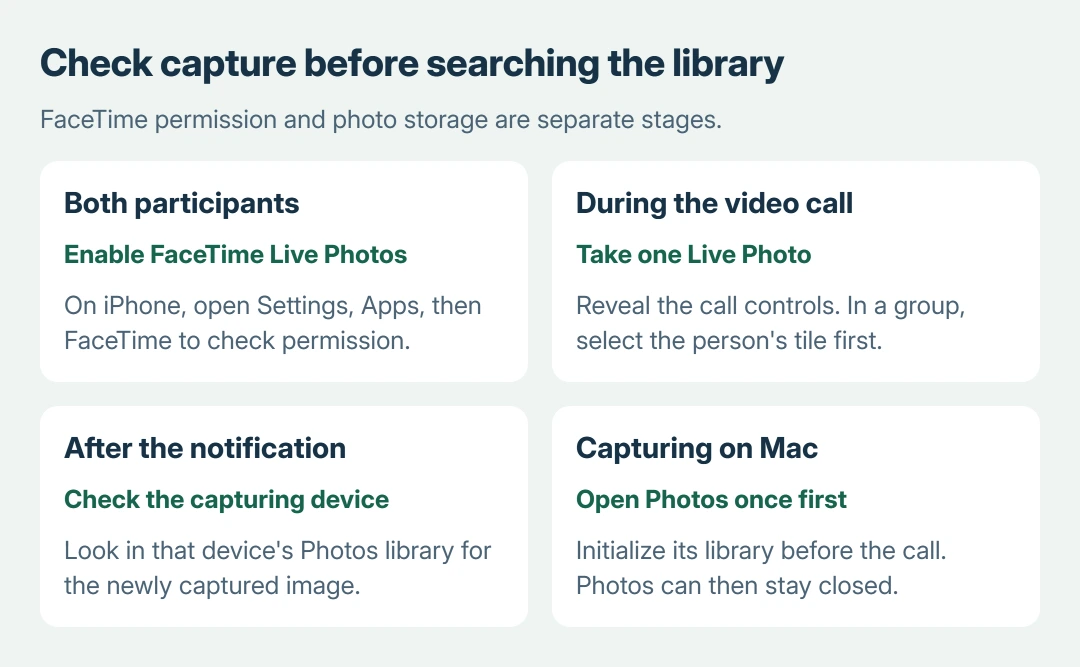
Open Settings > Apps > FaceTime and turn FaceTime Live Photos on. This permission belongs to FaceTime. The Live Photo setting in the ordinary Camera app does not enable it.
Apple documents the iPhone setting in its FaceTime Live Photo guide. Its Mac instructions also state that both people must have FaceTime set up for Live Photos.
Status: Apple's iPhone and Mac FaceTime photo instructions checked October 27, 2026. Capture permission and library access are separate checks. No call or photo capture was performed.
Ask permission before capturing the call. The setting also lets the other participant take a Live Photo of you, and Apple says both participants receive a notification when one is taken.
If the call itself cannot connect or its video keeps freezing, use the FaceTime calling checks first. A failed video connection does not establish a photo-saving fault.
Use the photo button during a video call
Tap the active call screen to reveal its controls. In a one-to-one call, tap the Take Live Photo button. In a group call, first tap the intended person's tile, then use that photo control.
Watch for the capture notification and open Photos on the device that took the image. Apple's iPhone guide says the resulting Live Photo is saved there. Taking a photo does not promise a copy in each participant's library.
Check the recent additions in that library before repeating the capture. If photos generally seem absent, the iPhone Photos library checks cover personal/shared-library views and other visibility causes.
This comparison is ours: record whether a notification appeared, whether a new item is visible, and which device captured it. Those details separate an unavailable capture control from an image being saved somewhere unexpected.
Initialize Photos before capturing on a Mac
On a Mac that has never opened Photos, open the Photos app once and complete its initial library setup. Apple states this prerequisite in its Mac FaceTime photo instructions.
Photos does not have to remain open during the call. The requirement is that it has been opened before, so FaceTime can save Live Photos into the library.
End the call before changing the Mac permission. Open FaceTime > Settings > FaceTime, then select FaceTime Live Photos. Apple says that option is unavailable during a call.
Start the video call again and make one capture. In a group call on Mac, double-click the intended participant's tile before clicking the picture button. Check that Mac's Photos library afterward.
Take a continuing failure to Apple with the capture result
Apple notes that FaceTime Live Photos is unavailable in some countries or regions. An absent feature cannot always be restored with a permission switch.
Check this when the button is unavailable despite both participants enabling the setting.
If a working call still cannot create an image after those documented checks, contact Apple Support. Supply both devices' models and software versions, the call type, and whether both saw a capture notification.
An image that was never saved is not recoverable merely by enabling the setting later. For a photo that existed and was then deleted, use Photos' recovery options instead of repeatedly changing FaceTime permissions.
The Short Version
Enable FaceTime Live Photos on both participants' devices and use the call's photo control. Check Photos on the capturing device. On Mac, open Photos once before capturing and change FaceTime's photo permission outside the call.

Isaac Smith is the founder and editor of PC Glance, a website that covers computers, laptops, and technology. He is a tech enthusiast and a computer geek who loves to share his insights and help his readers make smart choices when buying tech gadgets or laptops. He is always curious and updated about the latest tech trends.