
White flashes from a flickering MacBook Pro Touch Bar can come from software activity or a problem that needs repair. Quit any app tied to the flashing, restart, and compare the same idle or wake condition before changing more settings.
An SMC reset helped one Intel owner, but other owners reported failure or brief relief. Treat it as a model-specific check, not a proven cure for every flashing Touch Bar.
Check whether quitting an app stops the flashes
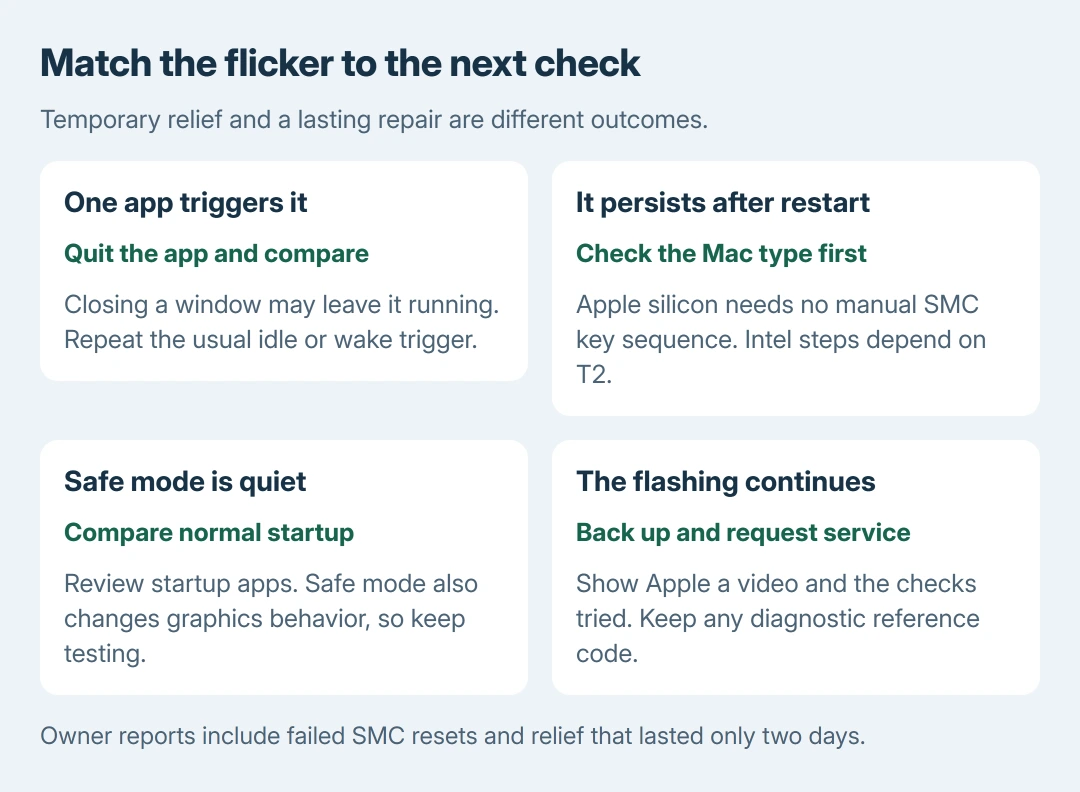
Save open work. Quit any Touch Bar utility or recently added background app, then wait through the condition that normally triggers the flicker. Closing an app's window alone may leave it running; use its Quit command.
An owner with a 2018 Intel MacBook Pro reported that quitting Handy stopped their idle-time flashing and relaunching it brought the problem back.
Their later report said version 0.9.6 still flickered. That is an app-specific workaround, not an announced permanent fix.
Flashing on the main laptop panel or an attached monitor calls for the screen-specific refresh checks, rather than treating it as the keyboard strip.
Status: Touch Bar owner follow-ups and Apple's SMC, safe-mode and diagnostic guidance reviewed October 27, 2026. Results differ between machines. No Mac was tested.
Our recommendation is to change one thing per comparison and note whether the flashing returns after sleep or inactivity. A quiet minute during active typing is not proof that an idle-time fault has cleared.
If only the keys' lighting needs adjustment, use the MacBook keyboard-brightness controls. A keyboard backlight slider is a different control from the Touch Bar display.
Restart and identify Intel or Apple silicon
Choose Apple menu > About This Mac. Note the model and whether it lists an Intel processor or an Apple chip. The power-management procedure depends on that distinction.
In its SMC instructions, Apple says to connect power and restart an Apple-silicon Mac, or shut it down and switch on again. There is no extra SMC key sequence for an M1 or M2 MacBook Pro.
Restart normally before trying an Intel reset. Recheck the same trigger afterward. If the flashes remain, use the correct Intel branch or continue to the software comparison.
Use Apple's Intel SMC sequence for the correct model
One owner reported lasting improvement after an SMC reset on their Intel MacBook Pro. A reply reported that it did not stop a 2018 model's flashing. Another owner said a Touch Bar refresh helped for only two days.
Apple documents SMC resets for certain power and hardware behaviors, but its page does not promise a Touch Bar flicker repair. Follow Apple's procedure rather than copying an owner's shorthand key combination.
For a MacBook Pro with the T2 chip, shut it down. Apple's preliminary check is holding Power or Touch ID for 10 seconds, releasing it, waiting a few seconds and switching on again.
If needed, shut down again. Hold left Control + left Option + right Shift for 7 seconds. Keep them held and add Power for another 7 seconds. Release everything, wait a few seconds, then turn it on.
For an Intel notebook without T2, shut down. Hold left Shift + left Control + left Option + Power together for 10 seconds. Release the keys, then start the Mac.
Use Apple's model-identification links on the SMC page if uncertain about T2. A reset result should be judged after the usual idle or wake trigger, not merely after the startup logo appears.
Compare safe mode when software is still suspect
Apple states that safe mode prevents some startup software from loading. Install available macOS and app updates first, then compare safe mode if the cause remains unclear.
On Intel, restart while holding Shift until the login screen appears.
On Apple silicon, shut down. Hold Power to load startup options and select the startup disk. With Shift held, choose Continue in Safe Mode.
Test the original condition, then restart normally. If the fault returns only during normal startup, review login software and contact the implicated app's developer.
Safe mode changes graphics behavior too, so a clean result alone cannot certify the display hardware.
If the missing items sit beside the main screen's clock, use the Mac menu-bar troubleshooting instead. Those service commands address a separate part of the interface.
Arrange an assessment if the flashing continues
Back up the Mac and record a short video of the problem for the Apple service appointment. Include the model, macOS version, trigger and whether quitting an app or resetting the SMC changed it.
Apple's diagnostic instructions provide another service record: start Intel Macs holding D; on Apple silicon, load startup options and hold Command + D. Disconnect nonessential accessories first and retain any reference code.
A test without a code does not explain every intermittent flash. Ask for inspection when the symptom persists. The sources used here establish mixed workarounds, not a universal software repair or a requirement to buy a replacement laptop.
The Short Version
Quit an app that demonstrably triggers the flicker and restart. Apple silicon needs no manual SMC key reset; Intel procedures depend on T2.
Use safe mode for a software comparison. Persistent flashing needs Apple's assessment.

Isaac Smith is the founder and editor of PC Glance, a website that covers computers, laptops, and technology. He is a tech enthusiast and a computer geek who loves to share his insights and help his readers make smart choices when buying tech gadgets or laptops. He is always curious and updated about the latest tech trends.