
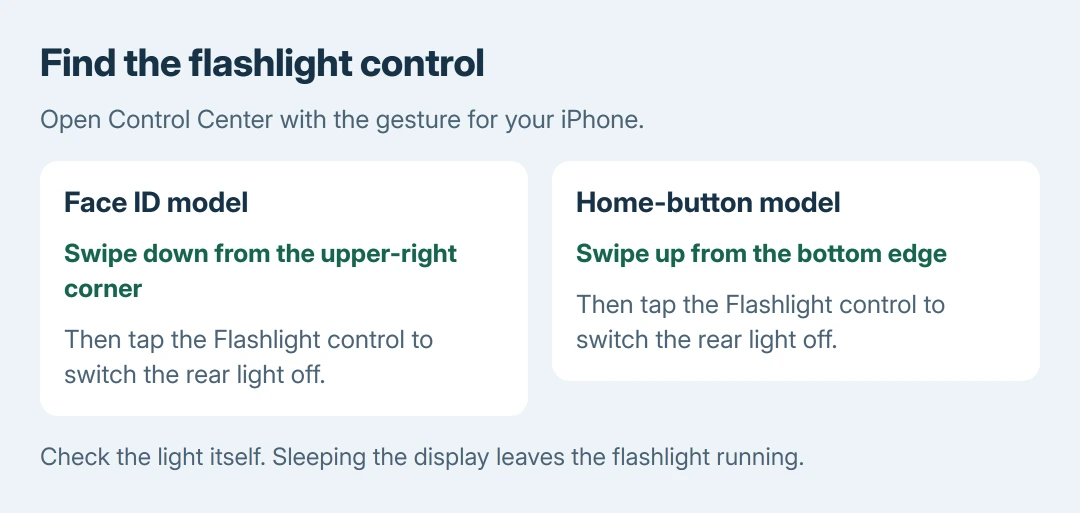
An iPhone flashlight switches off when its Flashlight control is tapped in Control Center. Swipe down from the upper-right corner on a Face ID model, or up from the bottom on a model with a Home button.
Siri and a configured Action button offer other ways to stop the light. Turning the screen off alone leaves the flashlight running.
Find the flashlight control for your iPhone
Open Control Center using the gesture for the phone's front design. Look for the small flashlight symbol and tap it once while the rear light is on. Check that the actual light goes dark.
Apple documents the two opening gestures and the on/off toggle in its flashlight instructions. A phone with a Home button uses the upward gesture even if its software is recent.
Status: Apple's flashlight and Control Center pages checked October 28, 2026. Gestures depend on the iPhone design; the Action button must be assigned to Flashlight.
If that control is missing, open Control Center's editing mode by touching and holding an empty area. Tap Add a Control, find Flashlight, and add it. Leave editing mode before using the new control.
Apple states in its Control Center guide that controls are added from this gallery. This changes Control Center; an absent Lock Screen shortcut has its own restoration procedure.
Use the Lock Screen control when it is present
Wake the display and look for the flashlight control in a lower corner. Press and hold that control to switch the light off. A brief accidental touch may not activate the control.
Apple's current flashlight user guide includes this Lock Screen control as an on/off option. Its presence depends on the selected Lock Screen's customization.
If the shortcut has been replaced, use Control Center. Changing the wallpaper or restoring the corner button is unnecessary just to turn off the light already shining.
Ask Siri or use an assigned Action button
Ask Siri to turn off the flashlight. Apple says Siri can control it. If voice activation does not respond, use the visible control instead of waiting for repeated voice attempts.
On an iPhone with an Action button, press and hold it if it is already assigned to Flashlight. The same assignment switches the light on and off; a button assigned to Camera or another action does that action instead.
Check the assignment under Settings > Action Button. Choose the flashlight option only if that is the shortcut wanted for future use. There is no need to change the current assignment to complete this one task.
Check which light is actually staying on
A steady rear flashlight and Camera's flash setting serve different purposes. If the concern is the burst during photography, use the Camera flash choices rather than expecting Control Center to set Flash Off in Camera.
If the rear LED stays lit after a confirmed off command, restart the iPhone normally when its screen responds. Our recommendation is to report a light that remains stuck to Apple Support with the model, iOS version and command used.
Persistent heat or an unresponsive phone calls for the appropriate device check. Repeatedly pressing the Action button without knowing its assignment does not establish that the flashlight control failed.
The Short Version
Open Control Center with the gesture for Face ID or Home, then tap Flashlight. The Lock Screen shortcut, Siri and an assigned Action button can also switch it off. Confirm the rear light is dark.

Isaac Smith is the founder and editor of PC Glance, a website that covers computers, laptops, and technology. He is a tech enthusiast and a computer geek who loves to share his insights and help his readers make smart choices when buying tech gadgets or laptops. He is always curious and updated about the latest tech trends.