
iCloud keeps an iPhone and iPad synchronized through one Apple Account, with the relevant services enabled on each. Check those requirements first, then choose which information should travel between them.
Apps and Home Screen layouts do not all follow one master switch. A device backup also serves a different purpose from keeping app information current on both devices.
Match the Apple Account before enabling apps
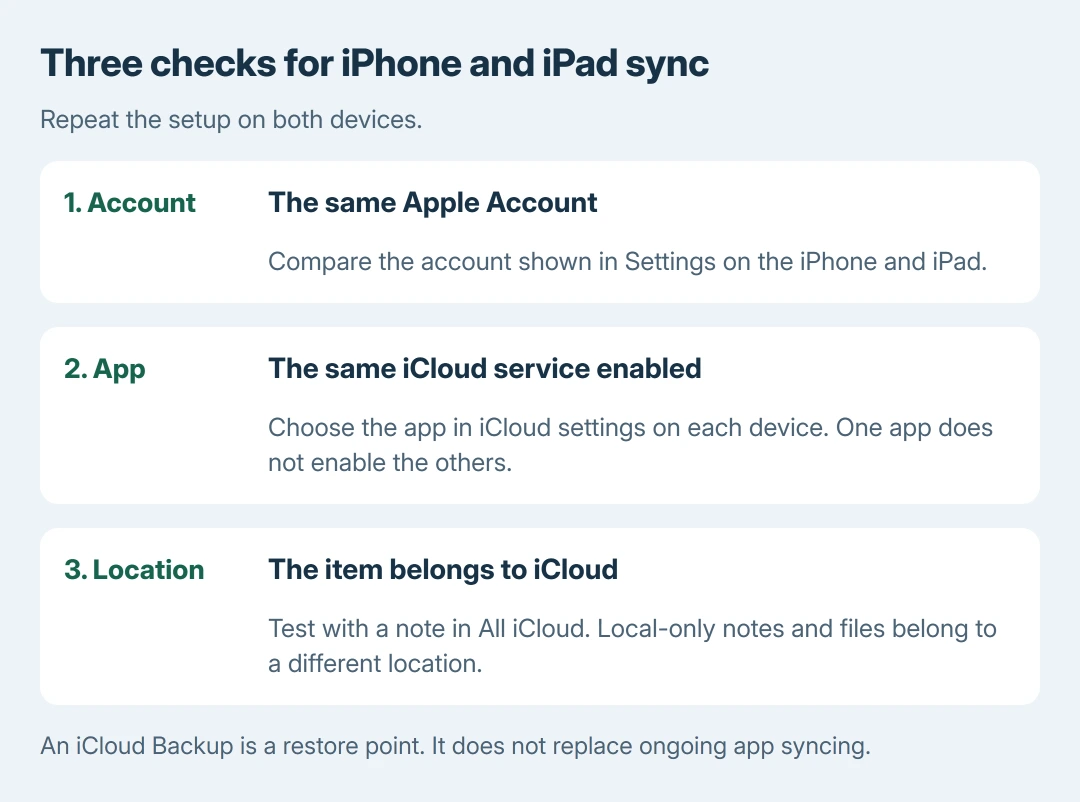
Open the Apple Account entry at the top of Settings on each device. Compare the account used for signing in. Different accounts hold separate iCloud information, even within a family.
Apple documents using the same account in its iCloud setup guide. Use this setup for devices belonging to the same person; do not replace someone else's account merely to share a few files.
Status: Apple's iCloud setup, app selection, Notes, Files and backup documentation checked October 28, 2026. No accounts were signed in or changed during research.
Connect both devices to working internet before continuing. A device that is offline cannot receive a newly changed cloud item. Keep the app choice the same on both ends of the comparison.
Enable the information wanted on both devices
Open Settings > your name > iCloud. Beside Saved to iCloud, use See All (or Show All on some versions). Select an app, then enable its available Sync this device or Use on this device option.
Repeat on the other device. Apple says in its iCloud app-selection instructions that enabling an app stores its information in iCloud and keeps it updated across devices automatically.
Choose the services actually wanted, such as Notes or iCloud Drive. Enabling one does not enable every other service. Photos, Safari and Messages have their own entries and requirements.
For example, enabling Notes on the iPhone alone does not make an iPad with Notes disabled display that collection. Compare the selected app on both devices before treating the absence as a sync failure.
Verify with an item stored in iCloud
For a simple Notes check, enable Notes in iCloud on both devices. Open Notes, return to its folder list, and select All iCloud or a folder inside the iCloud section.
Create a harmless test note there, then look for it in the matching iCloud folder on the other device. Apple states this folder selection in its Notes setup instructions.
If the test arrives but an older note does not, check the older note's account and folder. A note stored under another email service or a local device account is not part of that iCloud folder.
The equivalent distinction in Files > Browse is iCloud Drive versus On My iPhone or On My iPad. Apple's Files location guide identifies the latter as local storage.
Look in iCloud Drive on both devices for a cloud document. Plugging the devices into each other or turning on Bluetooth does not move a local-only file into that location.
Keep syncing separate from restoring a backup
iCloud Backup saves device information that is not already being synchronized through iCloud. Apple's backup explanation distinguishes those periodic snapshots from changes kept current by iCloud services.
Restoring an iPhone backup onto an iPad is not the routine for making new notes appear on both. Set up the appropriate cloud service instead. Installed apps can also require their own account or subscription for cross-device data.
Syncing includes changes, not just additions. For example, Apple's Notes behavior guide explains that edits and deletions spread to the other devices too. Keep a separate copy of irreplaceable information.
Before deleting an iPhone contact, check its account: a synced card can disappear from the iPad too.
Follow the affected app when only one service fails
If the account and app choices match, check where the item was saved. Then read any status or storage message shown by that service. Our recommendation is to use one harmless test item instead of deleting existing records to test syncing.
For a photo library that pauses, the Photos sync-status checks explain its messages. For saved browser links, use the Safari bookmark sync checks.
If several iCloud services fail on both online devices, check Apple's System Status and contact Apple Support. Give the affected apps, device versions and test result. Signing out broadly is a disruptive first response to one missing item.
The Short Version
Match the Apple Account, enable the wanted iCloud services on each device, and check the item's cloud location. Test with a new iCloud note. Backup restores and local-only files do not provide ongoing cross-device syncing.

Isaac Smith is the founder and editor of PC Glance, a website that covers computers, laptops, and technology. He is a tech enthusiast and a computer geek who loves to share his insights and help his readers make smart choices when buying tech gadgets or laptops. He is always curious and updated about the latest tech trends.