

iCloud keeps selected photos and files available through your Apple Account. Its separate Backup feature saves device information so you can restore an iPhone or iPad later. Turn on the services you need and check that uploads finish.
Deletion is the important difference: removing a synced item can remove it across your devices. iCloud doesn't preserve everything on your phone as an untouched copy, and buying more cloud storage doesn't add storage to the phone itself.
In this guide
Choose what should stay the same across devices
Start with the job you want done. iCloud Photos keeps a photo library up to date. iCloud Drive makes files available across devices. Contacts, Calendars, and Notes have their own iCloud switches too.
Your Apple Account connects your devices, but each device only syncs the services you've turned on there. Turning on one service doesn't switch on syncing for every app, folder, or device.
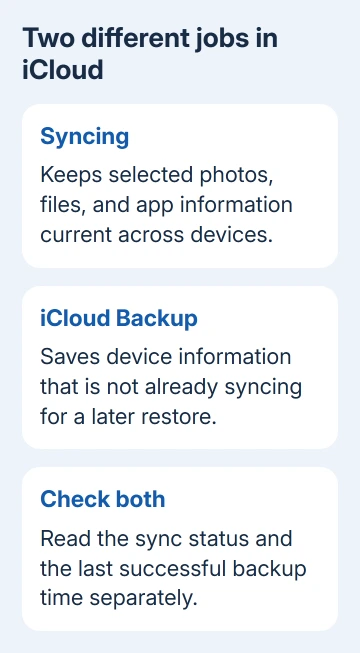
For example, enabling Photos on an iPhone and a Mac gives those devices access to the same iCloud photo library. It doesn't turn every unrelated Mac folder into an iPhone backup or upload a file you left outside iCloud Drive.
Apple explains the account requirements in its iCloud setup instructions. Check those settings on each device. When a device isn't showing the same information as another, check its account and the settings for that service.
I'd enable the services you actually need first. It's easier to understand where a photo or document went when you know which app is syncing it, rather than changing every switch at once.
Enable the selected services on iPhone, iPad, and Mac
On iPhone or iPad, open Settings > your name > iCloud. Complete the account sign-in if required. Choose the service you want and turn on its sync control. Recent releases group app choices under Saved to iCloud.
For Photos, open Photos in iCloud settings and enable Sync this iPhone. On iPad, choose Sync this iPad. For files, open Drive and enable device syncing. Older releases may label this iCloud Drive.
On Mac, choose Apple menu > System Settings > your name > iCloud. Choose a service there and turn it on. For older macOS releases, the route is System Preferences > Apple ID > iCloud.
Compare the Apple Account shown on both devices. Each family member's account holds separate information. Sharing an eligible storage plan through Family Sharing doesn't combine private photo libraries.
For email from a separate account, add another iCloud inbox on iPhone; this leaves the main sync identity in place.
For a complete paired-device procedure, follow the iPhone and iPad syncing guide. That task needs the matching service enabled on both devices, rather than just signing in on one.
Give a large first upload time on a reliable connection. Check the Photos app's library status instead of assuming everything uploaded as soon as the switch turned on. A paused or unfinished upload hasn't put every item in iCloud yet.
Keep iCloud Backup separate from ordinary syncing
On iPhone or iPad, open Settings > your name > iCloud > iCloud Backup. Enable Back Up This iPhone or the corresponding iPad option, then use Back Up Now when you want a manual backup.
Stay connected to Wi-Fi until that manual backup finishes. That page shows the completion time for your last successful backup. Turning the switch on doesn't mean the latest backup has finished.
Automatic backups normally run when the device is locked, connected to power, and connected to Wi-Fi. Some supported devices and plans also allow backup over cellular, so read the options shown on your own device.
Apple's backup-content explanation distinguishes information already synced to iCloud from the device data included in iCloud Backup. When iCloud Photos is on, those photos aren't duplicated inside the daily device backup.
That's why a backup can be much smaller than your photo library. Check whether Photos has finished syncing and when the last backup finished. A successful backup doesn't tell you whether your photos have all uploaded, or vice versa.
The iPhone iCloud Backup walkthrough covers the individual backup controls. A Mac needs its own computer backup plan, such as Time Machine; iCloud Drive isn't a complete Mac system backup.
Check cloud storage and device storage separately
An iCloud account set up with an Apple device includes 5 GB of free iCloud storage. Photos, files, backups, and other stored iCloud data share that allowance. It isn't a separate free allowance for each device.
Open Settings > your name > iCloud to inspect your iCloud usage and available storage options. On Mac, use System Settings > your name > iCloud. The storage breakdown helps explain which service is using the space.
If iCloud storage is full, uploads and backups can stop until you free space or choose a larger plan. Check which data category is large before deleting anything. Removing a backup and deleting synced photos have different consequences.
Your phone's own capacity appears under Settings > General > iPhone Storage. Paying for more iCloud storage doesn't increase that hardware capacity, though storage optimization can keep smaller copies of some content on the phone.
With iCloud Photos, Optimize iPhone Storage keeps smaller local versions when needed while full-resolution originals remain in iCloud. Opening or exporting a photo may need a network connection to download the full original.
Understand what a deletion changes
Deleting a photo in iCloud Photos removes it on every device using that library. Deleting a file in iCloud Drive removes it there on your other devices too. Use storage optimization, rather than deletion, to reduce local photo storage.
Photos normally keeps deleted pictures in Recently Deleted for 30 days, with earlier permanent removal available. That recovery window isn't a substitute for a separate copy of pictures you can't afford to lose.
Before reorganizing important synced files, download or export a separate copy and save it outside the synced location. Otherwise, deleting the original can also remove what you thought was your spare copy.
If a device is being sold or passed to someone else, follow its sign-out and erase procedure. Manually deleting synced pictures while still signed in can remove them from your own remaining devices too.
Use Windows or the web without confusing access with backup
Install iCloud for Windows from the Microsoft Store on a compatible PC. Use the Apple Account already set up on your Apple device, then set up the services the app offers. Check current Windows requirements before installing.
The browser route is iCloud.com, where you can sign in to access supported services. What you can access depends on your account's security settings. The website doesn't let you browse your iPhone's full device backup like a folder.
If information is missing after setup, note the service, device, account, free storage, and last completed upload or backup. Tell Apple Support which service needs help rather than reporting only that iCloud doesn't work.
The Short Version
Choose the needed services in each device's iCloud settings, using one Apple Account. Check syncing and Backup separately. Synced deletions spread between devices, and cloud storage doesn't increase your phone's physical storage.
Checked November 13, 2026.
 If you have any business, I can build it online






