Messages can keep pausing while syncing with iCloud when the iPhone needs power, a better connection, or more iCloud storage. Connect it to Wi-Fi and a charger, then use Sync Now in the Messages section of iCloud settings.
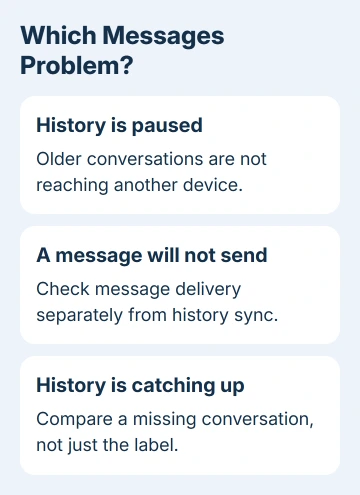
The paused label refers to your conversation history syncing between devices. A text that won't send is a separate problem, so check whether new messages arrive normally before changing your account.
In this guide
1. Resume the history sync from iCloud settings
Open Settings, tap your name, then iCloud. In the list of apps using iCloud, choose See All or Show All if Messages isn't visible. Open Messages or Messages in iCloud and tap Sync Now when it appears.
Leave Messages enabled. Check whether the status changes to syncing and whether a missing conversation or attachment appears on the other device. A brief label change doesn't tell you that the history has finished transferring.
On iOS 17.2 and later, the sync switch can read Use on this iPhone. On iOS 16 through 17.1, it reads Sync this iPhone. On an iPad, the label names the iPad instead. Menu labels can differ, but this is the iCloud setting for Messages.
Apple's Messages in iCloud setup instructions also note that an initial sync can take time. Messages can still send and receive while the older history is arriving.
If the status immediately returns to paused every time, continue with power, storage, and account checks. Repeatedly tapping Sync Now doesn't remove the reason it stopped.
2. Give the iPhone power and a steady connection
Connect to a working Wi-Fi network and plug the phone into a charger. Check that another app can load fresh content. The Wi-Fi symbol alone won't tell you whether internet access works.
For this attempt, switch Low Power Mode off temporarily. On current software, iPhone 15 and later put it in Settings > Battery > Power Mode. On iPhone 14 and earlier, look directly under Settings > Battery.
Older software can also show Low Power Mode directly in Battery. Search Settings for that control if your layout differs. This changes a power-saving setting, so it doesn't require signing out or removing your conversations.
Keep charging the phone as its history catches up, particularly after a restore or when it contains many attachments. I'd give a newly restored phone time to catch up before changing a working Apple Account setup.
Compare progress by opening a conversation you know is missing on the second device. Text arriving without every old photo is different from no conversation appearing at all. Keep that detail for support if the sync stops again.
If the same Wi-Fi also fails in other apps, try another trusted network. If internet access works and Messages still pauses, move to the storage check rather than repeatedly reconnecting to the same network.
3. Check iCloud space and the phone's free space
Open Settings > your name > iCloud and read the storage bar. Messages and its attachments use iCloud storage. A phone with plenty of free space can still have a full iCloud account.
Open the storage management controls to see what is taking space. Choose whether to upgrade your plan or remove things you no longer need. Check which category and account you're managing.
Deleting a message or attachment while Messages in iCloud is enabled also deletes that item on the other participating devices. Save anything important somewhere else before using conversation deletion as a way to reclaim space.
Check local storage separately in Settings > General > iPhone Storage. If very little phone storage remains, start with downloads or apps you can safely remove. Don't assume buying iCloud space also creates empty space on the phone.
The iCloud storage management steps explain the available storage controls. After space is available, return to the Messages sync screen and check whether the history advances.

4. Match the account and check the other device
Compare the Apple Account in Settings on both the iPhone and iPad. On a Mac, check the account in System Settings as well as the account used inside Messages.
Devices using Messages in iCloud need the same Apple Account, plus two-factor authentication and iCloud Keychain for Messages in iCloud. Follow any account setup prompts rather than turning those protections off to try to force a sync.
On a Mac, open Messages > Settings > iMessage. Check Enable Messages in iCloud, then click Sync Now. The same window is called Preferences on older macOS releases. Keep the Mac connected while it updates.
Review the receiving number and email addresses selected inside Messages. Different addresses can explain a conversation reaching only one device. The iPhone and iPad sync guide covers matching the account.
Use the Messages app to check the conversation history on each device. There isn't a Messages inbox on iCloud.com. The guide to viewing Messages in iCloud explains where that history can actually be opened.
If only SMS or other carrier messages fail to reach the Mac, check Text Message Forwarding on the iPhone. On recent iOS versions it's under Settings > Apps > Messages; older software places the Messages entry on the first Settings screen.
5. Restart and update without removing the history
Restart the affected device normally, then look for a system update you can install. Use Settings > General > Software Update on iPhone or iPad, or System Settings > General > Software Update on a recent Mac.
Update the device that's stuck, then check its Messages status again. Note whether the trouble affects one device or every device on the account. That helps you tell a problem on one device apart from a pause affecting your whole account.
Don't use signing out, deleting the Messages database, or disabling Messages on every device as your next experiment. While you're trying to resume sync, those changes can leave you unsure which device has your complete history.
Ask for Messages in iCloud support if it keeps stopping
Open Apple Support and choose help for iCloud or Messages. Report the exact paused wording, your software version, available iCloud space, and whether Sync Now starts briefly or never starts.
Say which device has the complete history. Ask for help with Messages in iCloud sync before agreeing to an account or history reset. If the pause keeps returning, ask for advice about your account rather than deleting more to free up space.
The Short Version
Use Sync Now with Wi-Fi and charging, then check Low Power Mode, both kinds of storage, and the account on each device. Preserve the message history if the pause keeps returning and ask Apple Support about the sync itself.
Checked November 16, 2026.