
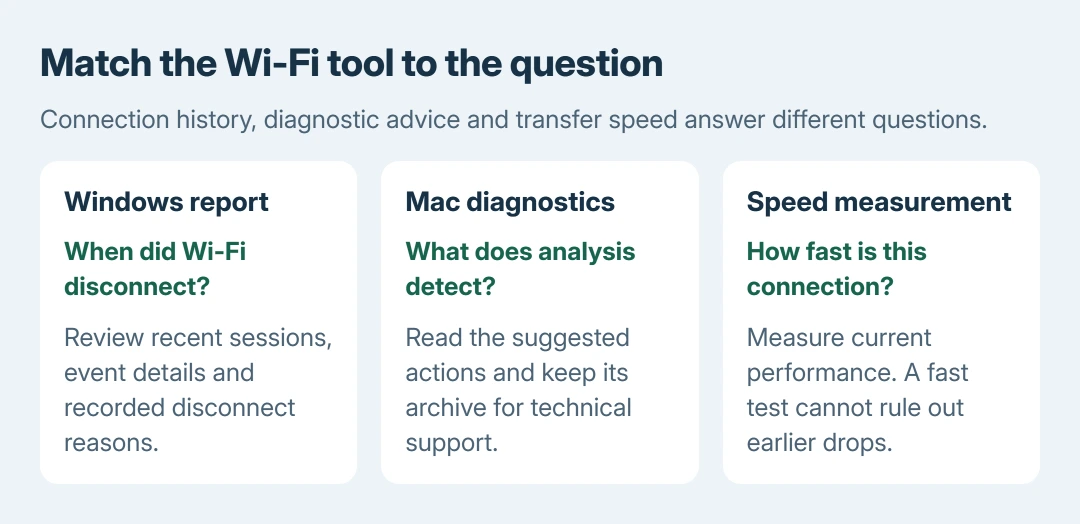
A Wi-Fi health check should show whether the connection drops, as well as how fast downloads finish. Windows provides recent connection sessions; a Mac has Wireless Diagnostics for its wireless environment.
Start with the report for the affected computer and note the time of the problem. The useful result is a specific event or recommendation to act on, not a single universal health score.
Record what failed before running a tool
Write down the network name, approximate failure time and whether Wi-Fi disconnected or stayed joined while pages stopped loading. Check whether another device on that same network failed at the same time.
This starting record is ours. It helps match a complaint to a session in the report without assuming every warning caused the interruption. A planned restart or deliberate network change can also end a session.
Status: Microsoft's wireless-report and Apple's Wireless Diagnostics instructions checked October 28, 2026. No network report, speed test or settings change was run on this computer.
For throughput, use the separate Wi-Fi speed measurement guide. A fast result at one moment cannot establish that the connection stayed reliable all afternoon.
Generate the Windows wireless report
Search Start for Command Prompt. Right-click its result, choose Run as administrator, and approve the prompt only on a computer you are authorized to administer. Enter:
netsh wlan show wlanreportOpen the HTML file at the path printed by the command. Microsoft says its wireless network report groups Wi-Fi events from the last three days into connection sessions.
Find the session near the recorded failure time. Select an error in the summary chart, then read its event details and Disconnection Reason. Compare Disconnect Reasons and Session Durations across repeated incidents.
The adapter section also supplies driver information and a problem number when one exists. Record the exact text or number; a red marker is insufficient reason to replace a driver.
Microsoft documents the report's computer/user details, adapter addresses, network profiles and certificate information. Review it before sharing. Passwords stay hidden, but identifying details remain.
For recurring drops, use the Windows disconnection checks after recording the matching event. Those repairs are separate from creating a report.
Run Wireless Diagnostics on a Mac
Save your work and quit open apps, as Apple directs. Stay on the network being checked. Hold Option while clicking Wi-Fi in Control Center or the menu bar, then choose Open Wireless Diagnostics. Follow the analysis prompts.
Apple documents this entry point in its Mac Wi-Fi guidance. If Wi-Fi Recommendations appears in the Wi-Fi menu, read that detected issue too. That feature is unavailable for some network types.
Apple says Wireless Diagnostics analyzes the connection without changing network settings. Open the information beside a result to read the explanation and suggested action.
The saved diagnostic archive goes in /var/tmp, with a name starting WirelessDiagnostics and ending .tar.gz. Finder's Go > Go to Folder can open that location. Treat the archive as private support material.
If analysis cannot explain a recurring problem, give the administrator or provider the archive through their support channel. It supplies more detail; it does not certify the whole connection as healthy.
Match the result to the next action
If only one computer repeatedly disconnects, give its manufacturer the event times, adapter/driver details or Mac diagnostic result. If several devices fail together, ask the router administrator or provider to check that same period.
Microsoft's Wi-Fi troubleshooting guidance uses another device and another network to narrow the problem. A shared failure can involve the router or service; it is not proof of a defective laptop.
Report when Wi-Fi stays joined but internet access fails. A wireless session can remain active while another part of the route fails. Follow the tool's recommendation, then compare the original symptom.
If the reports remain inconclusive, keep the times and exact symptoms for support. Avoid treating a successful test after the outage as evidence that the earlier interruption never happened.
The Short Version
Use the Windows report for recent session history and Mac Wireless Diagnostics for its analysis and support archive. Match results to the failure time. A speed measurement answers a different question from connection reliability.

Isaac Smith is the founder and editor of PC Glance, a website that covers computers, laptops, and technology. He is a tech enthusiast and a computer geek who loves to share his insights and help his readers make smart choices when buying tech gadgets or laptops. He is always curious and updated about the latest tech trends.