
Installing Windows on a Chromebook requires more than a Windows USB stick. The usual route replaces ChromeOS firmware, erases local data during preparation, and needs Windows drivers for the exact Chromebook board.
Start by checking that board's support. An Intel or AMD processor alone does not establish compatibility, and this route does not cover ARM Chromebooks or organization-managed devices.
Check firmware support and Windows drivers separately
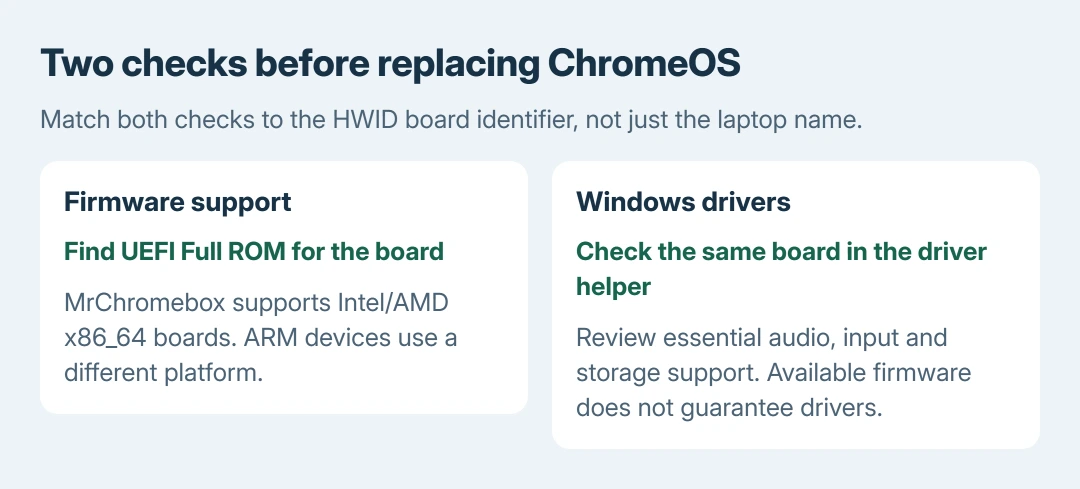
Open chrome://system in Chrome and find HWID. Record the board identifier at the start of that value. Chrultrabook's preparation instructions explain how to read it.
Look up that identifier in MrChromebox's firmware table. This project supports Intel/AMD x86_64 devices, not ARM. Check for UEFI Full ROM, then check Windows compatibility separately.
Status: Chromebook firmware, Windows installation and driver documentation reviewed October 28, 2026. This is a community conversion, not a Google-supported upgrade. No Chromebook modified.
Use Coolstar's Windows Install Helper to select the matching device and review its drivers. Check audio, touchpad, storage and any other required hardware before changing firmware. Some drivers cost extra.
A firmware listing means the boot software is available; it does not promise that Windows supports every component. Stop if the board is absent, Windows is listed as unsupported, or essential drivers are unavailable.
Microsoft says Microsoft 365 web apps work on Chromebooks. For browser-based Word or Excel, sign in at Microsoft365.com instead of replacing the operating system.
Prepare the backup, installer and license
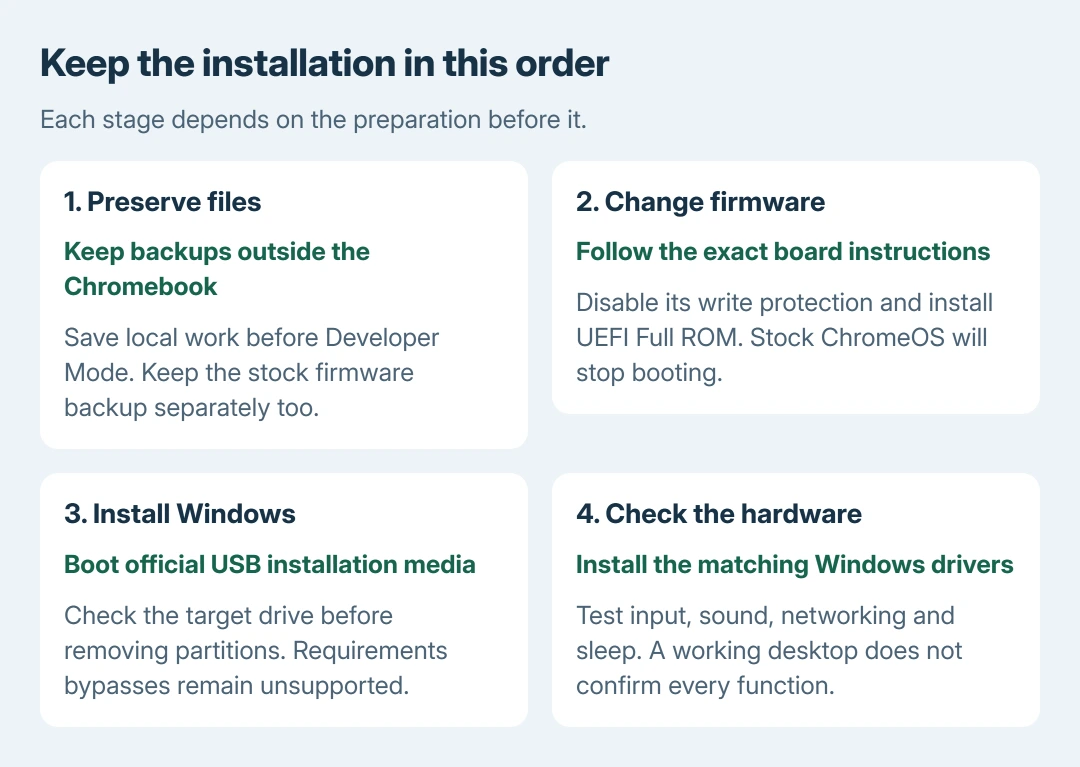
Copy local files and Linux projects to storage outside the Chromebook. Open important copies to verify them. Keep another computer available for preparing media and recovering from a failed installation.
The Developer Mode procedure explains the required mode transition and its data wipe. Ask the administrator about a school or work device; these instructions are for an unmanaged Chromebook you own.
On a Windows PC, use Microsoft's Windows 11 download page. Under Create Windows 11 Installation Media, download and run the tool. Choose USB media and a blank drive with at least 8 GB.
The tool erases that USB drive. Keep backups on different storage. A Chromebook purchase does not supply a Windows license; arrange a valid license for the edition being installed.
Download the board's driver files to accessible external storage too. That avoids relying on the new Windows installation already having working Wi-Fi or internal input devices.
Replace the firmware using the board's own instructions
Follow the write-protection method listed for the exact board. It can involve hardware access; there is no universal screw to remove. Stop and use experienced help if that model's procedure is unclear.
With Developer Mode active, current MrChromebox instructions use Ctrl + Alt + F2 from the ChromeOS login screen, then login as chronos. The Linux development container and an ordinary crosh shell are unsuitable for this operation.
From that terminal, use the command published in the project's Firmware Utility Script documentation:
cd; curl -LOf https://mrchromebox.tech/firmware-util.sh && sudo bash firmware-util.shCheck the detected board and write-protect state. Choose the available UEFI Full ROM installation, rather than assuming a numbered menu item is identical on every device. Save the offered stock-firmware backup to external storage.
Complete its confirmations and let flashing finish. Full ROM replaces the firmware that boots ChromeOS; ChromeOS will no longer boot through that firmware. Preserve the backup even if Windows starts successfully.
Boot Windows Setup and understand a requirements block
Connect the installer and restart. At the firmware splash prompt, press Esc, choose Boot Menu, then select the USB entry. The project's boot guide documents these controls.
If an EFI shell appears, type exit and press Enter to return to the menu. Keep a USB keyboard and mouse available if built-in input needs Windows drivers first.
Windows 11 still has its own hardware requirements. Microsoft documents that ineligible installations lack support and guaranteed updates, including security updates. Community firmware does not change that status.
Chrultrabook's Windows installation instructions document a bypass for Secure Boot and TPM checks. That is an unsupported installation choice, not a way to make the Chromebook meet Microsoft's requirements.
For that documented route, choose Repair my computer in Setup and open Command Prompt, which may sit under advanced options. Run regedit and open HKEY_LOCAL_MACHINE\SYSTEM\Setup.
Create a LabConfig key. Inside it, create DWORD (32-bit) values named BypassSecureBootCheck and BypassTPMCheck, setting each to 1. Close Registry Editor, run setup from the command prompt, and continue installation.
These values address those two checks only. Missing drivers, an unsupported processor and future Windows releases remain separate problems. Stop if Setup reports a requirement that this documented method does not address.
Confirm the backup before selecting the internal drive. A clean replacement removes its ChromeOS partitions and contents. Disconnect backup drives first to keep them out of the target-drive list.
Install the drivers before calling the conversion complete
After Windows starts, install the drivers listed for the selected board and restart when instructed. Use the driver's own directions, including any purchase or activation requirement, rather than a general driver-download utility.
Test sound, keyboard, touchpad, Wi-Fi and sleep separately. A working desktop does not establish that all those functions work. Record any missing device or recurring failure for the driver project's support channel.
Our stopping rule is ours: keep the firmware backup and notes until required tasks work. ChromeOS needs firmware restoration to return. The utility blocks stock restoration after Google's update deadline.
The Chromebook reset guide covers user-data resets on ChromeOS. It cannot undo replacement firmware. If installation fails, ask the firmware or driver project for board-specific help before flashing again.
The Short Version
Check board support for UEFI and Windows drivers. Back up, create official USB media, change firmware, then install Windows and its drivers. Verify essential hardware. Bypassing requirements does not gain Microsoft support.

Isaac Smith is the founder and editor of PC Glance, a website that covers computers, laptops, and technology. He is a tech enthusiast and a computer geek who loves to share his insights and help his readers make smart choices when buying tech gadgets or laptops. He is always curious and updated about the latest tech trends.