

Excel IF not blank formulas usually need a comparison with an empty text string. That test runs a calculation when A2 contains a value. Use NOT(ISBLANK(A2)) when any cell content, including a formula, should count.
The difference matters when an input looks empty because another formula returns empty text. A space and the number zero also need deliberate treatment.
Run the calculation only after an input appears
Enter the result formula in a different cell from its input. For example, with an amount in A2 and a multiplier in B2, put this in C2:
=IF(A2<>"",A2*B2,"")The comparison checks whether A2 differs from empty text. With an amount present, C2 multiplies it by B2. With A2 empty, C2 displays nothing. This does not check whether B2 has a usable multiplier.
Status: Excel IF, ISBLANK and TRIM behavior reviewed in Microsoft's documentation October 28, 2026. Examples illustrate formula logic; no workbook was edited.
Microsoft documents the same conditional-calculation pattern in its IF and blank-cell instructions, using the empty case first. Reversing the condition gives the nonblank case first.
Replace A2*B2 with the calculation required by the workbook. Keep the reference pointed at the input cell. Checking C2 from C2 would create a circular reference instead of controlling the input.
Decide whether an empty-looking formula counts as content
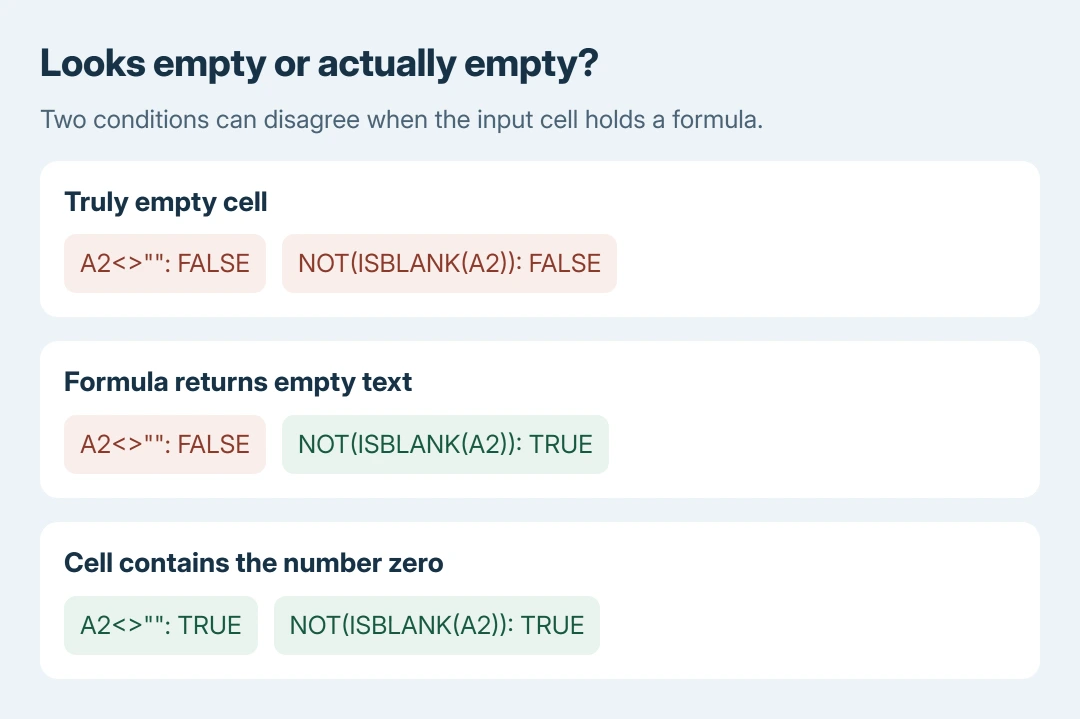
A cell containing a formula still contains something, even when its displayed result is empty text. Microsoft says ISBLANK returns TRUE only for a reference to an empty cell in its IS functions reference.
When that distinction matters, use:
=IF(NOT(ISBLANK(A2)),A2*B2,"")This version enters the calculation branch when A2 contains a formula returning empty text. It can then produce an arithmetic error, depending on the calculation.
For suppressing calculations until a visible value arrives, the first version fits better.
The example and that choice of test are ours. Decide what the workbook means by an input before filling the formula down an entire column.
| Contents of A2 | Empty-text comparison | NOT(ISBLANK(A2)) |
|---|---|---|
| Truly empty cell | FALSE | FALSE |
| Formula returning empty text | FALSE | TRUE |
| Number 0 | TRUE | TRUE |
| One ordinary space | TRUE | TRUE |
Zero is a supplied value. Neither test requires a positive amount. Add a separate numeric condition when the calculation should exclude zero or accept only numbers.
Treat spaces as a separate data-cleaning choice
A space is text, so the ordinary comparison counts it as content. To ignore input made entirely of ordinary spaces, a helper condition can use TRIM:
=IF(TRIM(A2)<>"",A2*B2,"")Microsoft's TRIM reference explains that it removes ordinary spaces but does not remove nonbreaking spaces. Text copied from a webpage can therefore stay nonempty after TRIM.
Inspect the input in the formula bar before changing imported data. The formula does not clean A2 itself. It only applies a different condition to that cell's value.
These tests control a result cell. They do not identify an entire empty record for deletion. Use the blank-row checks when deciding which records to remove.
When Excel shows the formula or an unexpected result
If the expression appears instead of its answer, follow the formula display and Text-format checks. Changing the blank test cannot make a text entry calculate.
For a result that still seems wrong, check the referenced input and the formula bar, then compare a truly empty cell with a formula returning empty text. Use a spare area or a copy so working records remain intact.
An input error such as #N/A can propagate through the comparison. Neither nonblank test is an error-handling policy. Ask the workbook owner whether an error should remain visible before adding IFERROR and hiding it.
If the result is #VALUE!, review numeric text and accidental spaces in the referenced inputs before changing the blank condition.
For continued trouble, give that owner or Microsoft Support the formula and a small, nonprivate example of the input. State whether empty text, spaces and zero should count. That decision determines the correct condition.
The Short Version
Compare with empty text when a visible input should start the calculation. Use NOT with ISBLANK when any cell content should count. Spaces and zero are values, and TRIM handles only ordinary spaces.

Isaac Smith is the founder and editor of PC Glance, a website that covers computers, laptops, and technology. He is a tech enthusiast and a computer geek who loves to share his insights and help his readers make smart choices when buying tech gadgets or laptops. He is always curious and updated about the latest tech trends.