
Resetting a Samsung account password starts at account.samsung.com, using the email address attached to that account. Choose Forgot password? and complete the offered verification before creating a replacement password.
The Galaxy screen PIN is a different credential. Resetting this account password will not replace the code that unlocks the phone, and it does not bypass two-step verification.
Identify the account before requesting a reset
Open Samsung's account website directly, using whichever phone or computer is available. Select Sign in, enter the account email and continue. The next control can read Next or Continue, depending on the sign-in layout.
If the address is unknown, use Find ID. Samsung's account-management instructions describe recovery using personal information, with the matching address partly masked for privacy.
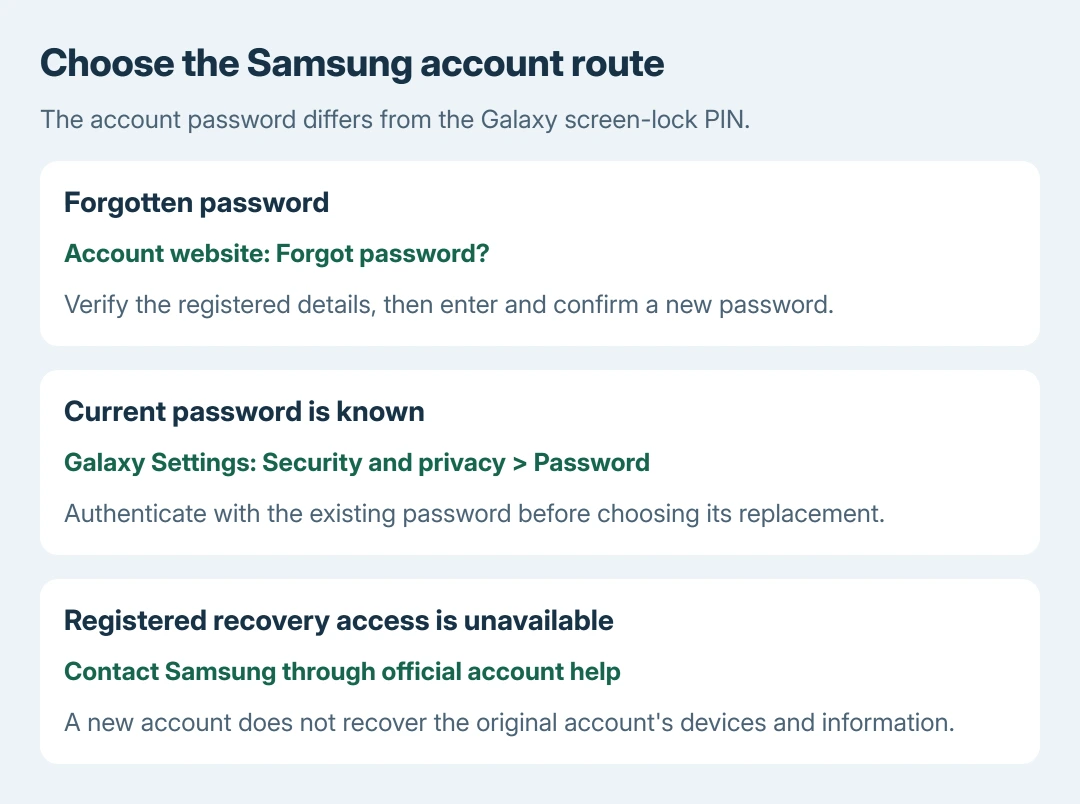
Status: Samsung's account-reset, management and sign-in help reviewed October 28, 2026. Verification choices depend on the account. No password was changed or recovery message requested.
Do not create another account simply because the first address fails. That choice is ours: a new account would not recover access to devices and information already associated with the original one.
If the actual problem is the phone's Lock Screen, use the forgotten Galaxy screen-lock options. Those have different requirements and potential data loss.
Verify the registered details and create the new password
Select Forgot password? after entering the account email. Samsung's sign-in troubleshooting describes choosing the associated phone number and entering its full value when requested.
Use the number attached to the account, including its country code. A recently acquired number cannot replace the old registered number just by being typed into the verification field.
Complete the verification method actually offered. Samsung says the available flow can involve a text, email or other previously configured recovery information. Some accounts also require a date-of-birth check.
For a text route, request the code when prompted, enter it and select Verify. For an email route, open Samsung's reset message and follow its reset link. Enter and confirm a new password that meets the displayed requirements.
Wait for reset confirmation, then sign in with the new password. Samsung can require it on other devices using the account. A successful change can still be followed by a separate two-step verification prompt.
Already signed in and know the current password?
On the Galaxy device, open Settings > your Samsung account name > Security and privacy > Password. Enter the current password, enter its replacement twice and choose Next.
Samsung states that this change signs the Galaxy out as a security precaution. Sign back in with the replacement and complete verification. This route needs the existing password; use recovery when that credential is unknown.
The reset email or verification does not work
Check spam and junk folders and confirm the account address first. Samsung's password-reset help says its email link is single-use and expires after 30 minutes.
Request a fresh link when the old one has expired. Follow the current message rather than reopening a used reset link. Keep credentials and received codes private, even when someone offers to handle recovery.
When the password is accepted but a verification code blocks access, use the Samsung verification recovery checks. Repeating the password reset does not itself replace lost verification access.
Without access to the registered email or phone, contact Samsung Support through its account-help page. Describe the failed stage and message without revealing credentials. Samsung must verify the account owner's identity.
The Short Version
Use the original account email, choose Forgot password and verify the registered details. Create the new password, then complete sign-in separately. Use Samsung Support when the required recovery information is no longer accessible.

Isaac Smith is the founder and editor of PC Glance, a website that covers computers, laptops, and technology. He is a tech enthusiast and a computer geek who loves to share his insights and help his readers make smart choices when buying tech gadgets or laptops. He is always curious and updated about the latest tech trends.