
Changing the password on an iPhone's Lock Screen means changing its device passcode. Open Settings > Face ID & Passcode > Change Passcode, enter the current code and choose its replacement. Touch ID models use Touch ID & Passcode instead.
The Apple Account password and passwords saved for websites are separate. Choose the device-passcode route only when the goal is a different code for opening the phone.
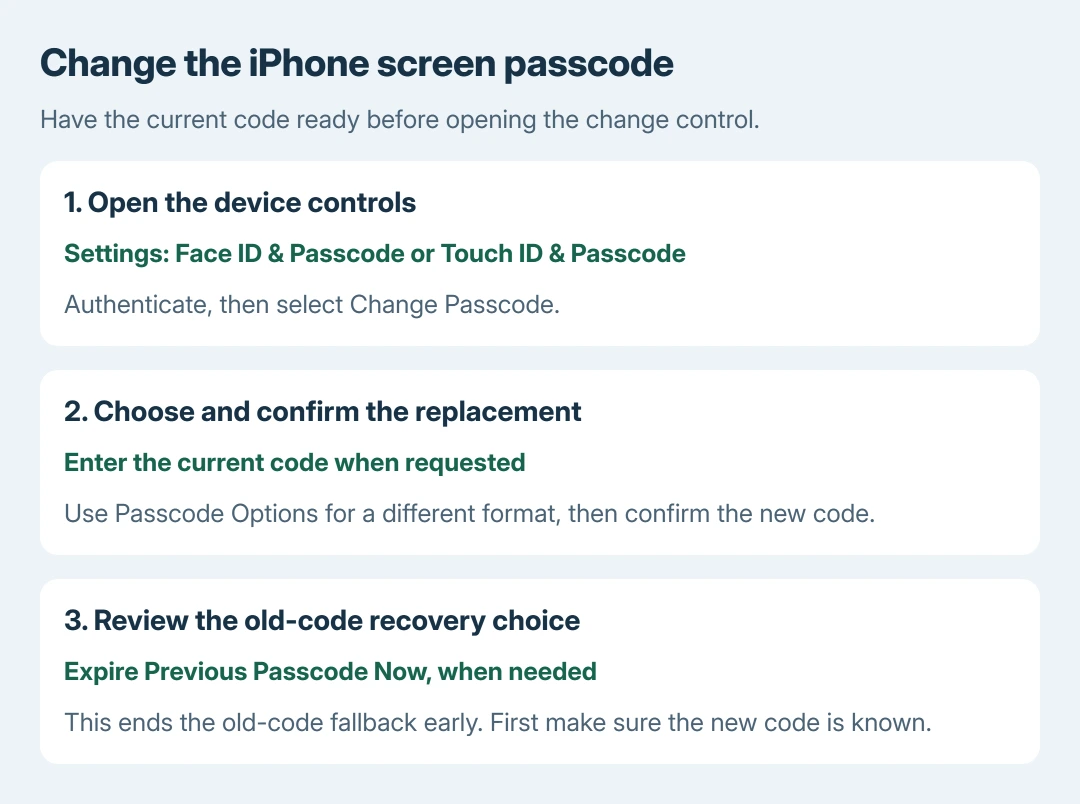
Open the device's passcode controls
Keep the current passcode available. Open the appropriate Face ID & Passcode or Touch ID & Passcode page in Settings and complete its authentication prompt. Apple documents Change Passcode in its iPhone passcode guide.
Select Change Passcode and enter the existing code when requested. Enter the new code, then enter it again to confirm. Apple's passcode-change steps show this sequence.
Status: Apple's passcode-change, previous-code and Stolen Device Protection instructions checked October 28, 2026. This changes the device code. No iPhone setting or password was changed here.
For an iCloud or App Store credential, use the Apple Account password procedure instead. Changing the device passcode does not itself replace that account password.
Choose the code format before confirming
At the new-code screen, tap Passcode Options when a different format is needed. Apple's guide identifies Custom Alphanumeric Code and Custom Numeric Code as the strongest options it lists.
A custom alphanumeric code includes letters and numbers; a custom numeric code allows a chosen numeric length. Use a code that can be entered reliably after a restart, when the phone requires it instead of biometric unlocking.
The confirmation check is ours: lock the phone and enter the replacement through the passcode screen once. Have the code securely recorded first. Repeated guesses are not a way to confirm that a change succeeded.
Decide whether the previous code should expire now
Apple says iOS 17 and later retain a 72-hour recovery opportunity after a passcode change. If the replacement is forgotten, an eligible locked-out device can offer Forgot Passcode? > Enter Previous Passcode.
That route uses the old code to regain access and immediately set another new code. It has account, Find My and network requirements, so it is not an unconditional substitute for remembering the replacement.
If the old code is known to someone who should lose access, return to Settings > Face ID & Passcode or Touch ID & Passcode. Authenticate and select Expire Previous Passcode Now.
Apple's old-code expiration instructions explain that choice. Expiring it early removes the old-code recovery opportunity; make sure the replacement is known before taking that step.
Change Passcode is missing, restricted or delayed
An employer's or school's managed iPhone can enforce passcode requirements. Check Settings > General > VPN & Device Management and ask its administrator about restrictions rather than deleting the profile.
A displayed security delay can be expected with Stolen Device Protection. Changing the device passcode is one of its protected actions. Depending on the configured protection, authentication and a waiting period may be required.
Follow the delay shown on the phone, then finish the requested authentication. For a confusing restriction or timing screen, the Stolen Device Protection settings guide explains those separate controls.
If the current passcode is forgotten, stop using the ordinary change procedure. Apple's passcode recovery instructions explain the recent-old-code option and the erase-based alternatives when that option cannot be used.
Contact Apple Support for an unresolved settings failure, describing the screen and iOS version without sharing the code. Device erasure cannot preserve local information that was never backed up or synced.
The Short Version
Choose Change Passcode in the device's biometric settings, authenticate and confirm the replacement. Review the old-code recovery window if the previous code is compromised. Account passwords have a separate procedure.

Isaac Smith is the founder and editor of PC Glance, a website that covers computers, laptops, and technology. He is a tech enthusiast and a computer geek who loves to share his insights and help his readers make smart choices when buying tech gadgets or laptops. He is always curious and updated about the latest tech trends.