
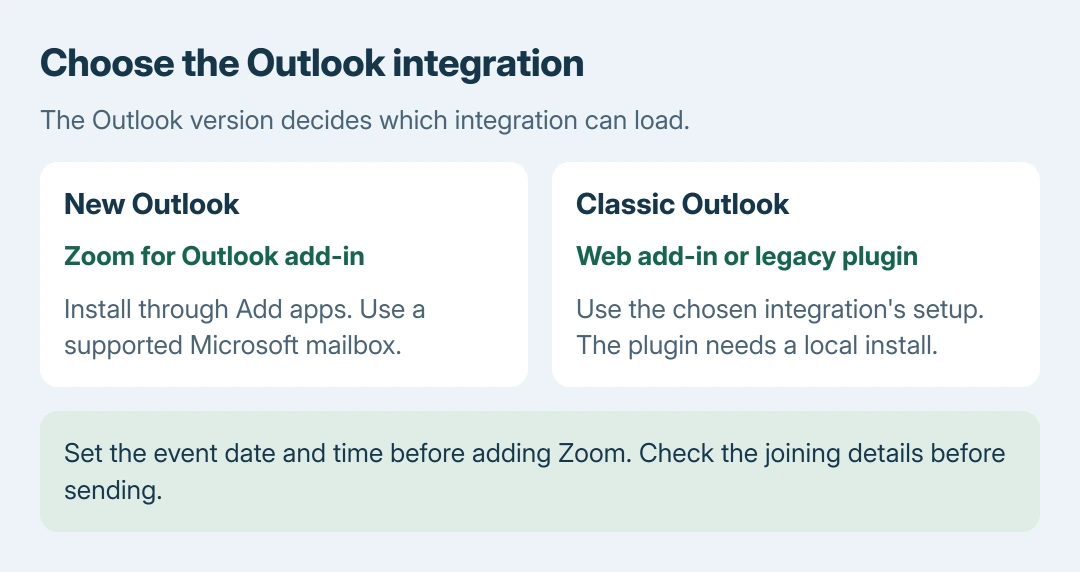
The Zoom Outlook plugin and Zoom for Outlook add-in are different integrations. For new Outlook, install the add-in from Outlook's app store. The older desktop plugin cannot load there because new Outlook does not support COM add-ins.
Start with the Outlook version and mailbox being used. A missing Zoom button can mean the wrong integration, an unsupported account or an administrator's installation restriction.
Install Zoom for Outlook from the app store
In new Outlook for Windows, open More apps > Add apps from the ribbon or navigation bar. Search for Zoom for Outlook, open its listing, review the permissions and select Add.
Microsoft documents these store controls in its Outlook add-in instructions. Current web Outlook uses that route too. Choose Zoom's listing.
Status: Microsoft and Zoom installation, account requirements and scheduling instructions checked October 28, 2026. No add-in was installed or invitation sent.
Zoom's installation guide also links directly to its Microsoft store listing. It says the add-in can modify calendar-event content so it can insert meeting details.
Installation is only the first stage. Open a calendar event afterward to reach the meeting controls. An empty mail-reading toolbar cannot tell whether the calendar integration was installed.
Check the mailbox when installation is unavailable
Zoom requires an Exchange account for its desktop add-in instructions. Microsoft's supported-account documentation lists Microsoft 365 business and Outlook.com mailboxes.
Microsoft does not support these add-ins for Gmail or Yahoo accounts in new Outlook for Windows. Adding such an account to Outlook does not turn it into a Microsoft-hosted mailbox.
Use the supported account's calendar when installing and scheduling. Zoom's suggestion to use web Outlook for an IMAP-only setup should not be read as support for an arbitrary IMAP mailbox in the browser.
For a prohibited-installation or permissions message, give IT the mailbox address, Outlook version and exact error. The administrator can deploy approved apps centrally. Another download cannot grant that permission.
Add the meeting after setting the event time
In Outlook on the web, open Calendar > New event. Enter the event's date, start and end times, title and attendees before adding Zoom.
Select Zoom > Add a Zoom Meeting, then sign in to Zoom if prompted. Zoom's scheduling instructions explain that adding it too early can create a meeting with the event's default time.
For classic Outlook on Windows, Zoom describes Calendar > New Meeting, then the toolbar's three dots > Zoom > Settings. Sign in, choose the meeting options and select Add Zoom Meeting.
Check that joining details appear in the event. Review the recipients and use the event's Send or Save control as appropriate. The Outlook invitation procedure explains why saving an appointment and inviting people differ.
If the event time changes after Zoom was added, use Update in the Zoom panel as well as sending the calendar change. That keeps the Zoom meeting aligned with the invitation.
Keep the older desktop plugin in classic Outlook
Microsoft says COM add-ins remain supported in classic Outlook, while new Outlook uses web add-ins. Reinstalling an old plugin cannot change that compatibility rule.
The separate desktop plugin, documented by the vendor, requires the Zoom app to be installed and signed in. Its installation also requires restarting Outlook.
The Zoom Windows download guide covers the meeting app itself. Installing that app alone does not install every Outlook integration.
If the add-in remains missing on a supported mailbox, contact IT or Zoom Support with the client version, account type and installation result. Check the calendar-event toolbar before collecting those details.
The Short Version
Install Zoom for Outlook through Add apps, use a supported mailbox, then add Zoom after setting the event time. New Outlook cannot load the legacy desktop plugin. Permission errors need the administrator's help.

Isaac Smith is the founder and editor of PC Glance, a website that covers computers, laptops, and technology. He is a tech enthusiast and a computer geek who loves to share his insights and help his readers make smart choices when buying tech gadgets or laptops. He is always curious and updated about the latest tech trends.