
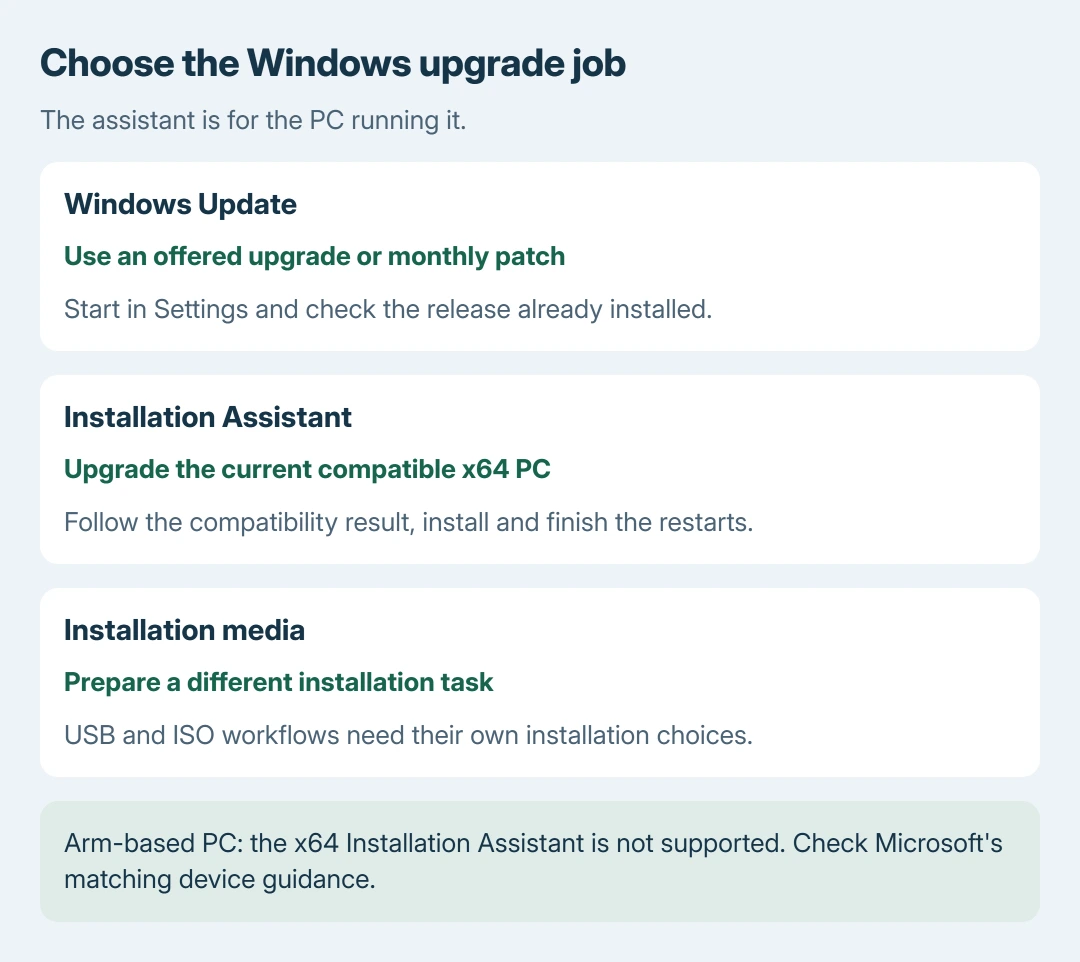
The Windows 11 update assistant download is named Windows 11 Installation Assistant on Microsoft's site. It handles feature upgrades on compatible x64 PCs, with compatibility and restart prompts. Monthly patches use Windows Update.
Microsoft recommends waiting for the upgrade offer in Windows Update first. Downloading the assistant does not explain or repair a compatibility block.
Check the update offer and current release
In Windows 11, open Settings > Windows Update and check the available offer. In Windows 10, the route is Settings > Update & Security > Windows Update. Install an offered upgrade there when possible.
Press Windows+R, enter winver and press Enter to note the installed version. Compare that with the release named on Microsoft's download page before starting another feature upgrade.
Status: Microsoft's Installation Assistant workflow and download listing checked October 28, 2026. The page lists Windows 11 version 26H2. No installer was downloaded or run.
Microsoft states in its Update Assistant explanation that feature upgrades and smaller quality updates use different routes. Use Settings for those routine fixes rather than downloading an installer for each patch.
If the installed release already matches the download, the assistant is not a route to a newer unnamed version. For ISO and USB choices, the Windows download comparison explains the separate tools.
Run the Installation Assistant on the PC being upgraded
Back up needed files, save open work and connect a laptop to power. Check the maker's compatibility and driver advice before starting. An in-place upgrade is not a substitute for a backup.
Microsoft's download page requires an eligible device, a Windows license and free space. The assistant supports x64 processors, not Arm-based PCs.
Its listed download-space requirement is 9 GB, separate from the full system requirements.
- Open Microsoft's Windows 11 download page.
- Under Windows 11 Installation Assistant, select Download Now.
- Run the downloaded tool and approve the administrator prompt if authorized.
- When compatibility is confirmed, review the terms and choose Accept and Install.
- When prompted, choose Restart Now and allow installation to finish.
Microsoft says the computer can restart several times. Keep it powered and let that process finish. The normal sign-in screen is the next stage; sign in to complete setup rather than powering off during an installation restart.
Follow the compatibility result instead of forcing it
The assistant can ask for PC Health Check before offering installation. Microsoft documents running that app, then selecting Refresh in the assistant so it can reassess the device.
If the compatibility result rejects the computer, stop and read the specific result. The Windows 11 eligibility guide explains why a firmware setting and an unsupported processor require different decisions.
Microsoft's installation methods page describes these assistant outcomes. It also repeats the recommendation to wait for the Windows Update offer, even though the assistant can be used earlier.
A known safeguard hold needs its documented resolution. Microsoft's safeguard explanation says these holds protect affected devices from known upgrade problems. Another installer does not remove the underlying incompatibility.
Verify the upgrade or keep the actual error
After sign-in, run winver again and compare the version with the intended release. Return to Windows Update for any remaining updates, and check the apps and peripherals used every day.
If installation fails, record the complete error code and whether it failed before or after restarting. Use the Windows update error guide for that result instead of downloading repeated copies of the assistant.
For persistent failure, give Microsoft Support or the PC manufacturer the model, installed version, target version and full code. On an employer's device, ask IT which upgrade method its policy permits.
The Short Version
Prefer the Windows Update offer. On an eligible x64 PC, run Microsoft's assistant and follow its compatibility and restart prompts. Check the resulting release, or retain the full failure code for support.

Isaac Smith is the founder and editor of PC Glance, a website that covers computers, laptops, and technology. He is a tech enthusiast and a computer geek who loves to share his insights and help his readers make smart choices when buying tech gadgets or laptops. He is always curious and updated about the latest tech trends.