

Windows 11 25H2 can fail during download, roll back during setup, or be blocked before installation. Finish pending updates and restart first. On 24H2, install current updates before trying the small package that switches it to 25H2.
An installation error needs troubleshooting. A compatibility hold needs the matching driver or software fix. Trying another download won't fix the problem behind an error or a compatibility hold.
In this guide
1. Check the installed version and the failed update
Press Windows + R, enter winver, and press Enter. Read the Version line. Then open Settings > Windows Update > Update history and look for the failed entry. Note its full name and error code.
If winver already says 25H2, the failed item may be a monthly cumulative update rather than the 25H2 feature upgrade. Use the KB number shown in Update history when looking for its repair.
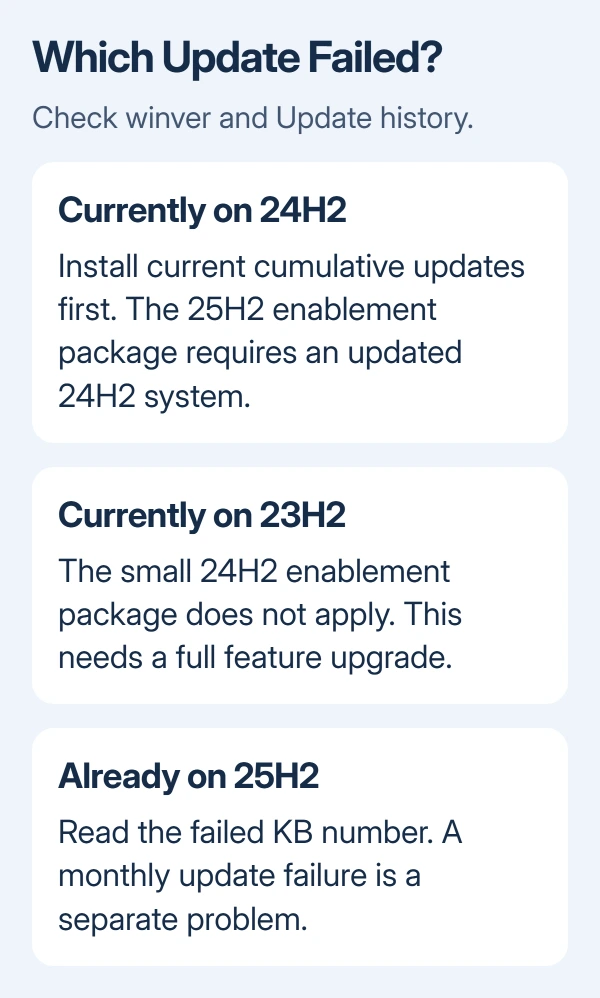
For 24H2, Microsoft says the 25H2 enablement package requirements include KB5064081, build 26100.5074, or a later cumulative update. The package switches on features already delivered to 24H2.
An older version such as 23H2 doesn't qualify for that small enablement package. It needs the full feature upgrade. Don't try to force a 24H2-only package onto it because another PC completed the upgrade quickly.
Before downloading over a metered connection, compare the 25H2 download routes and allow separately for temporary installation space.
2. Finish pending updates and remove simple blockers
Return to Settings > Windows Update, check for updates, and complete the updates available for the installed release. Restart when requested. Save open work first so the restart can finish without another app waiting for a response.
Check again after restarting. An update marked pending restart can't finish until the PC restarts. Wait until that message clears before retrying the feature upgrade. Don't start several installers together.
If Windows reports insufficient space, open Settings > System > Storage. Review Temporary files and move large personal files to another drive as needed. Check every selected deletion category, especially Downloads.
Use stable internet and leave the computer powered throughout installation. Unplug nonessential external drives, docks, printers, and other USB accessories for the next installation attempt; keep the keyboard and mouse you need.
If the failure code begins 0xC1900101, focus on drivers. Get the model's latest chipset, storage, and other relevant drivers from its manufacturer. Retrying Windows Update alone won't replace an incompatible device driver.
If the exact code is 0x800f0991, use the specific repair sequence for that error. It has its own command order, so don't mix it with unrelated command lists.
3. Run the update troubleshooter once, then compare
Open Settings > System > Troubleshoot > Other troubleshooters. Find Windows Update and choose Run. Follow the repair prompts, including Get Help if Windows opens that app.
Restart afterward and retry from Windows Update. The Windows update troubleshooting page covers this route along with connection, storage, driver, and update-component failures.
Check whether the result changed: a download that now completes, a different code, or a rollback at the same stage. Keep that detail with the original code so the person helping you knows what you've already tried.
A new code matters more than a percentage that looks similar. I'd follow the current error rather than keep repeating a repair because it helped another PC reach 50%.
If the troubleshooter doesn't fix it and updates still won't install, repair your current Windows installation next. This repairs parts of Windows that the feature upgrade needs to work.
4. Repair the Windows version already installed
Open Settings > System > Recovery. Find Fix problems using Windows Update and choose Reinstall now. Windows downloads a repair copy of the installed release, keeping personal files, settings, and apps.
Copy your important documents somewhere safe before this repair. Keep power and internet connected for the whole process, and allow the installation and restart to finish before trying the feature upgrade again.
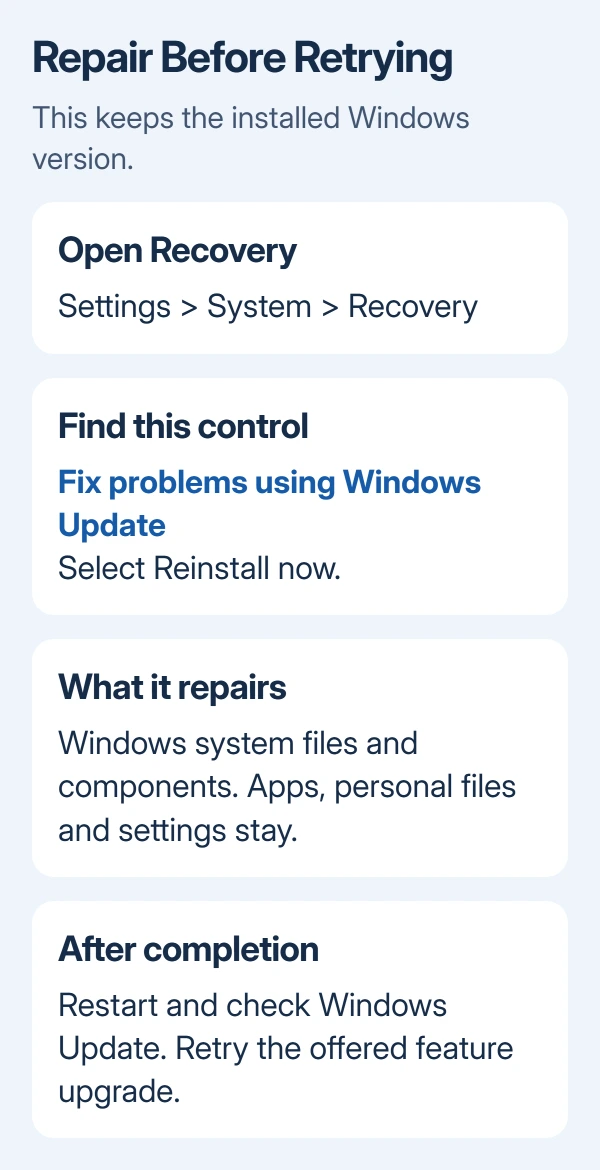
The current-version reinstall instructions distinguish this repair from a version upgrade. If you're on 24H2, it repairs 24H2; it doesn't promise to move you straight to 25H2.
The option may be missing if your workplace manages the PC or Windows doesn't have the required updates. Ask IT if it's missing on a managed PC. Don't remove work policies to make the button appear.
After repair, return to Windows Update and install pending updates before retrying the feature upgrade. If setup still rolls back, note that the repair finished successfully but the upgrade failed again.
5. Use the supported upgrade route or escalate the hold
If Windows Update says the update isn't ready for your device, keep the exact message. A compatibility hold means you need to wait for the matching software or driver fix. Don't use a download link to bypass that block.
For a PC without a hold where Windows Update repeatedly fails, the Windows 11 Installation Assistant guide explains the supported alternative and its hardware limits. Check the version currently offered before starting.
Installation Assistant is intended for x64 PCs; it doesn't run on Arm-based PCs. Check Settings > System > About > System type if the computer uses a Snapdragon or another Arm processor.
Microsoft updates its download tools to offer the current release. Don't assume that a button labeled Windows 11 will always install 25H2. If your organization needs that exact version, use installation media approved by its administrator.
If the update still fails, open Get Help, describe the update error, and request support if offered. Include the winver version/build, full code, PC model and failed update's name. Say whether it fails before restarting or afterward.
On a work PC, send these details to your IT team for a review of installation logs and upgrade policies. If setup still rolls back after repair, get the cause checked before considering an installation that erases the PC.
The Short Version
Separate a failed 25H2 upgrade from a monthly patch failure. Finish pending updates, check storage and drivers, then try troubleshooting and a repair of the current release. Check hardware support and holds before using another installer.
Checked November 13, 2026.






