

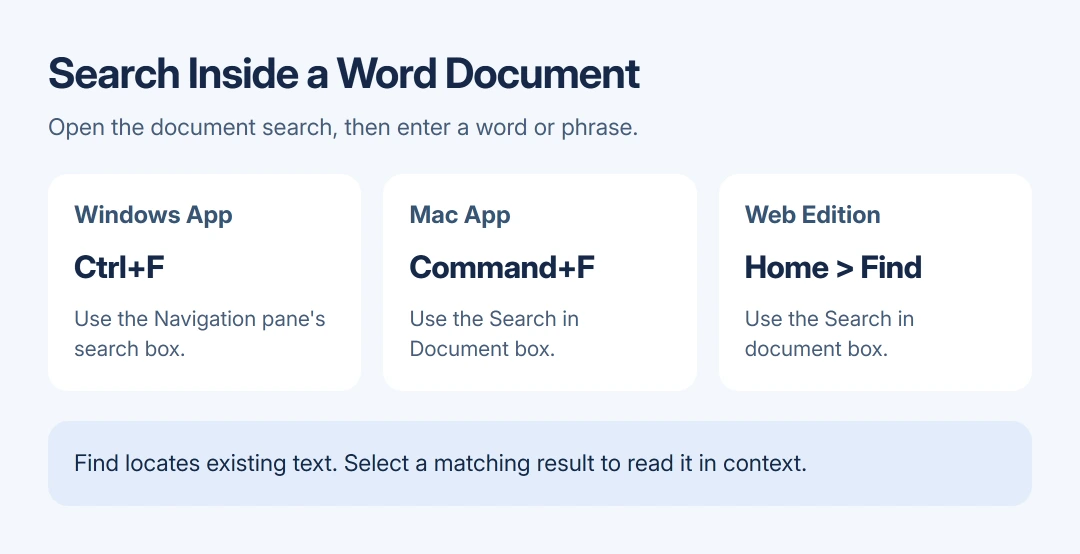
To search for a word in a Word document, press Ctrl+F on Windows or Command+F on a Mac, then enter the word in the document's search box. Select a match to jump to its sentence without changing the text.
In Word for the web, Home > Find opens the document search. Use that command when a browser shortcut opens the browser's own search box instead.
Search the open document on Windows
Microsoft documents Windows search in its Navigation pane instructions, covering Microsoft 365 and Word 2024, 2021, 2019 and 2016. Results jump directly to matching text.
Open the intended document, then press Ctrl+F. The menu route is View > Navigation Pane. Enter a word or phrase into its search field.
Status: Microsoft's Windows, Mac and web search instructions checked October 28, 2026. This guide covers locating existing text. No document or application was operated.
Select a result to display that occurrence in the document. Use the pane's up and down arrows to move through the other matches. Read the surrounding sentence to check whether it is the occurrence needed.
For a common word with many results, search a longer phrase from the sentence. This narrowing advice is ours; it specifies the wording being sought without making an edit.
The Headings and Pages tabs serve different purposes. Headings jumps between sections that use heading styles; Pages shows page thumbnails. For a word inside a sentence, use the pane's search box.
On a Mac, use Command+F
Microsoft's Word keyboard reference lists Command+F for moving to the Mac app's Search in Document box. Use the Command key rather than copying the Windows combination.
Type the word or phrase there. Microsoft says Word for Mac highlights its occurrences throughout the document. The search box can also be found in the document's upper-right corner.
These controls locate existing text. To change the wording after locating it, follow the separate Word replacement procedure, which explains how to review each proposed change.
In a browser, choose Home > Find
With the document open in Word for the web's Editing view, select Home > Find. Microsoft also documents Ctrl+F here. Enter the term in Search in document; results update as the term is typed.
Microsoft's web search instructions put narrower matching behind the filter icon. Choose Whole words only to exclude matches inside longer words.
For example, a whole-word search for plan excludes planning. Choose Match case when uppercase and lowercase matter, such as distinguishing PLAN from plan. These are different restrictions; use the one the search needs.
To clear a completed search, select the X at the end of the search box. Enter the next term there rather than typing over the document's selected text.
When the search does not behave as expected
Check the typed spelling and any case or whole-word filter before assuming the word is absent. A phrase can also be too specific; search one distinctive word from it and inspect the resulting sentences.
If a keyboard combination fails but the menu command works, use the menu to finish the search. The Word shortcut troubleshooting guide covers keyboard assignments and language-related failures separately.
If a visible word still produces no match, report it to Microsoft Support or your organization's help desk. Give the Word edition, version, search term and whether the menu command worked. Share a nonprivate example when requested.
The Short Version
Open Word's document search, enter the word or phrase, and choose the matching sentence. Windows uses Ctrl+F; Mac uses Command+F. In the web edition, Home > Find opens the search, with filters for whole words and matching capitalization.

Isaac Smith is the founder and editor of PC Glance, a website that covers computers, laptops, and technology. He is a tech enthusiast and a computer geek who loves to share his insights and help his readers make smart choices when buying tech gadgets or laptops. He is always curious and updated about the latest tech trends.