
Stopping spam calls on Android requires the Phone app's filtering controls; caller identification alone does not block a call. Turn on the spam filter if it is available.
Phone by Google, Pixel Call Screen and Samsung Phone have different menus. Follow the section for the app actually handling calls, then check its call history for anything filtered incorrectly.
Turn on filtering in Phone by Google
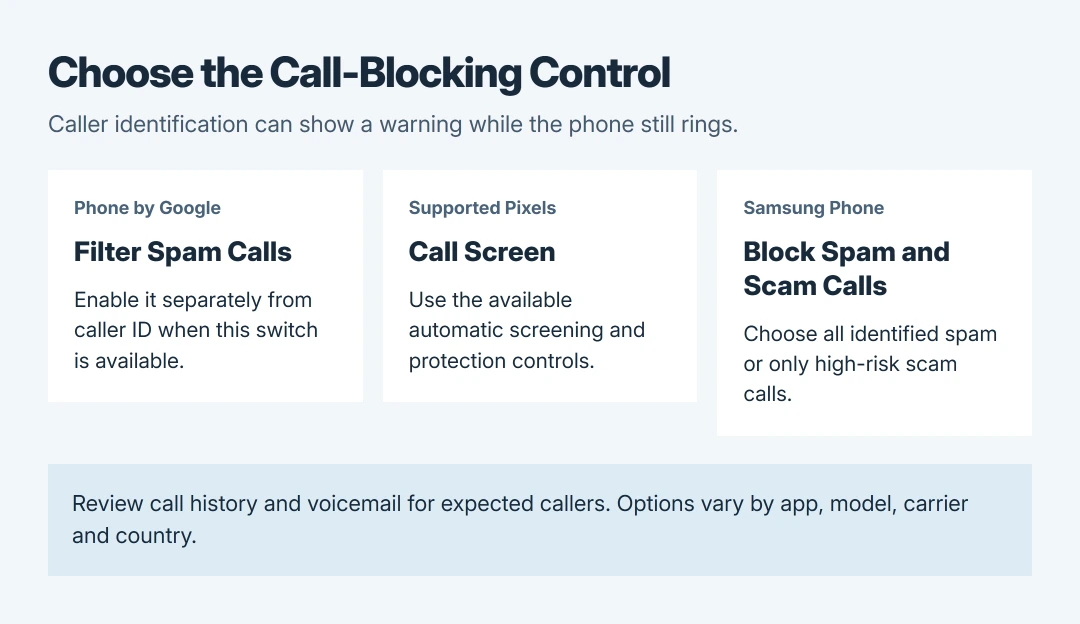
Open Phone > More options > Settings > Caller ID and spam. Enable See caller ID & spam. When Filter spam calls is available, enable that separately to block calls identified as spam.
Google's caller ID and spam instructions distinguish the warning feature from filtering. The identification switch can label a suspicious caller while still letting the phone ring.
Status: Google and Samsung call-filtering instructions checked October 28, 2026. Options depend on the app, model, carrier and country. No calls or phone settings were tested.
Filtered calls remain in call history, and voicemail can still be checked. Google says missed-call and voicemail notifications are suppressed for these filtered calls. Review the records when expecting an unfamiliar caller.
If Filter spam calls is absent on a phone with automatic Call Screen, use that feature's settings instead. Google documents this missing switch as expected behavior on those devices.
Use Call Screen on a supported Pixel
In Phone > More > Settings, open Call Screen, or Spam and Call Screen > Call Screen, depending on the menu shown. Update the Phone app first if an update is offered in Google Play.
Choose the available protection level or automatic-screening controls. Google's Call Screen guide lists automatic screening for Pixels in Australia, Canada, Ireland, the UK and the US.
Call Screen asks the caller who they are and why they are calling. A detected spam call is ended; a caller that passes screening can make the phone ring with their response shown.
Save expected callers as contacts if they should avoid screening. Google says the feature uses local contacts when deciding which calls to screen. It also says some spam and robocalls will escape detection.
Automatic screening does not operate while roaming. Google also advises against using it with call forwarding because screened calls are not forwarded. A missing Call Screen menu can mean the device is unsupported.
Switch on Smart Call in Samsung Phone
Open Samsung Phone > More options > Settings > Caller ID and spam protection. Enable the switch and review the terms and privacy policy. Smart Call availability depends on the carrier and model.
Enable Block spam and scam calls, then choose the desired level. Samsung says its Smart Call controls offer Block all spam and scam calls or Only block high-risk scam calls.
The high-risk option allows less severe spam through. Choose the broader option when those calls are the problem, while remembering that the filter acts on calls the service identifies. It cannot guarantee a silent phone.
These settings belong to Samsung Phone. A Galaxy using Phone by Google needs the Google instructions instead; the handset's brand alone does not determine the menu.
Block a repeat number without blocking every new caller
In Phone by Google, open More > Call history, select the unwanted call and choose Block / report spam. Google's number-blocking guide documents this route for a specific caller.
For private or unidentified callers, use More > Settings > Blocked numbers > Unknown. Google states that Unknown blocks private or unidentified numbers, not every caller missing from Contacts.
If an important number was blocked by mistake, remove that Android block. A call wrongly labeled as spam also has a Not spam option in Google's recent-call details.
Check the filter's results before making it stricter
Review recent calls and the mailbox when an expected caller does not ring through. The Android voicemail setup guide covers accessing the carrier mailbox when a visual list is unavailable.
If unwanted calls keep getting through, ask the carrier which network-level spam filters the plan supports. Give them the phone model, calling app and examples of the calls that escaped the enabled filter.
For a missing or failing Smart Call control, contact Samsung with the carrier and model. For Call Screen availability or incorrect Google spam labels, use Google's Phone app help.
The Short Version
Enable actual spam blocking, not just caller identification. Google Phone uses Filter spam calls when available, supported Pixels use Call Screen, and Samsung Phone uses Smart Call.
Check call history and voicemail for legitimate callers caught by the filter.

Isaac Smith is the founder and editor of PC Glance, a website that covers computers, laptops, and technology. He is a tech enthusiast and a computer geek who loves to share his insights and help his readers make smart choices when buying tech gadgets or laptops. He is always curious and updated about the latest tech trends.