

Android blocks unwanted callers through the Phone app, with different menus in Google and Samsung's apps. Open the unwanted call in your call history and use the block command, or add the number to Samsung's blocked list.
A hidden number needs a different setting from a visible number you haven't saved. Text messages also have blocking controls in the messaging app, so use the app that keeps receiving the unwanted calls or texts.
In this guide
Block a caller in Phone by Google
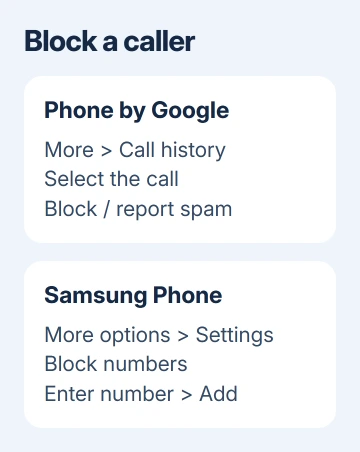
Open Phone, tap More (the three dots), then Call history. Select a call from the number you want to stop and tap Block / report spam. Read the confirmation and approve the block.
These are the Phone by Google blocking steps. Other phone makers can use their own Phone app, so these menus won't be the same on every Android phone.
Check the digits in the selected call before confirming. A contact name can hide which of that person's numbers called, and a missed call may have a similar number to one you're expecting.
Afterward, open Phone > More > Settings > Blocked numbers and check that the intended entry is there. That lets you confirm the block without waiting for another unwanted call.
The block applies to that number. If a caller starts using another visible number, you'll need to deal with the new entry too. Deleting their contact isn't a replacement for blocking the number.
Add a number in Samsung Phone
On a Galaxy using Samsung Phone, open Phone > More options > Settings > Block numbers. Enter the phone number, then tap Add, shown as a plus sign. Check that it appears in the list.
For a number already on the phone, choose Recents or Contacts from the blocked-number screen. Select the entry and tap Done. This avoids having to type a long number again.
Samsung's Galaxy call-blocking controls also include a route from Recents: select the number, open Menu, choose Block, then confirm Block.
The menu and layout can vary with the software and carrier. Use the Settings route if the Recents screen doesn't show that command. Check that the number appears in Block numbers.
I'd add a visible number directly before turning on a wider unknown-caller rule. That stops the specific caller while allowing other calls through, including a delivery driver or a doctor's office you haven't saved.
Choose the right rule for hidden numbers
In Phone by Google, open More > Settings > Blocked numbers and turn on Unknown to block private or unidentified numbers. This switch doesn't block every caller who's missing from your contacts.
A visible number that isn't saved can still call with Unknown turned on. That distinction matters when the problem is repeated calls from different ordinary numbers rather than calls labeled Private or Unknown.
Samsung uses different wording, and its setting works differently. Its support instructions describe Phone > More options > Settings > Block numbers > Block calls from unknown numbers for unknown numbers outside your contacts.
Read the label on your own Galaxy before enabling it. Samsung notes that carriers don't all offer Smart Call. Don't assume Samsung's filter works like Google Phone's private-number setting.
For a stream of changing spam numbers, the Android spam-call settings cover broader filtering. Keep that separate from the list of specific people or businesses you want to block.
Stop a text conversation in Google Messages
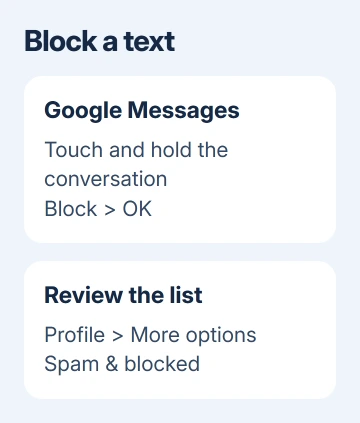
Open Google Messages and find the unwanted conversation on its Home screen. Touch and hold that conversation, tap Block, then tap OK. Before confirming, check whether the app also offers to report the message as spam.
Don't open a link in the unwanted message to look for an unsubscribe control. The conversation's own block command is available without visiting anything the sender included.
To review a blocked conversation, open your profile photo or icon > More options > Spam & blocked. The Messages blocking instructions cover this list separately from the Phone app's call history.
Use this route when the problem is SMS or RCS messages in Google Messages. A block inside a different chat service needs that service's controls; Google Messages doesn't control every app's block list.
Use Samsung Messages when that's the texting app
In Samsung Messages, touch and hold the unwanted conversation, choose More > Block, then confirm Block. Use this only if the app is Samsung Messages; many Galaxy phones use Google Messages instead.
Open Samsung Messages to review its saved list. Use More options > Settings, then select Block numbers and spam. Review the entry there rather than looking for Google's Spam & blocked wording.
Deleting a conversation and blocking its sender are separate actions. Removing the conversation from your inbox doesn't take the place of a block, so check the blocked list before assuming the sender has been stopped.
Check voicemail and accidental blocks
Google says visual voicemail stops a blocked caller from leaving a message. Without visual voicemail, don't assume blocking stops voicemail on every phone and carrier.
Calls received while a number was blocked won't appear in Google Phone's call history. An empty history won't tell you how many blocked calls there were or whether the caller tried again.
For a mistaken entry, use the Android number-unblocking instructions. Check the full number before removing it, especially when the same contact has home, work and mobile entries.
If calls still ring, check which Phone app holds the block and compare the incoming digits with the saved entry. Ask your carrier about network filtering or voicemail when those services still let the caller through.
The Short Version
Block callers from Google Phone's call history or Samsung Phone's Block numbers list. Treat private numbers separately, and use the messaging app's block command for texts. Check the saved entry after each change.
Checked November 15, 2026.
 If you have any business, I can build it online






