
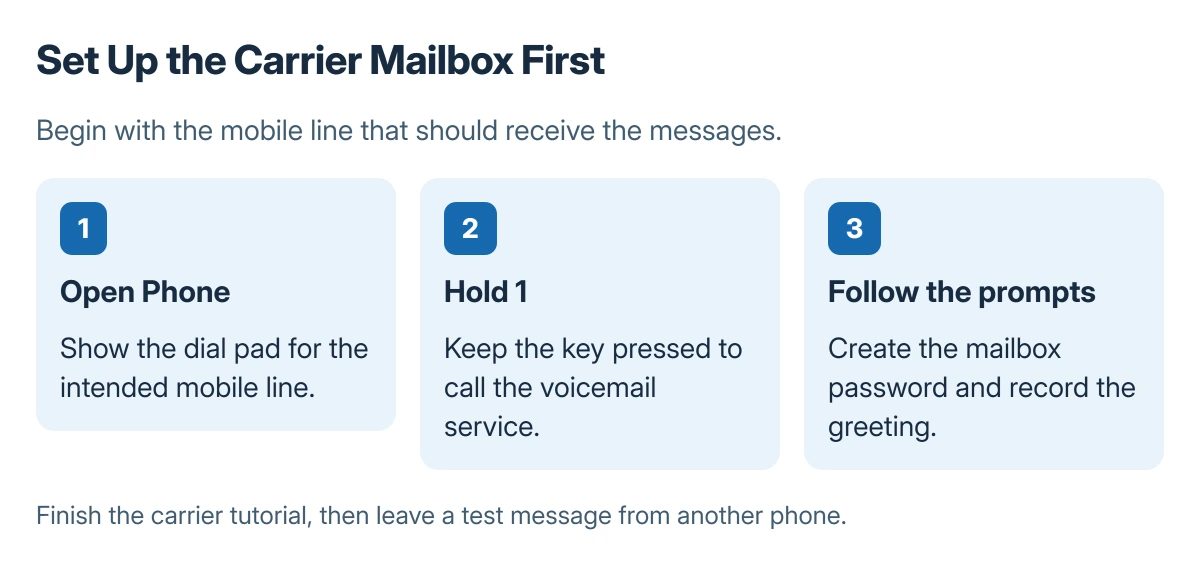
Android voicemail is normally set up through the mobile carrier's mailbox. Open Phone, show the dial pad, and touch and hold 1 to reach it. Follow the recorded setup prompts rather than guessing a voicemail number or password.
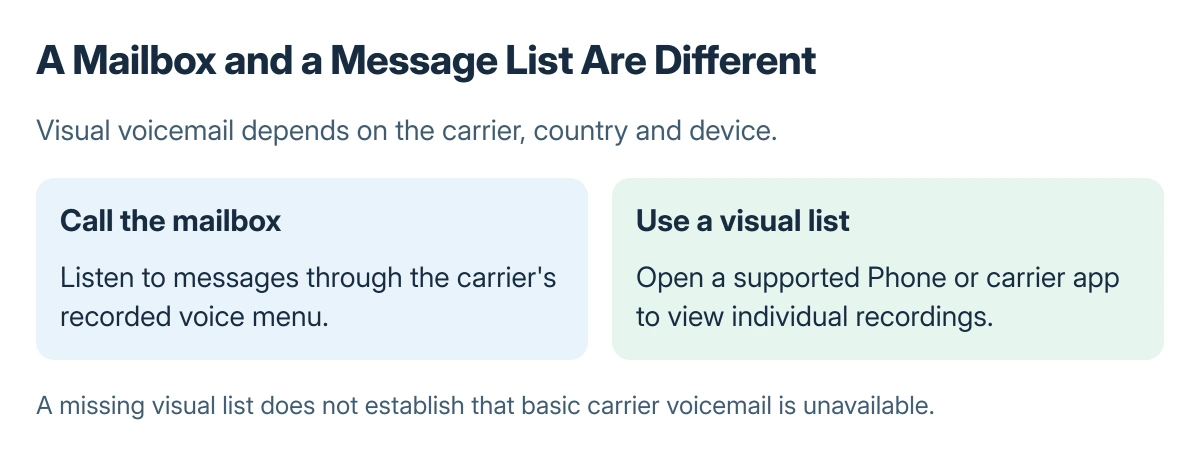
A Voicemail tab or a carrier app can display messages afterward. That visual list is a separate feature, so its absence does not prove the basic mailbox is unavailable.
Call the mailbox and finish its setup
Make sure the intended mobile line is active. With two SIMs installed, choose the mobile line requiring voicemail setup. A mailbox belongs to a telephone service, not to every account signed into the phone.
Samsung says first-time setup starts by holding 1 in the Phone app. Its Galaxy call settings guide then directs callers to create a password and record their greeting and name.
Status: Android carrier setup documented by Samsung and Google's Phone help, checked 23 October 2026. Carrier menus differ; no mailbox was created or tested.
Listen through the entire introduction. Save the greeting when the voice menu asks, then leave the service normally. Keep the mailbox password private; it may be different from the phone's screen-lock PIN.
Choose a visual voicemail option only if supported
In Phone by Google, open More options > Settings > Voicemail. Google says Visual voicemail can be enabled there on supported carrier and device combinations.
A carrier's own voicemail app can provide a different interface. Google states that using a carrier voicemail app turns off the Phone app's visual voicemail to avoid a conflict.
Use the option supplied for the actual plan and country. Missing visual features should go to the carrier, with the phone model and app name, rather than prompting a factory reset.
Confirm that a caller can leave a message
From another phone, call the line and let it reach voicemail. Leave a short test message, then retrieve it using the same method. This checks both the outgoing greeting and incoming recording.
For a line that refuses messages, the carrier mailbox checks explain why a phone's free storage is different from mailbox capacity. Problems saving an announcement also need the greeting checks.
If holding 1 fails, ask the carrier to verify voicemail activation, the correct access number and any password reset. Do not enter a number copied from instructions for another network.
The Short Version
Hold 1 in the Phone dial pad, complete the carrier's password and greeting prompts, and check the result with a test call. Enable visual voicemail only when the carrier and device support it.
Where to Next
Tell the carrier whether the failure happens while accessing the mailbox, recording the greeting, or leaving an incoming message. Those are different parts of the service.

Isaac Smith is the founder and editor of PC Glance, a website that covers computers, laptops, and technology. He is a tech enthusiast and a computer geek who loves to share his insights and help his readers make smart choices when buying tech gadgets or laptops. He is always curious and updated about the latest tech trends.