

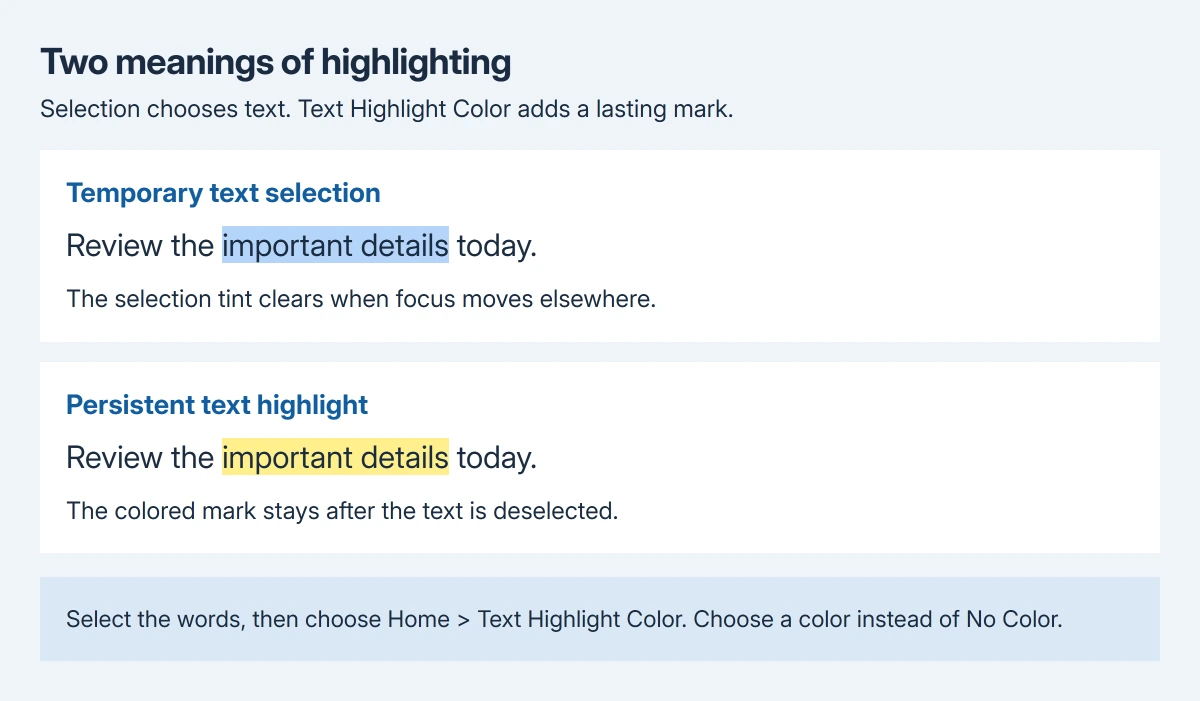
Word uses two different kinds of highlighting: selecting words temporarily and applying a color that stays in the document. To add lasting color, select a short passage, open Home > Text Highlight Color and choose a visible color.
When that fails, check whether the words are editable text and whether the document permits formatting. A picture of a page and a protected document need different next steps.
Try the highlighter on a short text selection
In desktop Word, drag across a few existing words. Open the arrow beside Text Highlight Color on the Home tab and choose yellow or another visible color. Click away from the selection to inspect the result.
Microsoft documents that sequence in its highlighting instructions. The arrow chooses the color; No Color removes existing highlighting instead of adding it.
Status: Word desktop highlighting checked October 29, 2026 using Microsoft's Windows and Mac guidance. Selection, protection and PDF-image limitations are separate. No document was changed.
A successful highlight remains behind the words after clicking elsewhere. A selection tint that disappears at that point does not show that the document's highlighter failed; it was the temporary selection display.
For text that is difficult to select with a mouse, click at its beginning and hold Shift while pressing the Right Arrow key. Microsoft's keyboard reference documents Shift with an arrow for extending a text selection.
Use a few words first. That keeps the selected area clear and avoids applying a color to a whole document while checking a single control.
Leave the highlighter active for separate passages
For several unrelated passages, choose a color from Home > Text Highlight Color before selecting the first passage. Move over the document text and drag across each passage that should receive it.
Microsoft says the highlighting tool stays active for this method. Press Esc, or open the color menu and select Stop Highlighting, when finished.
If dragging now keeps adding colored marks when ordinary text selection was intended, exit that tool first. The active highlighter changes what the same dragging action does.
On a Mac, use the Home tab's Text Highlight Color control as well. These instructions cover desktop Word. Word running in a browser has a different interface.
Check whether the document permits formatting
Look for a view-only state or a locked-selection message when the color control is unavailable. In Word for Windows, open Review > Restrict Editing to inspect the document's permitted editing regions.
Some forms allow entries only in designated places. Microsoft states that the author controls which parts can be changed; selecting words does not by itself grant permission to format them.
Use the Word editing-access checks when protection or viewing mode is the obstacle. Ask the author for access when the intended passage is outside the allowed region.
Avoid changing global security settings to color an unfamiliar attachment. A trusted document that needs authorization should be handled through that document's own access controls.
If formatting works in an allowed region but fails elsewhere, the difference is useful evidence for the author. There is no reason to reinstall Word to change a permission the document deliberately enforces.
Find out whether the words are part of an image
Click the affected page once. A single picture with resize handles, rather than a cursor among the words, indicates that the visible letters are part of an image.
Microsoft's PDF conversion explanation says a graphics-heavy PDF may open as a page image whose text cannot be edited. The page looking readable does not make its individual words selectable.
Ask for the original text document when possible. For a scan, the PDF text-extraction options explain how to obtain editable words. Check extracted spelling and numbers before relying on them.
Highlighting a whole graphic is different from highlighting individual words inside it. Repeatedly changing the highlighter's color cannot create an editable text layer in a picture.
Compare a plain document before escalating
Create a separate blank Word document, type a short sample and apply a highlight there. That comparison is ours. A plain file separates the original document's content from a failure that also affects freshly typed words.
If the sample works, report the original document's protection state or image content to its author. If typed text in the plain file also fails, send Microsoft Support the installed Word version and observed failure.
Describe whether selection fails, the color command is unavailable, or a color fails to remain after clicking away. Those are different failures, and support needs the one actually observed.
The Short Version
Select editable words and choose Text Highlight Color for a lasting mark. Press Esc to leave an active highlighter. Check document permissions or image-only content when that fails, then compare a plain file before contacting support.

Isaac Smith is the founder and editor of PC Glance, a website that covers computers, laptops, and technology. He is a tech enthusiast and a computer geek who loves to share his insights and help his readers make smart choices when buying tech gadgets or laptops. He is always curious and updated about the latest tech trends.