
Connecting Sony Bluetooth headphones starts with their pairing mode, then selecting their model in the phone or computer's Bluetooth list. Powering on may not make them discoverable when they already remember another device.
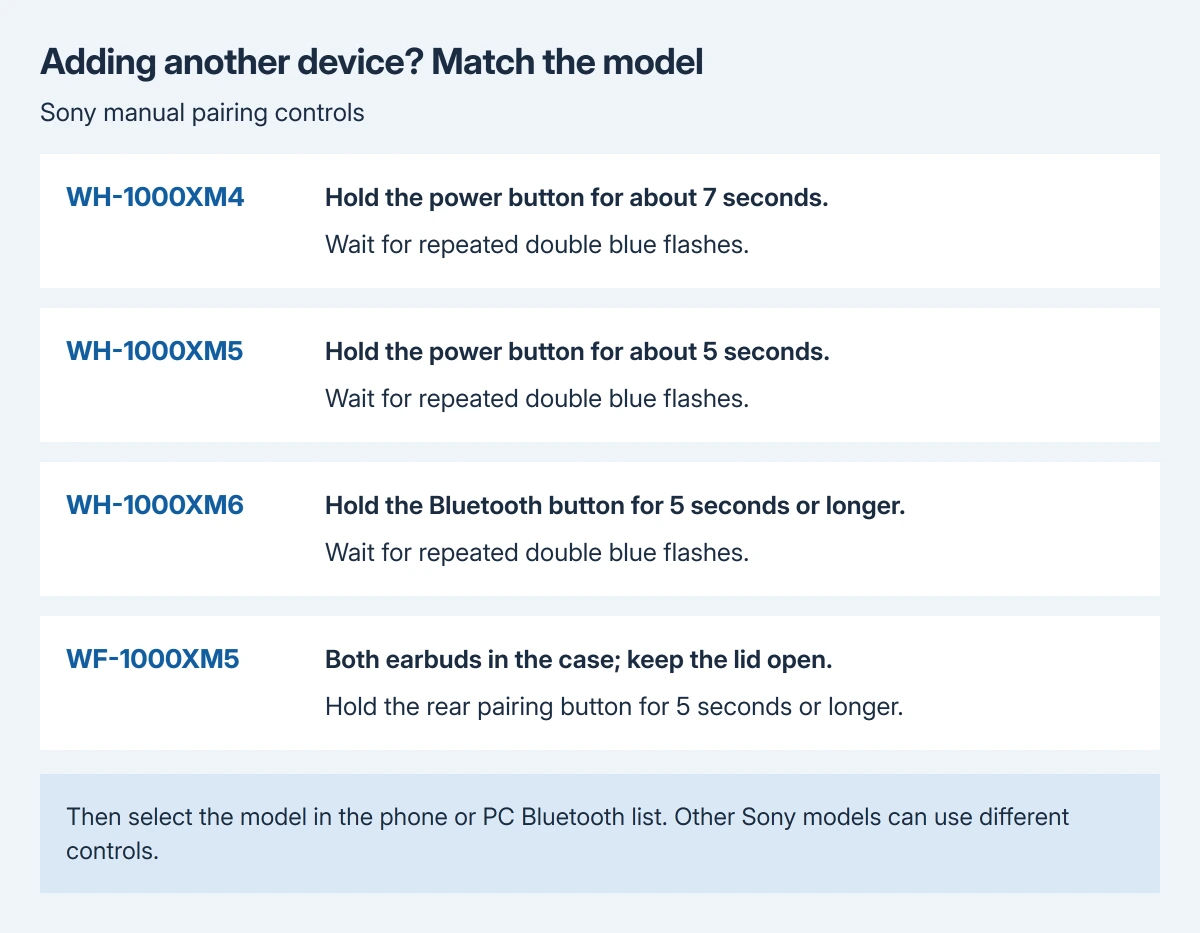
The button and hold time depend on the model. The WH-1000XM4 uses about seven seconds, the WH-1000XM5 about five, and the WF-1000XM5 earbuds use their open charging case when adding another device.
Put the correct Sony model into pairing mode
Charge the headphones first and keep the phone nearby. For the models covered here, Sony specifies a distance within about three feet during pairing. Read the exact model designation before choosing its button sequence.
Sony documents these controls separately in each model's Help Guide. A first pairing can start automatically, while adding another phone or laptop requires the manual pairing action.
Status: Sony's WH-1000XM4, WH-1000XM5, WH-1000XM6 and WF-1000XM5 pairing guides checked October 29, 2026. Model controls differ. No headphones were paired locally.
For WH-1000XM4, press the power button and keep pressing for about seven seconds to add another device. Wait for the repeated double blue flash and the spoken pairing announcement. A brief press only turns the headset on.
For WH-1000XM5, manual pairing needs about five seconds of pressure on the power button. Its blue indicator flashes twice repeatedly, with a pairing announcement. Sony's XM5 pairing guide gives that timing.
For WH-1000XM6, use its Bluetooth button for about five seconds or longer. Sony names a Bluetooth button in this model's guide; do not carry the XM4 power-button timing across to it.
For WF-1000XM5, put both earbuds in their case and leave the lid open. Hold the rear pairing button for about five seconds or longer, until the case repeatedly flashes blue twice. A closed lid prevents this manual pairing mode.
For another Sony model, use its own Help Guide. Some earbuds use touch sensors rather than the case button, so a sequence intended for the XM5 case is not a universal Sony instruction.
Select the model in the phone's Bluetooth list
On iPhone, open Settings > Bluetooth, enable Bluetooth and keep the screen open. Tap the Sony model when it appears and complete any pairing prompt.
Apple says a missing accessory must first be made discoverable using its maker's instructions. Its Bluetooth accessory guide supports this Settings route; the pairing control remains on the Sony device.
On Android, open Bluetooth through Settings or hold the Bluetooth quick-setting control. Choose Pair new device if offered, then select the Sony model. Menu names vary by phone; keep its available-device list visible while pairing.
With the WH-1000XM4, wait for WH-1000XM4 even if LE_WH-1000XM4 appears first. Sony says to select the entry without the LE prefix. Its stated wait for that name can be about 30 seconds to a minute.
If these listed models request a passkey, their Sony guides give 0000. Do not substitute that code for a phone's own screen-unlock passcode.
Pair with Windows, then check where sound plays
On Windows 11, open Settings > Bluetooth & devices, turn Bluetooth on, then choose Add device > Bluetooth. Enter pairing mode on the headphones and select their model from the device list.
If the PC never lists them, use the Windows discovery checks. Re-enter Sony pairing mode if it has expired; the four guides here give a five-minute pairing window.
After connection, play a short audio clip and select the Sony headphones as the output if sound still comes from the laptop. That listening check is ours: a saved Bluetooth entry can remain while sound goes elsewhere.
Sound that changes only when a meeting starts needs the Bluetooth call-audio checks. Repeating the pairing sequence cannot choose the intended microphone or playback output.
If a remembered connection will not reconnect
Start with the existing Sony entry in Bluetooth settings. Pairing registers a new relationship; a device already remembered and working normally should not need registration each time it is used.
When the saved entry fails, removing it and pairing again is a deliberate next check. On iPhone, use the information button beside the Sony entry, then Forget This Device. Return the headphones to manual pairing mode afterward.
Apple documents that forgetting an accessory can also unpair it from other Apple hardware on that account. Account for that wider effect before removing a connection that still works elsewhere.
If pairing still fails, give Sony Support the model, light pattern and whether discovery starts. When a phone lists the headset while Windows does not, report that comparison to the PC maker. Initialization needs its own instructions.
The Short Version
Use the Sony model's pairing control, then select its name in Bluetooth settings. XM4, XM5, XM6 and XM5 earbuds use different controls or timings. Confirm the connection by playing audio through the intended output.

Isaac Smith is the founder and editor of PC Glance, a website that covers computers, laptops, and technology. He is a tech enthusiast and a computer geek who loves to share his insights and help his readers make smart choices when buying tech gadgets or laptops. He is always curious and updated about the latest tech trends.