
The ChromeOS is missing or damaged message can mean ChromeOS needs reinstalling. Restart the Chromebook first. If the error returns, use Google's recovery process over the internet, where offered, or with a USB recovery drive.
Recovery erases local storage, including Downloads. Before accepting an erase, check what is already backed up. If the Chromebook cannot start, its Files app is unavailable for copying local files.
Confirm that operating-system recovery is the intended step
Google says this error is a reason to consider recovery in its Chromebook recovery instructions. A missing webpage, disabled account or blank display calls for different checks.
Turn the Chromebook off, remove connected accessories and start it normally. If the error remains, record the model and displayed message. For a school or work device, contact its administrator before starting recovery.
Status: Google's recovery, hardware-reset and manufacturer-help pages verified October 29, 2026. Internet recovery depends on the model. No recovery media was created or local data erased.
If normal sign-in becomes possible, copy needed local work off the Chromebook before proceeding. The Powerwash preparation guide explains backup checks, but Powerwash and an OS reinstall are separate operations.
A keyboard or touchpad fault has a separate hardware-reset procedure. That step cannot be assumed to repair damaged ChromeOS, and Google warns that it may remove some Downloads files.
Enter recovery on the affected Chromebook
Disconnect peripherals before entering recovery. For most Chromebook laptops, hold Esc + Refresh, press Power, then release Power. When the recovery message appears, release the other keys.
Some models use Esc + Maximize with Power instead. Google states that some keyboards use this alternative. Check the model's instructions when its keyboard or button layout differs.
For a Chromebook tablet, hold Volume Up + Volume Down + Power for at least 10 seconds, then release them. This recovery combination differs from the tablet's ordinary hardware reset.
Look at the recovery choices offered. If the device cannot reach this screen, tell the manufacturer; creating USB media will not fix a broken recovery key or an unpowered machine.
Choose internet recovery when the option appears
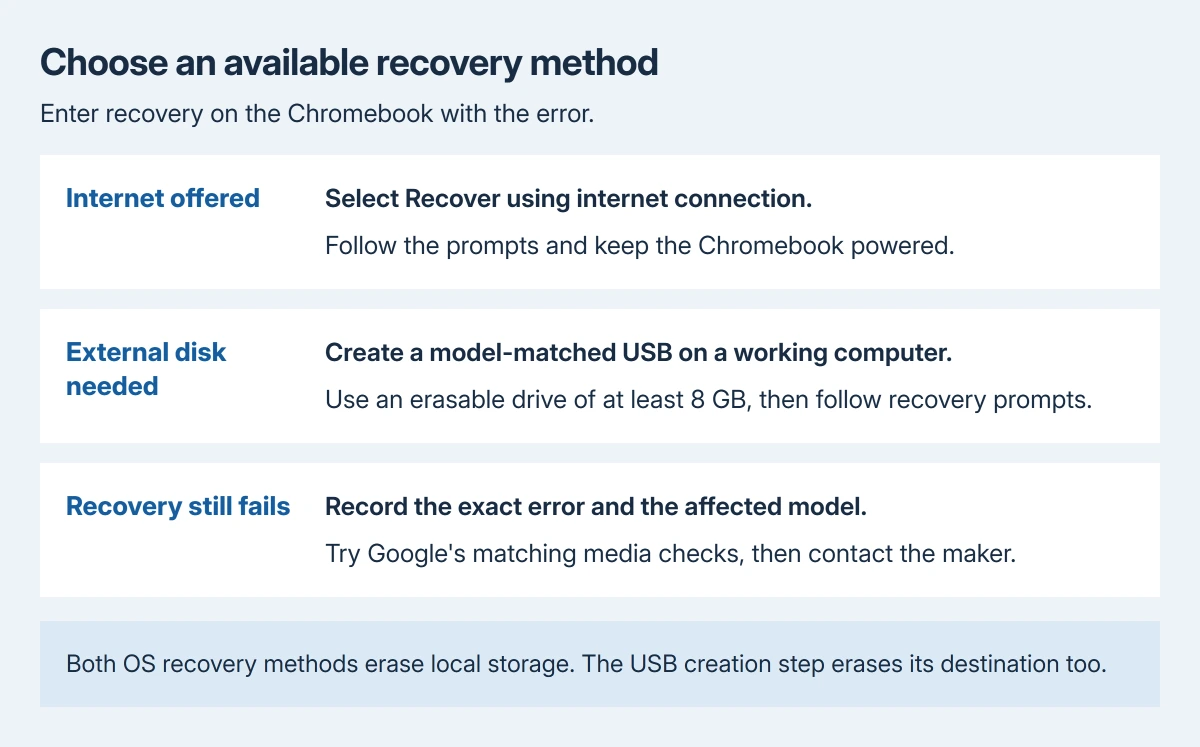
Select Recover using internet connection and follow the prompts. Keep the Chromebook powered while it downloads and reinstalls ChromeOS. Google states that it restarts automatically to finish recovery.
If that option is absent or internet access is unavailable, use external recovery media. Its absence can reflect an older model without internet recovery, rather than a setting that needs enabling.
Google also warns that some older Chromebooks no longer support recovery. If its current recovery tools do not support the model, confirm the available options with its maker before downloading unofficial images.
Build a matching USB on a working computer
Use another Chromebook, or a Windows PC or Mac with Chrome. Prepare a USB drive holding at least 8 GB whose contents can be erased. The extra USB precaution is ours: unplug other removable drives before choosing the destination.
- Open Chrome on the working computer and install Chromebook Recovery Utility through the extension link in Google's recovery guide.
- Open Extensions, then Chromebook Recovery Utility, and select Get started.
- Enter the affected Chromebook's model number from its error screen, or choose Select a model from a list and match it carefully. Select Continue.
- Insert the USB drive, select it in the utility, and choose Continue > Create now. Check the destination before confirming its erasure.
Wait for the recovery-media-ready message before removing the drive. On the affected Chromebook's recovery screen, select Recover using external disk, connect the prepared drive as prompted, and follow the instructions.
Complete the displayed recovery process and remove the drive when instructed. Reaching the initial setup screen confirms the reinstall has progressed to setup; it does not restore files erased from local storage.
Respond to the actual recovery error
For an unexpected error or a message that the inserted device does not contain ChromeOS, Google recommends checking the correct recovery drive, recreating its media and trying another USB drive if needed.
For a security module error, contact the administrator on a managed Chromebook or use Google's support route. If the error persists, its manufacturer may need to repair the device.
For a Spin 714 stuck in an update loop, check the model-specific update history. Its older beta workaround is not a general recovery image for other Chromebooks.
If recovery fails again with correctly matched media, contact the Chromebook manufacturer. Provide the model, exact error and recovery method. A recurring error needs attention beyond repeated erasure.
The Short Version
Restart once, protect any accessible local work, and enter recovery with the model's button combination. Use internet recovery when offered; otherwise create a matching USB on a working computer. Both recovery methods erase local data.

Isaac Smith is the founder and editor of PC Glance, a website that covers computers, laptops, and technology. He is a tech enthusiast and a computer geek who loves to share his insights and help his readers make smart choices when buying tech gadgets or laptops. He is always curious and updated about the latest tech trends.