
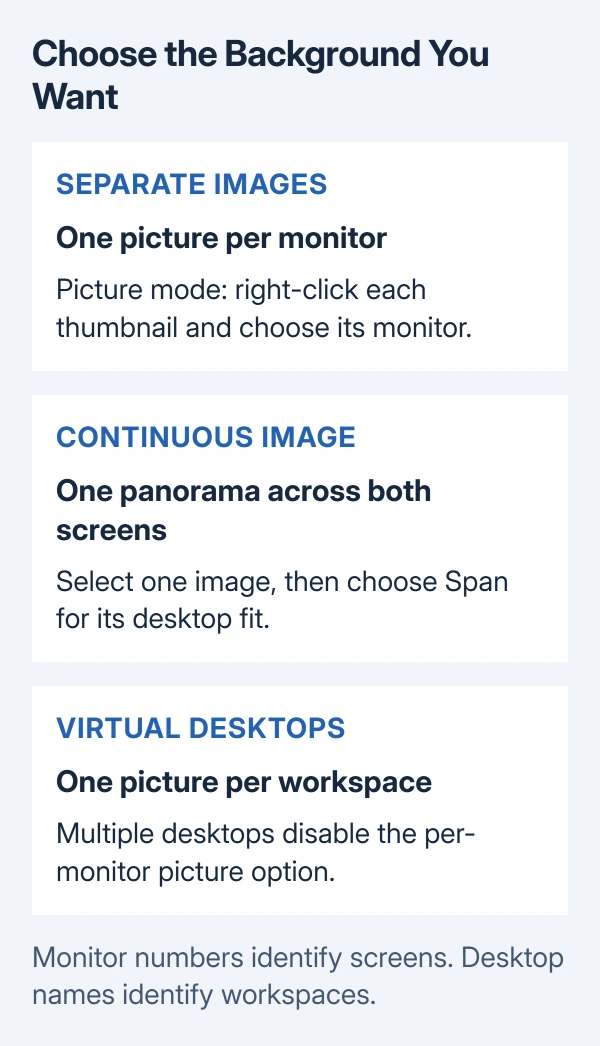
Windows 11 supports different backgrounds for dual monitors. Choose Picture in Settings > Personalization > Background, then right-click a thumbnail to assign its display. Multiple virtual desktops disable this option.
Two physical monitors and two virtual desktops are different arrangements. Check which one Windows is offering before changing the wallpaper repeatedly.
Choose a picture for each physical screen
Keep both monitors connected while making the change. Confirm that Windows recognizes them separately and uses Extend mode. A duplicated display shows the same desktop content on both screens.
Use the Windows monitor setup steps if the screens currently mirror one another. Once the desktop extends across them, return to Background settings.
Status: Windows 11 background and display instructions checked October 29, 2026 against Microsoft help. No monitor, wallpaper or desktop setting was changed.
- Right-click an empty area of the desktop and choose Personalize, then Background.
- Set Personalize your background to Picture.
- Use Browse or Browse photos to choose an image from the computer.
- Right-click its thumbnail in the image choices. Select the option for the intended monitor.
- Choose the second image and assign that thumbnail to the other monitor.
Inspect the actual screens after both assignments. Selecting a thumbnail normally and assigning it through its menu are different actions; use the menu when the image belongs on only one display.
Microsoft documents the per-display choice in its desktop background instructions, including the restriction involving virtual desktops.
Check the monitor number before assigning the image
A monitor's Windows number does not necessarily match its position on the desk. Open Settings > System > Display > Identify to display the assigned number on each physical screen.
For example, the monitor on the left can be display 2. Use that number in the wallpaper menu rather than assuming the left-hand screen must be display 1. The monitor numbering guide explains the arrangement controls.
If Windows shows only one display, stop adjusting the background. Microsoft's multiple-monitor guidance directs you to Multiple displays > Detect when a connected screen is missing.
When the menu offers desktops instead of monitors
A menu listing desktops is targeting separate Windows workspaces. It is not identifying the physical screens plugged into the computer. Microsoft says per-monitor pictures are unsupported while using multiple desktops.
Choose between separate workspaces and separate monitor pictures. Assign a picture to each desktop through its thumbnail menu to keep multiple workspaces. Use one virtual desktop when separate monitor pictures matter more.
That recommendation is ours and follows Microsoft's stated limitation. It is not a claim that removing desktops fixes every wallpaper fault, and installing a display driver does not remove the documented restriction.
Choose Span only for one continuous picture
Span stretches one image across the combined display area. Use it for a panorama intended to cover both monitors. It is a different result from assigning two unrelated photos.
For an individual picture, Fill can crop its edges, while Fit preserves its proportions and can leave unused space around it. Pick the fit by checking the subject's face, labels or other details near the image edges.
If one image seems wrong but the assignment is correct, compare its shape with the screen. A portrait image and a wide monitor cannot fill the same rectangle without cropping, stretching or empty space.
If a separate picture still will not stay assigned
Confirm that the mode still reads Picture, both displays remain recognized, and no extra virtual desktop is in use. Record whether the image changes immediately or only after reconnecting the monitor.
For a persistent failure under those conditions, contact Microsoft Support with the Windows version and the menu options actually shown. On a managed work PC, ask IT whether desktop customization is restricted.
The Short Version
Choose Picture, right-click each image thumbnail and assign it to the intended monitor. Use Identify when the numbers are unclear. Multiple virtual desktops disable per-monitor picture assignments; Span uses one image across the screens.

Isaac Smith is the founder and editor of PC Glance, a website that covers computers, laptops, and technology. He is a tech enthusiast and a computer geek who loves to share his insights and help his readers make smart choices when buying tech gadgets or laptops. He is always curious and updated about the latest tech trends.