
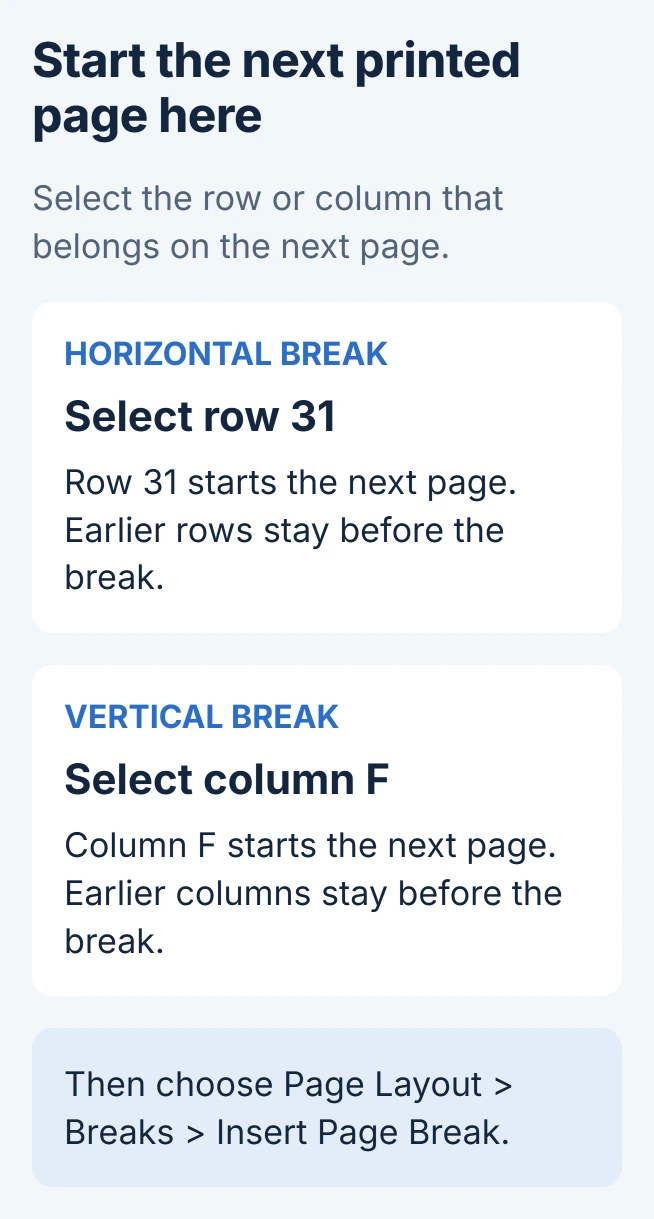
For a page break in Excel, select the row or column that should start the next printed page, then choose Page Layout > Breaks > Insert Page Break. The rows or columns before that selection stay on the earlier page.
If the break is visible but does not affect the printout, check scaling before adding another one. The Fit To setting can override manual breaks.
Select where the next printed page should begin
Open the worksheet and choose View > Page Break Preview. This view shows how Excel divides the sheet for printing, making it easier to place a break without guessing from the ordinary cell grid.
Choose a whole row heading for a horizontal break, or a whole column heading for a vertical one. Microsoft's Mac page-break instructions give those two selection rules.
Status: Manual print breaks checked against Microsoft's Windows and Mac instructions on October 29, 2026. Fit To can override them. No workbook was printed.
For example, select the 31 row heading when row 31 should start a new page. For a separate printed page beginning with column F, select the F heading instead. These are placement examples, not required worksheet positions.
This changes the printed layout. It does not add blank records. Use the worksheet row-insertion command when the data itself needs another row.
Insert the break and inspect the print preview
With the heading selected, open Page Layout, choose Breaks, then select Insert Page Break. Use this command in Excel for Windows or Mac.
Microsoft documents solid boundaries for manual breaks in Page Break Preview; automatically calculated boundaries appear dashed. Check that the new boundary is immediately before the intended row or column.
Open File > Print and inspect the page containing that location. Confirm the first record on the following page, the rightmost column and the text size before sending the job to the printer.
If the break is misplaced, return to Page Break Preview and drag its boundary to the intended position. Moving an automatic break makes it manual, so that change becomes part of the sheet's print layout.
A visible break is ignored when printing
Microsoft says Fit To scaling can stop a manual break taking effect. In Windows, open the Page Layout tab and click the small dialog launcher in Page Setup. On its Page tab, select Adjust to instead of Fit to.
Review the percentage rather than accepting unreadably small text. Reopen Print preview to check both pagination and readability. Microsoft's Windows printing guidance documents this scaling conflict.
Changing paper size, margins or orientation can also alter automatic pagination. Set those for the actual print job before spending time positioning several manual breaks.
Correct a break without deleting worksheet data
Select the row that begins after an unwanted horizontal break, or the column that begins after a vertical one. Choose Page Layout > Breaks > Remove Page Break.
To discard all manually placed breaks on that worksheet, choose Reset All Page Breaks from the same menu. Automatic pagination remains because the sheet still has to fit onto physical pages.
If the only problem is guides remaining visible while editing, use the page-break display setting. Hiding those guides and changing the print boundaries are separate actions.
The command is missing in browser Excel
Microsoft states that Excel for the web cannot add page breaks. Use the installed Excel app for this change, then save the workbook to its intended location.
For a desktop file that still ignores its break after the scaling check, send Microsoft Support an example and the Excel version. Include the paper size and whether Print preview also shows the problem.
The Short Version
Select the heading for the first row or column wanted on the next printed page, then insert a manual break. Check Print preview. If the break is ignored, inspect Fit To scaling before changing more boundaries.

Isaac Smith is the founder and editor of PC Glance, a website that covers computers, laptops, and technology. He is a tech enthusiast and a computer geek who loves to share his insights and help his readers make smart choices when buying tech gadgets or laptops. He is always curious and updated about the latest tech trends.