
An Android phone can print a document or web page without sending it to a computer first. Enable the phone's print service, then open the file in an app that offers Print and choose your printer.
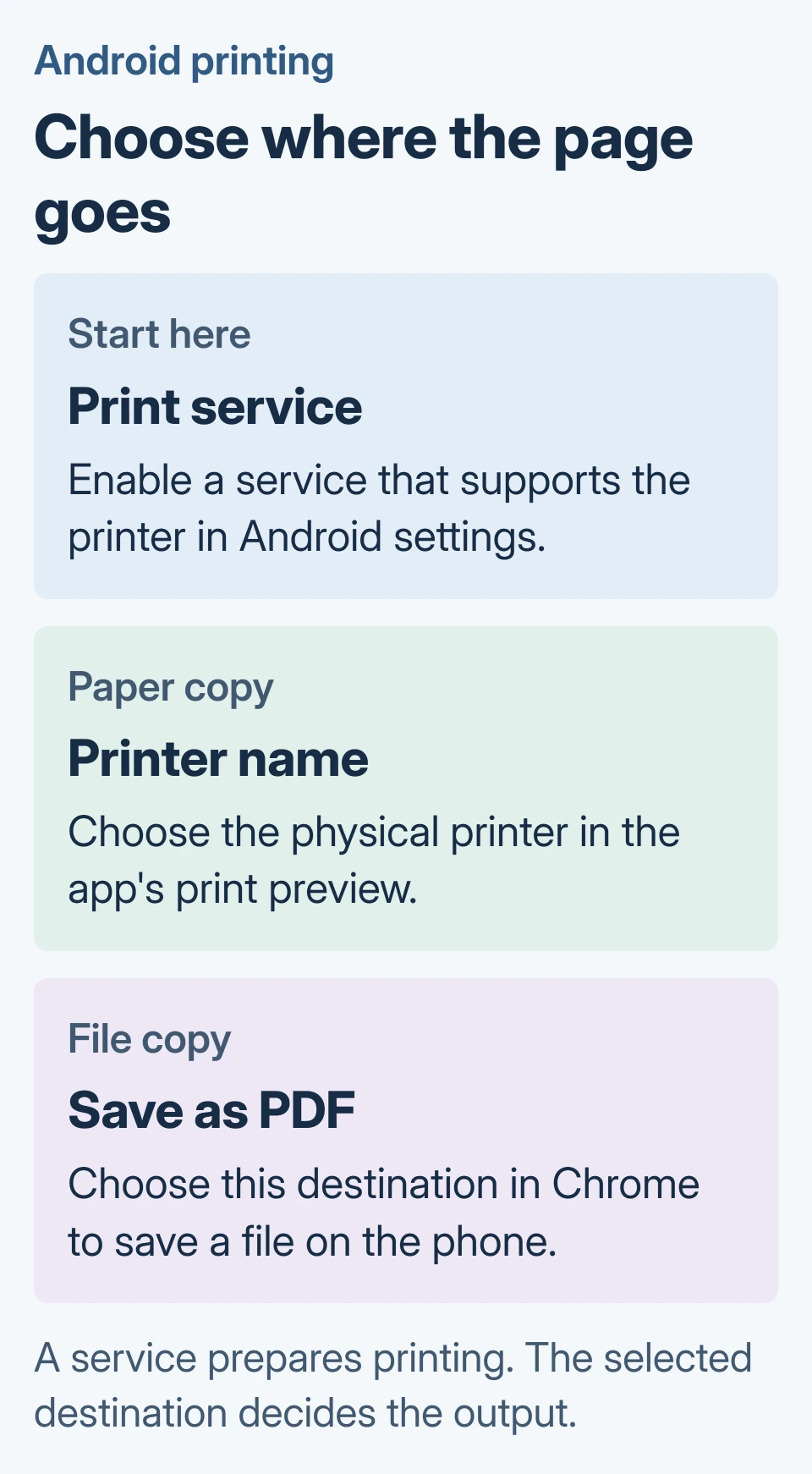
If the preview shows Save as PDF, the phone is set to create a file rather than a paper copy. Select the physical printer instead when the document needs to come out on paper.
Enable the phone's print service
A printer that has never joined the home network needs its wireless connection set up first. Keep its exact model name handy when choosing a service or checking compatibility.
The Pixel route is documented by Google. Other Android makers can place Printing elsewhere in Settings, so use the Settings search when that path is absent.
Status: Pixel printing and Chrome for Android controls checked against Google support on October 29, 2026. Menu placement varies by phone; no printer was tested.
- Open the Printing settings on the phone.
- Select the installed service, such as Default Print Service, and turn it on.
- If the required service is missing, tap Add service and choose one that supports the printer.
Mopria explains that Android's Default Print Service already supports Mopria-certified printers. Check the built-in service before installing another app.
For Mopria printing over a router, connect the phone and printer to the same network. A public hotspot or the phone's cellular connection is not a supported substitute.
An enabled service prepares Android to find supported printers. It does not send a document by itself. Return to the app containing the material to print.
Send a page from Chrome
Google's Chrome printing instructions give this sequence:
- Open the required page, image or file in Chrome.
- Tap More > Share > Print.
- Select the printer at the top of the preview.
- Expand the print settings with the down arrow and check the available choices.
- Tap Print when the destination and preview are correct.
Our recommendation is to send one short page first. Check the paper result before submitting a long document; a correct preview does not confirm which physical printer received it.
For a router-free connection, use the printer's Wi-Fi Direct setup. Follow its model-specific instructions rather than expecting every nearby printer to appear automatically.
Save a PDF or use another app
In Chrome's print preview, open the destination list and choose Save as PDF. Select the save location and finish with Save. Open that file afterward to check its contents before sharing it.
Google says some Android apps cannot print. For a short visible item, its suggested alternative is a screenshot. That captures the screen, so inspect the image carefully if the original content scrolls over several screens.
A document app with its own Print command may be a better choice for a multi-page file. Use the app's help if its Share menu does not offer printing.
Google states that Google Cloud Print was discontinued in January 2021. An old setup guide asking for that service cannot complete today's printing setup.
If the printer still never appears, give its manufacturer the printer model, Android version and service name. Those details establish whether that printer supports the chosen Android route.
The Short Version
Enable a compatible print service, open the file in an app that supports printing, and check the selected destination. Paper output needs a physical printer; PDF output needs a save location.

Isaac Smith is the founder and editor of PC Glance, a website that covers computers, laptops, and technology. He is a tech enthusiast and a computer geek who loves to share his insights and help his readers make smart choices when buying tech gadgets or laptops. He is always curious and updated about the latest tech trends.